

Summary: Salesforce doesn't include SMS messaging natively—you need a third-party integration or add-on. This guide covers how Salesforce SMS integration works, the three paths to enable it (Digital Engagement, API, AppExchange apps), and how to trigger automated texts from Salesforce Flows. Includes step-by-step setup for form-to-text automation that sends instant SMS when web leads submit. Last updated: January 2026.
SMS has a 98% open rate. Email sits at 20%.
Yet most Salesforce users still rely on email for lead follow-up, missing the fastest channel to reach prospects. The gap exists because Salesforce Sales Cloud and Service Cloud don't include SMS messaging natively.
The fix: integrate a third-party SMS platform that connects directly to Salesforce, logs every message to contact records, and triggers texts automatically from Salesforce Flows.
The best integrations go beyond basic texting. They let you automate SMS based on any Salesforce event—form submissions, stage changes, field updates, scheduled dates. When a prospect fills out your pricing form, they receive a personalized text within seconds. No manual intervention. No leads slipping through.
This guide covers everything you need to implement SMS automation in Salesforce.
What you'll learn:
☐ Why Salesforce doesn't include SMS natively (and what to do about it)
☐ Three paths to enable SMS in Salesforce
☐ How to trigger SMS from Salesforce Flows
☐ Form-to-text automation: instant SMS when leads submit
☐ Compliance requirements you can't ignore
☐ What to look for in a Salesforce SMS integration
Does Salesforce have built-in SMS?
No. Salesforce Sales Cloud and Service Cloud do not include SMS messaging in their base packages.
Salesforce offers two native add-ons for SMS:
Digital Engagement — A Service Cloud add-on that supports SMS, Facebook Messenger, and WhatsApp messaging. Requires Service Cloud license plus additional per-user fees. Primarily designed for customer service, not sales outreach.
Marketing Cloud MobileConnect — Part of Marketing Cloud for SMS campaigns and Journey Builder automation. Requires full Marketing Cloud implementation—significant cost and complexity for teams that just need basic SMS.
For most sales teams, neither option makes sense. Digital Engagement is service-focused. Marketing Cloud is overkill for transactional SMS and lead follow-up.
The practical solution: integrate a native AppExchange SMS app that works directly inside Sales Cloud, logs messages to standard objects, and triggers from Salesforce Flows.
Key takeaways:
- Salesforce Sales Cloud and Service Cloud don't include SMS natively
- Digital Engagement (Service Cloud add-on) and Marketing Cloud are Salesforce's native options
- Most sales teams use third-party AppExchange apps for cost-effective, sales-focused SMS
- Native apps integrate directly with Flows, eliminating the need for Marketing Cloud
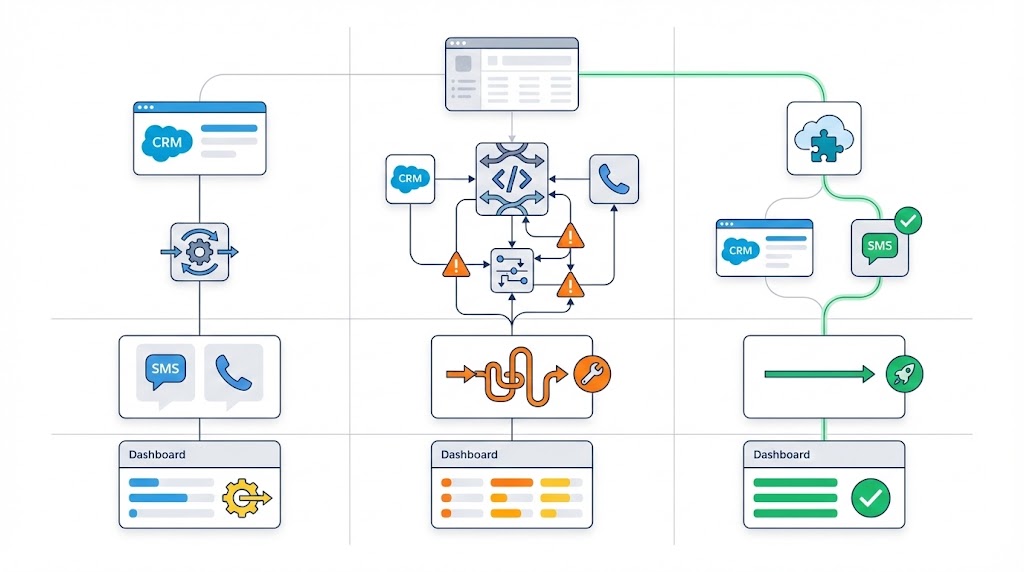
Three paths to enable SMS in Salesforce
You have three options for adding SMS to Salesforce. Each has tradeoffs.
Path 1: Salesforce Digital Engagement or Marketing Cloud
What it is: Salesforce's own SMS products—Digital Engagement for Service Cloud or MobileConnect for Marketing Cloud.
Pros:
- Native Salesforce product
- Full support from Salesforce
Cons:
- Digital Engagement requires Service Cloud license
- Marketing Cloud requires significant implementation investment
- Limited automation capabilities compared to specialized SMS apps
- Overkill for teams that just need sales SMS and basic automation
Best for: Enterprises already using Service Cloud for support or Marketing Cloud for campaigns.
Path 2: Custom API integration (Twilio, MessageBird)
What it is: Build custom SMS functionality using Twilio or another SMS API, connected via Apex code or middleware.
Pros:
- Maximum flexibility and customization
- Direct control over messaging infrastructure
- Can build exactly what you need
Cons:
- Requires developer resources for implementation
- Ongoing maintenance and updates
- No pre-built UI—you build everything from scratch
- Compliance features must be built manually
Best for: Organizations with development teams and highly custom requirements.
Path 3: Native AppExchange SMS apps
What it is: Pre-built SMS applications from the Salesforce AppExchange that install directly into your org. Examples include Aloware, Salesmsg, SMS Magic, 360 SMS, and Mogli.
Pros:
- Install in minutes, not months
- Pre-built UI embedded in Salesforce
- Flow integration for automation
- Compliance features included
- No developer resources required
Cons:
- Monthly subscription cost
- Feature set defined by the vendor
- Another vendor relationship to manage
Best for: Sales teams that want SMS automation without development overhead or Marketing Cloud complexity.
Comparison table:
Key takeaways:
- Three paths: Salesforce native (Digital Engagement/Marketing Cloud), custom API, or AppExchange apps
- AppExchange apps offer the fastest path for sales teams—minutes to install, no developers needed
- Custom API provides flexibility but requires ongoing development resources
- Most sales teams choose AppExchange apps for speed and pre-built Flow integration
How to trigger SMS from Salesforce Flows
The power of Salesforce SMS integration comes from automation. Instead of manually sending texts, you trigger them automatically based on CRM events.
Salesforce Flow is the automation backbone. When combined with an SMS app that supports Flow actions, you can send texts based on:
- Record creation (new Lead, new Contact, new Case)
- Field updates (stage change, status update, assignment change)
- Time-based triggers (X days after creation, Y hours before appointment)
- Form submissions (web-to-lead, screen flows)
- Custom conditions (any combination of the above)
.jpg)
Basic Flow structure for SMS:
- Trigger: Define when the Flow runs (record created, field changed, scheduled)
- Conditions: Filter which records qualify (lead source = "Website", status = "New")
- Action: Send SMS using the app's Flow action
- Logging: Message automatically logs to the contact record
Example: New lead instant response
Trigger: When a Lead is created with Source = "Website" Condition: Phone field is not blank Action: Send SMS — "Hi {!Lead.FirstName}, thanks for reaching out! What questions can I answer about [product]?" Result: Every web lead gets a text within seconds of form submission
Example: Appointment reminder sequence
Trigger: When Event is created with Type = "Demo" Actions:
- Immediately: Send confirmation SMS
- 24 hours before: Send reminder SMS
- 2 hours before: Send final reminder with meeting link
Example: Stalled opportunity follow-up
Trigger: When Opportunity stage = "Proposal Sent" Condition: Stage unchanged for 3 days Action: Send SMS — "Hi {!Contact.FirstName}, wanted to check if you had any questions about the proposal?"
What to verify in your SMS app:
Not all SMS apps support full Flow integration. Before choosing, confirm:
- Can you trigger SMS from any Flow type (record-triggered, scheduled, screen)?
- Does the app provide native Flow actions (not just workarounds)?
- Can you use merge fields from any Salesforce object?
- Do inbound SMS replies trigger Flows?
- Does the app support Flow-based opt-out handling?
Key takeaways:
- Salesforce Flow triggers SMS based on any CRM event—creation, updates, time, conditions
- Native Flow actions (not workarounds) ensure reliable automation
- Common automations: instant lead response, appointment reminders, stalled deal follow-up
- Verify your SMS app supports Flow actions before purchasing
Form-to-text: Instant SMS when leads submit
Speed-to-lead determines close rates. Research shows 78% of deals go to the vendor that responds first. Yet most teams take hours—sometimes days—to follow up on web form submissions.
Form-to-text automation closes this gap. When a prospect submits a form, they receive a personalized SMS within seconds. No waiting for a rep to see the notification. No leads sitting in a queue.
How form-to-text works with Salesforce Flows:
Step 1: Set up a Salesforce Screen Flow for your web form
Use Salesforce's standard Flow Builder to create a screen flow that captures form submissions. Map form fields to your Lead object—name, email, phone, company, inquiry type.
No custom code required. Standard drag-and-drop configuration.
Step 2: Connect your SMS app's action to the Flow
Add an SMS action to the Flow that triggers after the Lead record is created. The action sends a personalized message using data from the submitted form.
Example message: "Hi {!Lead.FirstName}, thanks for your interest in [product]! I'm {!Lead.Owner.FirstName} from [company]. What questions can I answer?"
Step 3: Configure message personalization
Customize the SMS content using any field from the form:
- First name for personalization
- Product interest for relevance
- Lead source for attribution
- Custom fields for specific use cases
Step 4: Track and manage replies
Every SMS response logs to the Lead record automatically. Reps see the conversation history in Salesforce and can continue texting from the same thread.
No toggling between platforms. No middleware. No email-to-SMS hacks.
Form-to-text use cases:
Why this matters for lead conversion:
- Response time: Seconds instead of hours
- Channel preference: 45% SMS response rate vs 2-3% email
- Conversation starter: Opens two-way dialogue immediately
- Rep efficiency: Automation handles first touch; reps handle replies
Aloware's form-to-text for Salesforce Flows delivers this exact workflow. When a visitor submits your web form, a personalized SMS sends instantly using your business number. Replies log to the Lead record with full conversation history. Reps pick up the conversation without leaving Salesforce.
Key takeaways:
- 78% of deals go to the first responder—speed-to-lead matters
- Form-to-text sends SMS within seconds of form submission
- Uses standard Salesforce Screen Flows—no custom code required
- Personalize messages using any form field data
- Aloware provides native form-to-text inside Salesforce Flows
Compliance requirements you can't ignore
SMS marketing is regulated. Ignoring compliance creates legal exposure, blocked messages, and damaged sender reputation.
The regulations that matter:
TCPA (Telephone Consumer Protection Act)
- Requires prior express consent before sending marketing texts
- Written consent required for automated marketing messages
- Violations can result in $500-$1,500 per message in penalties
10DLC (10-Digit Long Code) Registration
- Required for business SMS in the US since 2023
- Register your brand and use case with carriers
- Unregistered numbers face filtering, throttling, and blocking
GDPR (General Data Protection Regulation)
- Applies to contacts in the EU
- Requires explicit consent and easy opt-out
- Data processing agreements required with SMS vendors
What your SMS integration must handle:
Red flags in SMS integrations:
- No built-in opt-out handling
- Manual 10DLC registration process
- Messages not logged to Salesforce records
- No consent tracking fields
- Unable to set quiet hours
Aloware compliance features:
- Built-in consent management with custom fields
- Automatic opt-out processing on STOP keywords
- 10DLC registration handled through the platform
- All messages logged to Salesforce activity history
- Time-zone aware sending to respect quiet hours
Key takeaways:
- TCPA requires consent before marketing texts—violations cost $500-$1,500 per message
- 10DLC registration is mandatory for US business SMS since 2023
- Your SMS integration should handle opt-out, consent tracking, and registration
- Verify compliance features before purchasing any SMS app
What to look for in a Salesforce SMS integration
Not all SMS apps integrate equally. Surface-level integration means basic texting. Deep integration means automation, logging, and workflow efficiency.
.jpg)
Must-have features:
1. Native Salesforce Flow actions
The app should provide native Flow actions—not workarounds that create Task records or use email-to-SMS hacks. Native actions let you trigger SMS from any Flow type with full merge field support.
2. Bidirectional message logging
Every outbound and inbound message should log to Salesforce contact records automatically. Reps need full conversation history without switching platforms.
3. Two-way messaging
Prospects should be able to reply. Replies should appear in Salesforce instantly, attributed to the correct contact record. One-way SMS is broadcast; two-way SMS is conversation.
4. Embedded interface
The SMS interface should live inside Salesforce—not a separate tab or external website. Reps should send texts without leaving the contact record.
5. Compliance automation
Built-in opt-out handling, consent tracking, and 10DLC registration support. Compliance shouldn't require manual processes.
6. Works with voice
The best integrations combine SMS and calling on the same platform. Same phone number. Same interface. Same contact record. Unified communication history.
Questions to ask vendors:
- Does the app provide native Salesforce Flow actions?
- Do messages log to standard Activity objects or custom objects?
- Can I send SMS from Leads, Contacts, Accounts, and custom objects?
- How does the app handle opt-out requests?
- Does the vendor handle 10DLC registration?
- Can I use the same phone number for SMS and calls?
Why Aloware for Salesforce SMS integration:
Aloware provides native SMS integration for Salesforce with full Flow support, bidirectional logging, and combined calling + SMS from the same platform.
What Aloware includes:
- Salesforce Flows integration: Trigger SMS/MMS from any Flow type
- Form-to-text automation: Instant SMS when web leads submit
- Embedded SMS Messenger: Send and receive texts inside Salesforce via Open CTI
- Bidirectional sync: Messages log to Salesforce Tasks automatically
- Two-way messaging: Replies attributed to correct contact record
- Same number for calls and SMS: Unified communication from one phone number
- Compliance features: Opt-out handling, consent tracking, 10DLC support
- Power dialer integration: Combined calling + SMS workflows
Unlike SMS-only apps, Aloware provides a complete contact center solution. Your team makes calls, sends texts, and manages conversations from one interface inside Salesforce.
Key takeaways:
- Native Flow actions are essential—avoid workarounds
- Bidirectional logging ensures complete conversation history
- Two-way messaging enables real conversations, not just broadcasts
- Combined calling + SMS on one platform eliminates tool switching
- Aloware provides SMS, calling, and power dialer in one Salesforce-native solution
How to set up Aloware SMS for Salesforce Flows
Setup takes under 30 minutes. No developer resources required.
Prerequisites:
- Salesforce Enterprise, Unlimited, or Developer edition (API access required)
- Aloware account with xPro + AI plan
- System admin access in both Salesforce and Aloware
- Active Aloware phone number provisioned for messaging
Step 1: Install Aloware from AppExchange
Navigate to the Salesforce AppExchange and search for Aloware. Click "Get It Now" and follow the installation prompts. Choose Production or Sandbox environment.
Installation completes in under 10 minutes.
Step 2: Connect Aloware to Salesforce
From Aloware admin settings, select Salesforce integration. Complete OAuth authentication to connect your Salesforce org.
The connection establishes bidirectional sync for Contacts, Leads, and Accounts.
Step 3: Configure SMS settings
In Aloware:
- Verify your phone number is enabled for SMS
- Create message templates for common use cases
- Set up compliance preferences (opt-out keywords, consent tracking)
Step 4: Add SMS action to your Flow
In Salesforce Flow Builder:
- Create or edit your Flow
- Add an Action element
- Select the Aloware SMS action
- Configure recipient (phone field from record)
- Configure message content (static text + merge fields)
- Save and activate the Flow
Step 5: Test the automation
Create a test Lead or Contact that triggers your Flow. Verify:
- SMS sends within seconds
- Message content includes correct merge field values
- Message logs to Salesforce activity history
- Reply handling works correctly
Step 6: Expand use cases
Once basic automation works, build additional Flows:
- Appointment reminders
- Stalled deal follow-up
- Post-call SMS confirmation
- Event registration confirmation
Frequently Asked Questions
Can you send SMS from Salesforce?
Yes, but not natively. Salesforce Sales Cloud and Service Cloud don't include SMS. You need either Salesforce Digital Engagement (Service Cloud add-on), Marketing Cloud MobileConnect, or a third-party AppExchange app like Aloware. AppExchange apps are the most practical option for sales teams—they install in minutes and integrate with Salesforce Flows for automation.
How do I automate SMS in Salesforce?
Use Salesforce Flows combined with an SMS app that provides native Flow actions. Create a Flow that triggers on your desired event (record creation, field update, scheduled time), add the SMS action, configure the message with merge fields, and activate. The Flow sends texts automatically without manual intervention.
What is the best SMS app for Salesforce?
The best app depends on your needs. For sales teams that need combined calling + SMS with power dialer capabilities, Aloware provides the deepest integration. For SMS-only use cases, options include Salesmsg, SMS Magic, and 360 SMS. Evaluate based on Flow integration depth, compliance features, and whether you need voice calling alongside SMS.
How much does Salesforce SMS integration cost?
Costs vary by approach. Salesforce Digital Engagement requires Service Cloud plus per-user fees. Marketing Cloud requires significant implementation investment. AppExchange apps typically cost $20-50/user/month. Aloware starts at $30/user/month with SMS, calling, and power dialer included.
Is SMS from Salesforce TCPA compliant?
SMS compliance depends on your integration and processes—not Salesforce itself. You need prior consent before sending marketing texts, must honor opt-out requests immediately, and should register for 10DLC. Choose an SMS app with built-in compliance features including consent tracking, automatic opt-out processing, and 10DLC registration support.
Can I use the same number for calls and SMS in Salesforce?
With most SMS-only apps, no—you'd need separate solutions for calling and texting. Aloware provides combined calling + SMS from the same phone number, logged to the same Salesforce contact record. This creates unified communication history and avoids confusing prospects with multiple numbers.
How do I trigger SMS when a form is submitted?
Create a Salesforce Screen Flow for your web form that creates a Lead record on submission. Add an SMS action (from your SMS app) to the Flow that triggers after Lead creation. The SMS sends instantly using form field data for personalization. Aloware's form-to-text feature provides this exact workflow with native Flow integration.
.png)

Ruby Kootval is Head of Product Marketing at Aloware. She has 12 years in digital marketing, including 8 in B2B SaaS and 5 in telecom, and writes about AI voice agents, dialers, CRM integrations, and contact center operations.
.webp)