

TL;DR
To get past iOS 26 call screening on a live call, do the one thing the screen is built to reward: identify yourself. When the screener asks for your name and reason, say them in one clear sentence ("Hi, this is [Name] from [Company] about [specific reason]") and let it ring. The phone rings the recipient after about 30 seconds, and they decide. The calls that die are the silent ones, which is exactly why robocallers and auto-dialers get filtered.
- iOS 26's call screening (the "Ask Reason for Calling" setting) silently answers calls from numbers you haven't saved and asks the caller to state their name and reason before the recipient's phone rings, per Apple Support.
- It's opt-in and off by default, so it doesn't touch every call. But the recipients who turn it on tend to be the high-value ones who already screen aggressively.
- A human can introduce themselves on one call. You can't do that by hand on 200 dials a day, and predictive or parallel dialers can't respond to the screener at all, so high-volume, generic outbound takes the hit.
- The scalable answer is to not get screened in the first place: trusted, branded caller identity the recipient recognizes, an SMS that warms the call before it rings, and human, context-rich dialing. That's the Pickup Stack.
- STIR/SHAKEN attestation is signed at your carrier (the originating service provider), not your dialer. Branded display and "Spam Likely" labels run on two different carrier systems, so branding alone doesn't clear the label.
Apple changed the rules of the phone in iOS 26, and outbound sales felt it first. The prospect's iPhone now answers for them, asks your rep who's calling and why, and only rings the prospect once your rep responds. Reps who freeze, hang up, or let the dialer sit in silence never reach a human at all.
This guide does two things. First, the honest, human way to get past the screen on a live call. Then the part that actually matters for a team: how to keep connecting when you're dialing at volume and "just introduce yourself on every call" stops being something a person can do by hand.
What is iOS 26 call screening, and why are business calls getting screened?
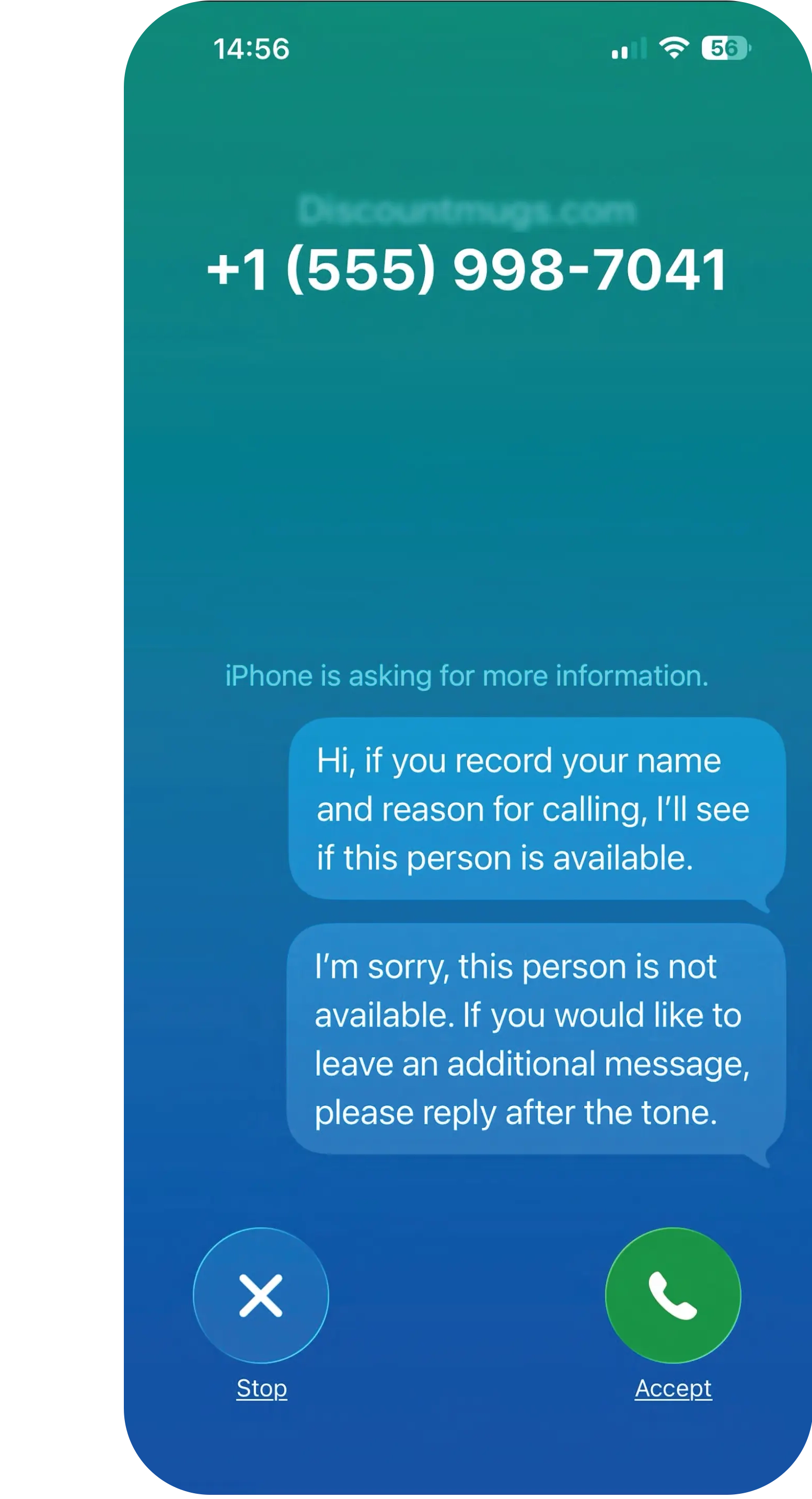
iOS 26 call screening is a built-in iPhone feature that silently answers calls from numbers you haven't saved and makes the caller identify themselves before your phone rings. Apple's setting is Screen Unknown Callers, and the screening mode is "Ask Reason for Calling." When it's on, the iPhone answers an unknown call in the background, asks the caller who they are and why they're calling, shows that response on the screen, and only then rings the recipient, who decides whether to pick up. Per Apple's support documentation, the caller "is asked why they're calling before your phone even rings."
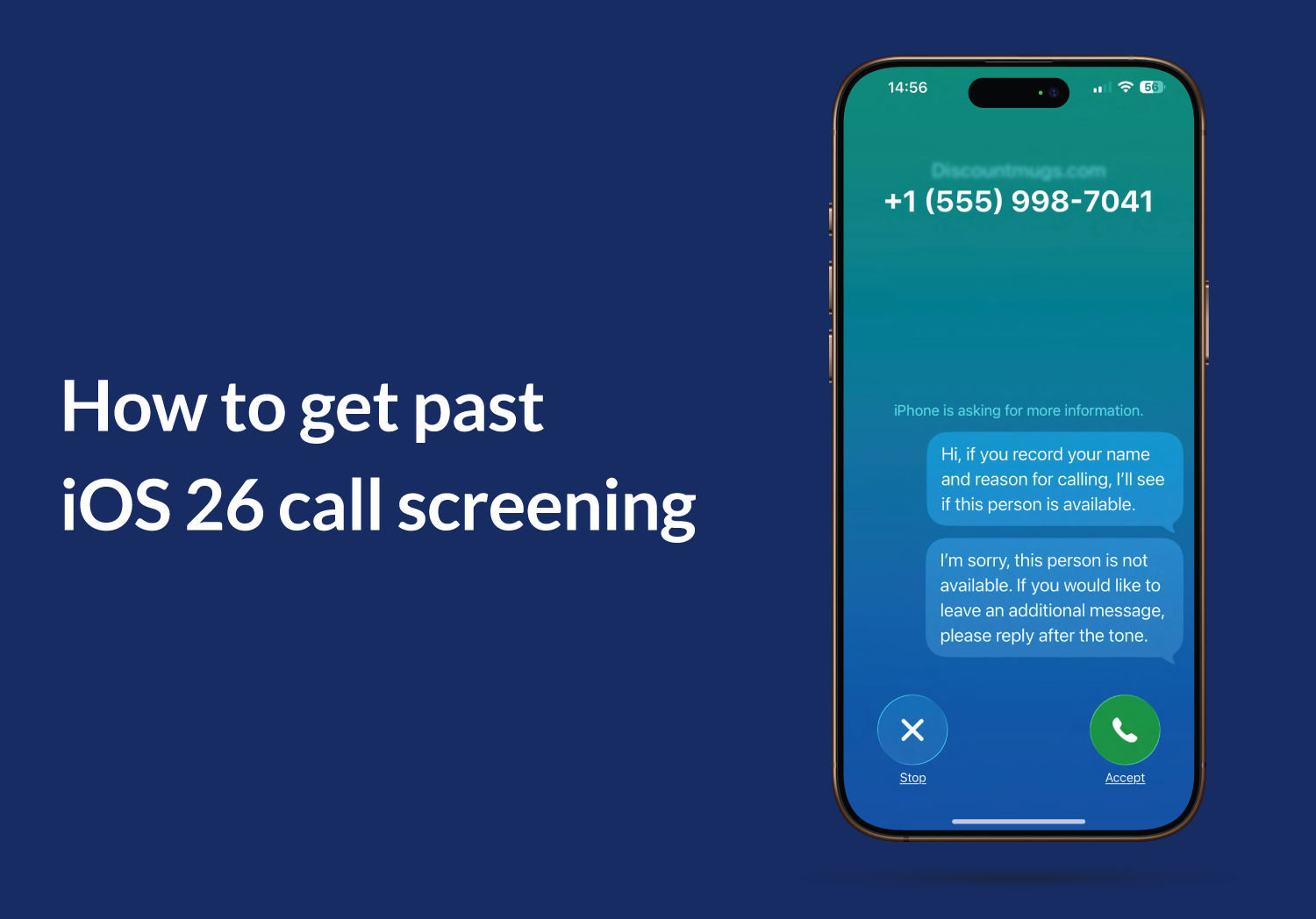
On the caller's side, the screen is one automated sentence: "Hi. If you record your name and reason for calling, I'll see if this person is available." That is the whole prompt, and it is the line reps and customers now search for word for word. Once you answer, the iPhone says "Thanks. Please stay on the line," and the recipient reads your answer on their screen in real time before choosing to pick up. If they don't, the screener says "I'm sorry. This person is not available. If you would like to leave an additional message, please reply after the tone." Regal's developer documentation, which tells its AI calling agents how to handle this screener, quotes all three lines. It lists the voicemail branch as the most common outcome.
Two facts shape everything that follows. First, it's opt-in and off by default: the recipient has to switch it on, so it doesn't screen every call you make. Second, as Hiya notes, call screening "is not spam protection." It doesn't block or evaluate spam; it just hands the recipient more information before they answer. Screening and the carrier "Spam Likely" label are two different systems.
So why do business calls get screened? Not because of what you're going to say. They get screened because they arrive as an anonymous, unverified, out-of-area number, and anonymous is exactly what an unknown-caller screen is built to filter. That's the same problem branded calling and number reputation were built to solve, which we break down in how to lawfully increase pickup rates.
Key takeaway: iOS 26 call screening isn't spam blocking and isn't on for everyone. It screens unknown numbers and asks them to identify themselves, so a business call gets caught by what the number looks like, not by what the rep is about to say.
How do you get past iOS 26 call screening on a live call?
Here's the answer the query is really asking for, and it's the opposite of a trick: when the screener asks for your name and reason, tell it. Identify yourself the way you would to a receptionist, clearly and in one sentence, then let the call ring through. This is the legitimate "identify yourself" path (not a workaround), and it's exactly why the screen filters robocallers: a dialer with nothing to say stays silent, and silence ends the call.
The steps are simple. The discipline is in the wording.
- Wait for the prompt. When you dial a screened number, the iPhone answers silently and asks you to state your name and reason. Don't talk over it and don't panic at the pause. That pause is the screen, not a dead line.
- State your name and company. Lead with a real human name and where you're from: "Hi, this is Maria from Northgate Insurance." A name and a company read as a person; "Hello? Hello?" reads as a robocall.
- Give the specific reason in the same breath. Add the one concrete thing this call is about: a real estate agent says "about the three-bedroom listing you saved on Oak Street," not "just checking in." Specific and account-relevant beats generic every time, because that reason is what the recipient sees on their screen before they decide.
- Let it ring, don't hang up. After you respond, the recipient's phone rings (industry testing of the feature reports the phone rings after about 30 seconds even without further input). Hanging up at the prompt guarantees the call dies; staying on it gives the prospect a name and a reason to answer.
Print your current opener and test it against that prompt. If the first ten words don't say exactly who you are and why you're calling, the screen will eat it. "Hi, this is [Name] checking in" is a dead opener, so scrap it. "Hi, this is Sam from Aloware about your demo request" survives the screen because it answers the screen's two questions before the prospect ever picks up.
Key takeaway: You get past the screen by introducing yourself, not by beating it: name, company, and one specific reason in a single sentence, then let it ring. Silence is what gets filtered, which is why the screen catches robocallers and lets real people through.
Why doesn't "just introduce yourself" scale for a sales team?
One rep on one call can nail that introduction every time. Now multiply it. A working SDR runs well over a hundred dials a day, and nobody delivers a crisp, account-specific, screen-ready introduction on every single one. Fatigue, bad timing, and the half-second of silence at the prompt all conspire against it. The honest, human answer above is real, but it's a one-call answer, not an operating model.
It gets worse the more you automate. A predictive or parallel dialer (the kind that fires multiple lines at once and connects a rep only after a human says "hello") has no rep on the line when the screener picks up. There's no one to state a name and reason, so the screened call gets nothing but dead air and ends. The exact automation teams reach for to hit volume is the automation the screen filters most reliably. Aloware doesn't build parallel or predictive dialing on purpose: that dead-air and abandoned-call pattern is what erodes number reputation and gets numbers flagged in the first place. (More on our stance in the Pickup Stack breakdown.)
How big is the hit? It's genuinely debated, and you should be skeptical of any single number. One outbound analysis warns that reps "doing 50–100 cold calls a day" with high-volume, generic methods can see connect rates "drop by 30–60%," while teams that warm leads with a text first and use branded caller ID keep connecting (SureConnect's read on the feature). Others argue the real-world impact is small: it's opt-in, off by default, the setting is buried, and the phone still rings after about 30 seconds, so plenty of calls are never affected. Both can be true. Screening is off-by-default, so it doesn't touch every call, but where it's on, the calls it punishes hardest are the anonymous, silent, high-volume ones. The takeaway isn't a percentage. It's a direction: generic spray gets screened, recognized identity gets through. As we've put it before, iOS 26 didn't kill cold calling. It killed lazy cold calling.
Settle it for your own team by measuring conversations instead of pickups. The iPhone answers a screened call itself, so a dialer report that counts any answered call flatters you. Our own data shows how wide that gap runs. Across 55,523,625 outbound dials on Aloware between September 1, 2025 and August 31, 2026, 80.9% logged some talk time, but only 19.94% became a conversation of 30 seconds or more. (The 30-second floor is our definition of a connected call; test and demo accounts are excluded.) Track that 30-second rate by number and by week. Screening depends on the recipient's settings, so it pulls every number down together. A drop on a few specific numbers while the rest hold points to reputation, and the fix for that is in how to avoid being flagged as Scam Likely.
Key takeaway: The introduction works on one call and falls apart at volume, and a predictive or parallel dialer can't respond to the screener at all. The scalable move isn't dialing harder through the screen; it's not getting screened in the first place.
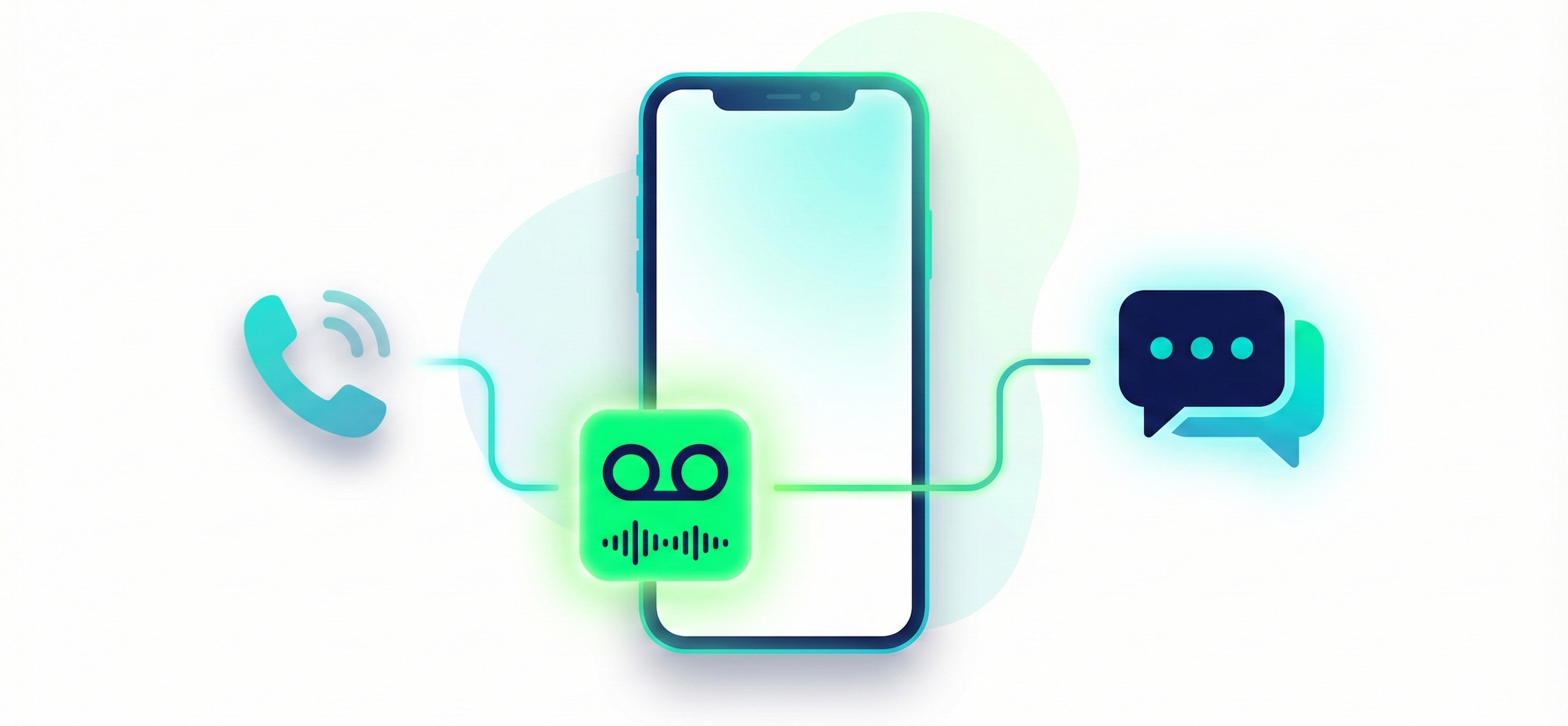
The scalable fix: don't get screened, get recognized (the Pickup Stack)
If "introduce yourself on every call" can't scale, the goal flips: make the call recognizable before it's answered, so the screen has less to screen. Three things, working together, do that. We call the combination the Pickup Stack, and it's the practitioner's answer to a screen that reads your number before it hears your rep.
1. Trusted, branded caller identity
The single most direct way to clear an identity screen is to show up as a recognized identity. Branded calling registers your business so your name (and on supported carriers, your logo) displays on the call, so the recipient sees who's calling before the screen ever has to ask. The effect is measurable on the underlying answer rate: in a Twilio 90-day study across roughly 720,000 calls, branded calls were answered 62% of the time versus 20% for un-branded calls, more than tripling pickup (Twilio, Jeff Eiden, Feb 2024; Twilio is Aloware's carrier). A recognized name is a call that often doesn't get screened at all.
2. Warm the call with SMS first
A text before the dial turns a cold ring into an expected one. A short, specific message ("Hi Sarah, this is Sam from BrightLeaf Solar about your panel quote, calling in a minute") means that when your name hits the screener prompt, it already matches something the prospect just read. The screen stops being a gate and becomes a confirmation. This is the same speed-and-context logic behind warming inbound leads with a text the moment they raise their hand.
Timing works the same way. In the same year of Aloware data, dials to a contact created 5 to 59 minutes earlier connected at 31.58% (346,985 of 1,098,783), against 18.69% for dials to contacts more than a day old. Created means the record was created, which for an imported list is the import time, and this is a correlation across a year of calls rather than a controlled test. It still points one way: the fresher the record, the more often the call connects. Call new leads inside the hour, and text first when the call is going to come later.
3. Human, context-rich dialing, not spray
Recognition only holds if the dialing behind it stays clean. Human-paced dialing (one quality call at a time, with the rep present and the context loaded) keeps your numbers from generating the dead-air and abandoned-call patterns that train carriers to flag you. A power dialer with CRM context on every call is the opposite of a parallel dialer firing into silence: it's the dialing model the screen rewards, paired with the reputation work that keeps your numbers trusted. You can monitor your number reputation with NumberGuard so flags get caught before they kill your connect rate, and the full mechanics are in the complete branded calling guide for 2026.
Key takeaway: The scalable get-past isn't a script you repeat 200 times. It's branded identity the prospect recognizes, an SMS that warms the call, and human dialing on clean numbers, so most calls never hit the screen as "unknown" at all.
The telecom mechanics most posts get wrong
Two mechanics decide whether your number reads as trusted, and most content gets both backwards. Get them right and the Pickup Stack makes sense; get them wrong and any telecom buyer stops reading.
STIR/SHAKEN attestation is signed by your carrier, not your dialer. STIR/SHAKEN is the standard that lets carriers verify a call really comes from who it claims to. The signing happens at the originating service provider, the carrier that puts your call onto the network, not at your dialer or your CRM. When your outbound number originates with full A-level attestation and is registered properly, terminating carriers can validate the call instead of treating it as suspect. The dialer originates the call; the carrier attests and signs it.
Branded display and spam labeling are two separate systems. Branded calling puts your business name on the screen. Spam labeling scores your number's reputation from call patterns and complaints. They run in parallel and don't override each other: a branded number with a bad reputation still gets flagged "Spam Likely," and a clean number with no branding registered shows up as just a number. The full fix needs both: branded display registered, and number reputation actively managed so the label never gets applied in the first place. Branding improves the odds your call is answered; it does not clear the label by itself.
Key takeaway: Your carrier signs STIR/SHAKEN, not your dialer, and branding alone doesn't remove a "Spam Likely" label. Trusted caller identity takes verified attestation and clean reputation together, not one or the other.
How Aloware keeps your calls connecting past the screen
Everything above is the strategy. Aloware is how a team runs it without stitching three vendors together. The pieces map directly to what the screen reads:
- Branded Calling registers your business identity so your name shows on the call the prospect is screening: recognition before the screen has to ask.
- NumberGuard monitors your outbound numbers across carrier reputation signals and flags trouble before a number gets labeled "Spam Likely."
- Local Presence matches your outbound area code to the prospect's, so the call reads as local instead of distant.
Together these three are the Pickup Stack: branded display, number reputation, and local presence working as one system on attested origination. No parallel dialer and no branding-only tool does all three at once. A practical note on how it's sold: the Pickup Stack is an add-on layer priced separately from your platform seat, not bundled into a plan. That's deliberate. Keeping calls answered over time takes continuous reputation work, and it's essential if you want the results to last. The seat runs your power dialer and CRM; the Pickup Stack keeps your calls getting answered.
Want to see it on your own outbound? Book a 20-minute demo and we'll show Branded Calling, NumberGuard, and Local Presence on a live call.
Key takeaway: The Pickup Stack turns an anonymous number into a recognized identity, the kind of call iOS 26 screening reliably lets through, at the volume a team actually dials.
The Bottom Line
On a single call, getting past iOS 26 screening is honest and simple: say who you are and why you're calling, and let it ring. At the scale a real team dials, the answer isn't to deliver that introduction a thousand times a day. It's to arrive as a recognized, branded, locally-relevant identity on clean numbers, so most calls never read as "unknown" at all. iOS 26 didn't kill cold calling. It killed lazy cold calling. Engineer your identity, and you won't be another anonymous number the screen filters. You'll be the call they answer.
See the Pickup Stack on your own calls
Book a 20-minute demo and we'll show Branded Calling, NumberGuard, and Local Presence running on a live outbound call, so your team's calls survive the screen instead of dying in it.
Frequently Asked Questions
How do you get past iOS 26 call screening on a sales call?
Identify yourself. When the iOS 26 screener asks for your name and reason, state them clearly in one sentence — "Hi, this is [Name] from [Company] about [specific reason]" — and let the call ring. The recipient sees your response on their screen and decides whether to pick up, and the phone rings after about 30 seconds. This is the legitimate way past the screen, not a trick: it's the same thing that filters robocallers, because a silent auto-dialer has nothing to say and the call ends. Hanging up at the prompt guarantees the call dies.
What do you say when iOS 26 asks for your name and reason for calling?
Say a real human name, your company, and one specific reason, in a single sentence: "Hi, this is Maria from Northgate Insurance about the renewal quote you requested Tuesday." Lead with the name and company so you read as a person, not a robocall, and make the reason concrete and account-relevant rather than "just checking in." That reason is what the recipient sees on their screen before they decide to answer, so specificity is what earns the pickup. Test your opener: if the first ten words don't say exactly who you are and why you're calling, rewrite them.
Is getting past iOS 26 call screening a trick or workaround?
No. The reliable way past the screen is to identify yourself honestly — your name, your company, and why you're calling — exactly as you would to a receptionist. There's no trick that beats the screen, and trying to behave like a robocaller to slip through just gets your number flagged. The screen is designed to filter callers who won't or can't identify themselves, which is why silent auto-dialers get cut off. A clear, specific introduction isn't a workaround; it's the legitimate answer the screen is asking for.
Does iOS 26 call screening end the call if the caller stays silent?
If the caller never responds, the screening interaction goes nowhere and the call effectively dies at the prompt — which is precisely how the feature filters robocalls and silent auto-dialers. For a real caller who responds, the recipient's phone rings (industry testing reports the phone rings after about 30 seconds even without further input) and the recipient decides whether to pick up. The practical rule for a rep: don't hang up at the pause and don't talk over the prompt — wait, state your name and reason, and let it ring through.
Why are my sales calls getting screened on iOS 26?
Not because of your pitch — because of how your number looks before you say anything. iOS 26's "Ask Reason for Calling" screens calls from numbers the recipient hasn't saved, so an anonymous, unverified, or out-of-area business number gets caught regardless of your offer. It's opt-in and off by default, so it doesn't screen every call, but the recipients who enable it tend to be the ones who already screen aggressively. The fix is to arrive as a recognized identity — registered branded caller ID, clean number reputation, and a local area code — so the call reads as legitimate before the screen has to ask.
Can a predictive or parallel dialer get past iOS 26 call screening?
No — and that's the core problem with high-volume automation against the screen. A predictive or parallel dialer connects a rep only after a human answers, so when the iOS 26 screener picks up, there's no rep on the line to state a name and reason. The screened call gets dead air and ends. That dead-air pattern is also exactly what erodes number reputation and gets numbers flagged "Spam Likely" in the first place. The scalable answer isn't dialing harder through the screen; it's human, context-rich dialing on branded, reputation-managed numbers so the call rarely reads as "unknown" at all.
How do outbound teams keep connecting at volume after iOS 26?
Stop relying on a per-call introduction nobody can deliver a hundred times a day, and make calls recognizable before they're answered. Three things together do that: register branded caller ID so your name shows on the screen, warm the call with a short, specific SMS so your name matches something the prospect just read, and dial human-paced on clean numbers so reputation stays intact. Keep number reputation monitored so flags get caught early. The goal is to not get screened in the first place — recognized identity gets through, anonymous spray gets filtered.
Does branded calling stop the "Spam Likely" label?
No. Branded display and spam labeling run on two separate carrier systems. Branded calling puts your business name on the screen; spam labeling scores your number's reputation independently from call patterns and complaints. A branded number with a poor reputation can still show "Spam Likely." To reliably avoid the label you need both: registered branded display and active number-reputation management that catches flags before they're applied. Branding improves the odds your call is answered, but it doesn't override a bad reputation. Separately, STIR/SHAKEN attestation is signed at your carrier — the originating service provider — not at your dialer.
.png)

Ruby Kootval is Head of Product Marketing at Aloware. She has 12 years in digital marketing, including 8 in B2B SaaS and 5 in telecom, and writes about AI voice agents, dialers, CRM integrations, and contact center operations.