


Summary: This guide covers every feature of Aloware's native Salesforce integration, including bidirectional sync, power dialer, SMS automation, and Salesforce Flows. Written for sales operations managers and RevOps teams evaluating Aloware for their Salesforce-connected tech stack. Updated January 2026.
Aloware's Salesforce integration launched as a fully native connection in March 2025, replacing the previous iPaaS middleware solution. The integration connects your contact center directly to Salesforce without third-party dependencies, enabling bidirectional data sync, automated call and SMS logging, and workflow automation through Salesforce Flows.
This guide walks through every feature, configuration option, and use case so you can evaluate whether Aloware fits your Salesforce environment.
What makes Aloware's Salesforce integration different
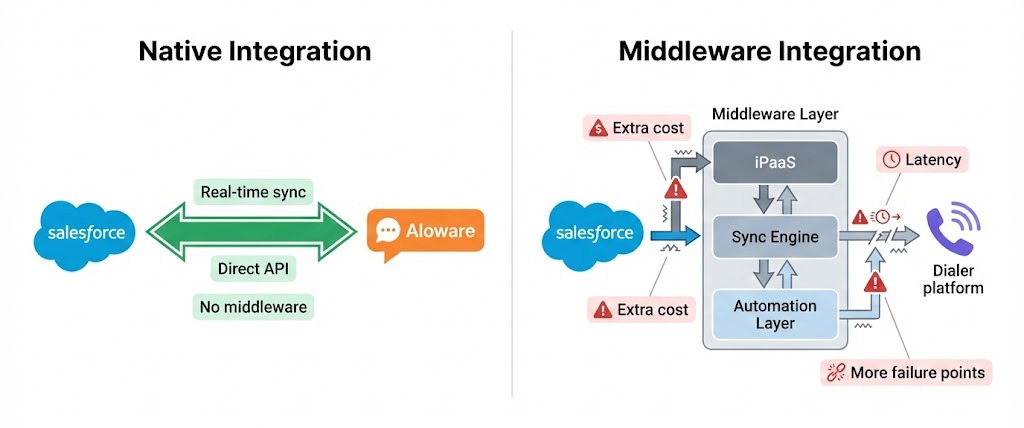
Aloware connects to Salesforce natively through direct integration rather than routing data through middleware platforms like Prismatic, Workato, or Tray.io. This architecture means faster sync times, fewer points of failure, and no additional iPaaS subscription costs.
Core integration capabilities:
| Capability | What it does |
|---|---|
| Bidirectional Contact Sync | Contacts, Leads, and Accounts sync both directions in real time |
| Automated Call Logging | Every call logs to Salesforce Tasks with duration, disposition, and recording link |
| SMS/MMS Logging | Text messages sync to Salesforce with full conversation history |
| CTI Integration | Make and receive calls directly inside the Salesforce interface |
| Power Dialer | Run calling campaigns from imported Salesforce list views |
| Salesforce Flows | Trigger automated SMS from any Salesforce workflow |
| Field Mapping | Map Default Salesforce field to Aloware contact properties |
Key Takeaway: Native integration eliminates middleware costs and complexity. Your data flows directly between Aloware and Salesforce without third-party routing.
Requirements before you start
Before connecting Aloware to Salesforce, confirm your accounts meet these requirements:
Salesforce requirements:
- Salesforce Enterprise, Unlimited, or Developer Edition (API access required)
- Compatible with Sales Cloud, Service Cloud, or both
- Admin permissions: Manage Installed Packages, Create Connected Apps, Manage API Access
- Read/Write access to Leads, Contacts, Accounts, and Activities
Aloware requirements:
- Active Aloware account on xPro + AI plan
- System admin access in Aloware
- Matching email addresses between Salesforce and Aloware users
Technical requirements:
- Chrome, Firefox, or Edge browser (latest version)
- Pop-up blockers disabled during authentication
- Access to Salesforce AppExchange via Trailblazer account
Key Takeaway: You need Salesforce Enterprise edition or higher for API access. Aloware requires the xPro + AI plan for full Salesforce integration features.
How to set up the integration (under 30 minutes)
The setup process involves installing the Aloware package from AppExchange, authenticating via OAuth, and configuring your sync preferences.
Step 1: Install the Aloware package
- Navigate to Settings > Integrations > CRM Integrations in Aloware
- Select Salesforce and choose your environment (Production or Sandbox)
- Click Install Salesforce Package to open AppExchange
- Complete the package installation in Salesforce
- Return to Aloware and click Authenticate
The OAuth flow will request permissions for Aloware to access your Salesforce data. Approve the permissions to complete authentication.
Step 2: Configure sync settings
After authentication, configure how data flows between systems:
Sync direction options:
| Setting | Bidirectional (↔) | Inbound only (←) |
|---|---|---|
| Contact Creation | Contacts created in either system sync to both | Only Salesforce-created contacts sync to Aloware |
| Contact Updates | Changes in either system sync to both | Only Salesforce changes sync to Aloware |
| Lead Creation | Leads created in either system sync to both | Only Salesforce-created leads sync to Aloware |
| Lead Updates | Changes in either system sync to both | Only Salesforce changes sync to Aloware |
Recommended configuration: Set contact and lead creation to inbound-only (Salesforce → Aloware) while keeping updates bidirectional. This prevents duplicate creation while ensuring both systems stay current.
Step 3: Set up field mapping
Map Salesforce fields to Aloware contact properties:
- Navigate to the Property Mapping tab
- Default fields (Phone, Email, First Name, Last Name) are pre-mapped
- Set sync direction for each field (bidirectional, inbound, or outbound)
Locked fields: Phone Number and Email mappings cannot be removed. Contact Owner mapping is required but can be mapped to any Salesforce field (defaults to Owner ID).
Step 4: Configure communication logging
Set up how calls and messages log to Salesforce:
- Navigate to the Communication tab
- Enable call logging (answered calls, missed calls, voicemails)
- Enable SMS/MMS logging
- Configure which details to include (duration, disposition, recording links, message content)
All communications log as Tasks under the relevant Contact, Lead, or Account in Salesforce.
Key Takeaway: Setup takes under 30 minutes. Install the package, authenticate via OAuth, configure sync direction, map fields, and enable communication logging.
Feature deep-dive: Bidirectional contact sync
The sync engine maintains consistency between Aloware and Salesforce contact records. Here's how it works in practice.
Real-time sync behavior
When a contact is updated in either system:
- The change triggers immediately (no batch delay)
- Mapped fields sync according to your direction settings
- Conflict resolution follows your priority settings
- Sync status displays in the Aloware interface
Handling duplicates
If a Lead and Contact share the same phone number, Aloware requires a priority setting:
Priority options:
- Contacts take priority (recommended for most sales teams)
- Leads take priority
- Accounts take priority
The system ignores duplicates based on your chosen priority, preventing sync conflicts.
One-time sync operations
For initial data migration or troubleshooting, use one-time sync buttons:
- Push Contacts: Send all Aloware contacts to Salesforce
- Pull Contacts: Import all Salesforce contacts to Aloware (incurs LNR lookup charges)
- Pull Lead Statuses: Import Salesforce lead statuses as Aloware disposition statuses
- Sync Users: Match Salesforce owners to Aloware users by email address
Warning: One-time syncs are for emergencies and initial setup only. Don't use them as regular practice.
Key Takeaway: Bidirectional sync keeps both systems current in real time. Set contact/lead priority to prevent duplicate conflicts.
Feature deep-dive: CTI integration (Click-to-Call)
Aloware's CTI integration embeds a softphone directly in the Salesforce interface, allowing reps to make and receive calls without leaving their CRM.
How CTI works
- Download the Call Center XML from Aloware integration settings
- Import the XML to Salesforce Setup > Call Centers
- Assign users to the call center
- The Aloware dialer appears in Salesforce utility bar
CTI capabilities
Currently available:
- Click-to-call from any phone field in Salesforce
- Outbound calling through Aloware Talk Dialer
- Call controls (hold, mute, transfer) within Salesforce
- Automatic call logging to contact/lead records
- Screen pop showing contact details on incoming calls
SMS Messenger integration: The Talk2 Messenger embeds via Open CTI, enabling:
- Send SMS/MMS directly from Salesforce contact records
- View conversation history in Salesforce
- Real-time message sync
- Reply logging to Salesforce Tasks
Key Takeaway: CTI integration lets reps make calls and send texts without leaving Salesforce. All activity logs automatically.
Feature deep-dive: Power Dialer with Salesforce lists
Aloware's power dialer can import Salesforce list views directly, enabling high-volume calling campaigns from your existing Salesforce segments.
Importing Salesforce lists
The Static List feature pulls filtered Contacts, Leads, or Accounts from Salesforce:
- Create a list view in Salesforce with your target segment
- In Aloware, navigate to Contacts > Import > Salesforce Static List
- Select the Salesforce list view to import
- The list imports as a static list in Aloware
- Launch Power Dialer campaigns from the imported list
Power Dialer workflow
Once your list is imported:
- Select the static list in Power Dialer
- Configure dialing settings (pause between calls, voicemail drop, etc.)
- Start the campaign
- Aloware auto-dials through the list
- Each call logs to Salesforce with disposition, duration, and notes
- Rep moves to next contact automatically after each call
Sync behavior: Static lists can be manually re-synced to reflect Salesforce updates. Changes to the original Salesforce list view won't automatically update the Aloware static list.
Key Takeaway: Import any Salesforce list view into Aloware's power dialer. Run calling campaigns directly from your existing Salesforce segments.
Feature deep-dive: Salesforce Flows integration
Aloware integrates with Salesforce Flows to trigger automated SMS/MMS from any Salesforce workflow. This enables form-to-text automation, lead response sequences, and event-triggered messaging.
How Flows integration works
Salesforce Flows are no-code automations built in Flow Builder. With Aloware's integration, you can add "Send SMS via Aloware" as an action in any flow.
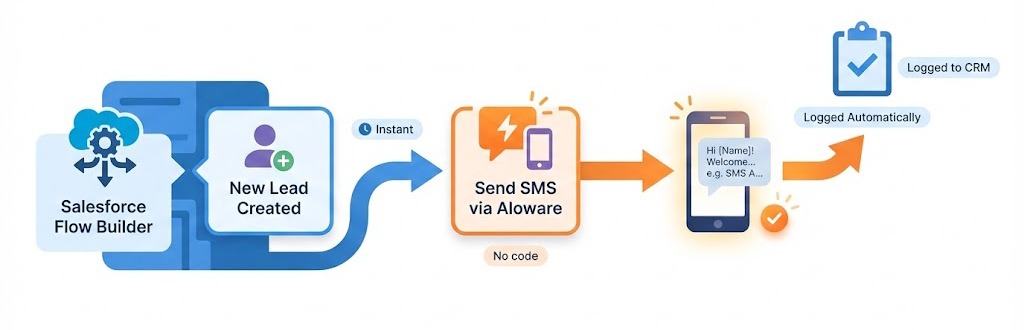
Example: Form-to-text automation
When a lead submits a pricing inquiry form:
- Trigger: New Lead created with Source = "Pricing Form"
- Action: Send SMS via Aloware: "Hi {FirstName}, thanks for your interest in pricing. A specialist will call you within 5 minutes."
- Result: Lead receives instant text, message logs to Salesforce, rep gets notification
Flow use cases
| Trigger | Automated SMS | Message / Outcome |
|---|---|---|
| New lead from web form | Yes | Instant acknowledgment with next steps |
| Demo scheduled | Yes | Confirmation with calendar link and prep questions |
| Contract sent | Yes | Notification that contract is ready for review |
| Missed call logged | Yes | “Sorry we missed you, calling back in 10 minutes” |
| Lead status change | Yes | Relevant message based on new status |
| Event registration | Yes | Confirmation with event details |
Setting up Flows with Aloware
- In Salesforce, navigate to Setup > Flows
- Create a new flow or edit existing
- Add an Action element
- Search for Aloware SMS actions
- Configure the message template and recipient field
- Activate the flow
Key Takeaway: Salesforce Flows + Aloware enables automated SMS triggered by any Salesforce event. Build form-to-text, lead response, and event-triggered messaging without code.
Feature deep-dive: Call and SMS logging
Every communication through Aloware logs automatically to Salesforce as a Task, creating a complete activity history on each record.
What gets logged
Call logging includes:
- Call direction (inbound/outbound)
- Call duration
- Disposition (set by rep)
- Call recording link
- Voicemail indicator
- Notes added by rep
- Timestamp
SMS/MMS logging includes:
- Message direction (sent/received)
- Full message content
- MMS attachments
- Timestamp
- Conversation thread reference
Where logs appear
Communications log as Tasks under the associated Contact, Lead, or Account. If a phone number matches multiple records, logging follows your priority settings (Contact > Lead > Account or your custom configuration).
Logging configuration options
In the Communication tab, you can enable/disable logging for:
- Answered calls
- Missed calls
- Voicemails
- Outbound SMS
- Inbound SMS
- MMS attachments
Key Takeaway: All calls and texts log automatically as Salesforce Tasks with full details including recordings, duration, and message content.
Troubleshooting common issues
Sync not working
Check these first:
- Verify OAuth connection is active (Settings > Connection tab)
- Confirm field mappings are saved
- Check that the Aloware package is the latest version
- Verify user email addresses match between systems
Use the Test Connection button to verify the integration is communicating properly.
Duplicate contacts appearing
Resolution:
- Set Contact/Lead priority in sync settings
- Use the same phone number format in both systems
- Run a one-time sync to reconcile existing duplicates
Calls not logging
Check these:
- Verify communication logging is enabled
- Confirm the contact exists in both systems
- Check that the phone number format matches
CTI not appearing in Salesforce
Resolution:
- Re-download the Call Center XML from Aloware
- Re-import to Salesforce Call Centers
- Verify user is assigned to the call center
- Clear browser cache and refresh Salesforce
Key Takeaway: Most issues trace to OAuth connection, field mapping configuration, or package version. Use Test Connection to verify integration status.
What Aloware's Salesforce integration costs
Aloware's Salesforce integration requires the xPro + AI plan. The integration itself has no additional cost beyond your Aloware subscription.
No hidden fees for:
- Salesforce connection
- Bidirectional sync
- CTI integration
- Flows integration
- Call and SMS logging
Costs to be aware of:
- Pulling contacts from Salesforce incurs LNR (Local Number Registry) lookup charges
- SMS/MMS messages follow your Aloware plan's messaging rates
- Calling follows your Aloware plan's minute rates
Key Takeaway: The Salesforce integration is included with xPro + AI plan. No extra subscription or per-seat integration fees.
Who should use Aloware for Salesforce
Aloware's Salesforce integration fits best for:
Sales teams that:
- Make high-volume outbound calls (50+ calls/day per rep)
- Combine calling with SMS outreach
- Need automated lead response via text
- Want calling campaigns from Salesforce list views
- Require detailed call logging for compliance or coaching
Operations teams that:
- Need bidirectional sync without middleware complexity
- Want to trigger SMS from Salesforce Flows
- Require field-level sync control
- Need real-time sync (not batch)
Industries using Aloware + Salesforce:
- Real estate (high-volume lead follow-up)
- Healthcare (patient outreach and scheduling)
- Insurance (quote follow-up and renewals)
- Staffing (candidate and client communication)
- Financial services (compliance-logged communications)
Getting started with Aloware for Salesforce
Ready to connect Aloware to your Salesforce environment? Here's your path forward:
- Verify requirements: Confirm Salesforce Enterprise/Unlimited edition and Aloware xPro + AI plan
- Plan your sync strategy: Decide on sync direction and field mappings before setup
- Schedule implementation: Block 30-60 minutes for initial setup
- Test in sandbox first: Use Salesforce Sandbox to validate configuration before production
- Train your team: Walk reps through CTI, power dialer, and SMS workflows
Start a free trial: [Link to Aloware trial]
Book a demo: See the Salesforce integration in action with your actual use case. [Link to demo booking]
Recommended articles
Frequently Asked Questions
Does Aloware work with Salesforce Essentials?
No. Aloware requires Salesforce Enterprise, Unlimited, or Developer edition because the integration uses Salesforce APIs, which aren't available in Essentials or Professional editions.
How long does setup take?
Most teams complete setup in under 30 minutes. This includes package installation, OAuth authentication, sync configuration, and field mapping. Testing and team training add additional time.
Can I sync custom Salesforce objects?
Currently, Aloware syncs with standard objects: Contacts, Leads, and Accounts. Custom object sync is on the product roadmap. Contact your account manager for timeline updates.
What happens if I disconnect and reconnect the integration?
Disconnecting and reconnecting resets field mappings to defaults. Document your custom mappings before disconnecting so you can reconfigure quickly.
Does the power dialer work with Salesforce campaigns?
The power dialer works with Salesforce list views imported as static lists. You can create a list view filtered to a specific campaign, then import that list to Aloware for dialing.
Can multiple Aloware users share the same Salesforce connection?
Yes. The integration connects at the organization level, not per-user. All Aloware users with matching Salesforce emails can access CTI and logging features.
How does Aloware handle Salesforce sandbox vs production?
You can connect to either environment from the same Aloware account. Most teams test in sandbox first, then authenticate to production for live use.
What's the difference between Aloware's integration and Salesforce Sales Dialer?
Salesforce Sales Dialer provides basic click-to-call functionality. Aloware adds power dialing, SMS/MMS, Flows-triggered messaging, and combined calling + texting from one platform. See our [Salesforce Dialer comparison guide] for detailed feature differences.
.png)

Ruby Kootval is Head of Product Marketing at Aloware. She has 12 years in digital marketing, including 8 in B2B SaaS and 5 in telecom, and writes about AI voice agents, dialers, CRM integrations, and contact center operations.
.png)