


Summary: A Salesforce power dialer automates outbound calling by dialing contacts sequentially from your CRM data, eliminating manual dialing and logging calls automatically. This guide covers how power dialers work, the ROI math, feature requirements, and how to run power dialer campaigns directly from Salesforce list views. Includes benchmarks showing teams achieve 60-80 calls/hour vs 15-20 with manual dialing. Last updated: January 2026.
Your sales reps spend 2 hours daily on tasks that generate zero revenue.
Manual dialing. Waiting for voicemail. Logging calls. Updating contact records. Switching between Salesforce and their phone system.
A power dialer eliminates all of it.
The math is straightforward: manual dialing produces 15-20 calls per hour. A power dialer produces 60-80. That's a 3-4x increase in outbound activity with the same headcount.
But not every power dialer works the same way with Salesforce. Some require exporting lists and re-importing data. Others sync sporadically, creating gaps in your CRM. The best ones let you dial directly from Salesforce list views with real-time bidirectional sync.
This guide covers everything you need to implement power dialing that actually works with your Salesforce workflow.
What you'll learn:
☐ How power dialers work and why they outperform manual dialing
☐ The ROI math: calls per hour, connect rates, and revenue impact
☐ Power dialer vs predictive dialer vs auto dialer (when to use each)
☐ 5 features that matter for Salesforce power dialer success
☐ How to run campaigns directly from Salesforce list views
☐ The power dialer + SMS follow-up workflow that converts
☐ Mistakes that kill power dialer adoption
What is a Salesforce power dialer?
A Salesforce power dialer is calling software that automatically dials contacts from your CRM in sequence, connecting reps to prospects without manual dialing. When one call ends, the dialer immediately moves to the next contact on the list. All call activity—duration, disposition, notes, recordings—logs to Salesforce automatically.
The key difference from manual dialing: reps never touch a phone keypad or copy numbers between systems. They click "Start Dialing" and the power dialer handles everything until they click stop.
How it works technically:
- Rep selects a Salesforce list view, report, or contact list
- Power dialer imports contacts and begins calling sequentially
- When a prospect answers, the rep is already on the line (no delay)
- After the call, the rep adds notes and selects a disposition
- Call data syncs to Salesforce as a Task with full details
- Dialer automatically moves to the next contact
The "power" in power dialer comes from eliminating dead time. Manual dialing includes 20-30 seconds of dialing, ringing, and waiting per attempt. Multiply that by 100 calls and you've lost 30-50 minutes daily to mechanical tasks.
Key takeaways:
- Power dialers automate sequential calling from Salesforce contact lists
- Reps stay on the line—no delay when prospects answer
- All activity logs automatically to Salesforce Tasks
- Eliminates 20-30 seconds of dead time per call attempt
The ROI math: how power dialers 3x call volume
The productivity gap between manual dialing and power dialing is measurable.
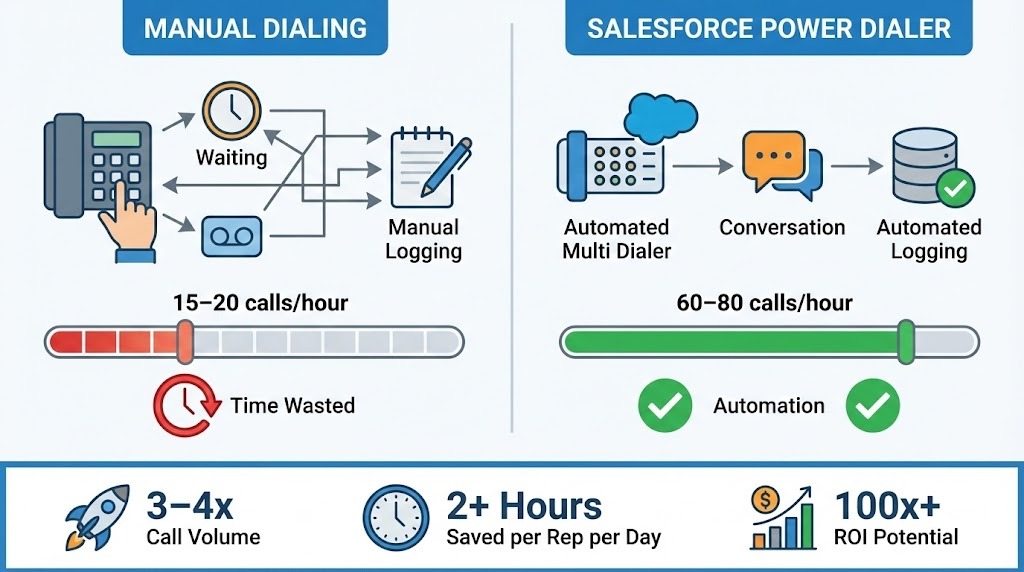
Manual dialing benchmark:
- 15-20 calls per hour
- 23 seconds average to dial and wait per attempt
- 5-8 minutes per hour lost to CRM data entry
- 12-15 conversations per day (assuming 20% connect rate)
Power dialer benchmark:
- 60-80 calls per hour
- 0 seconds manual dialing (automated)
- 0 minutes manual logging (automated)
- 48-64 conversations per day (same 20% connect rate)
The revenue impact:
| Metric | Manual Dialing | Power Dialer | Difference |
|---|---|---|---|
| Calls per rep per day | 120 | 400 | +233% |
| Conversations per day | 24 | 80 | +233% |
| Meetings booked (5% conversion) | 1.2 | 4.0 | +233% |
| Monthly meetings (20 work days) | 24 | 80 | +56 meetings |
For a 10-rep team, that's 560 additional meetings per month. If 20% of meetings convert to opportunities worth $10,000 average, you're looking at $1.12M in additional pipeline monthly.
The formula:
Additional Pipeline = (Reps × Additional Calls × Connect Rate × Meeting Rate × Close Rate × Deal Size)
Even conservative assumptions produce significant ROI. A power dialer paying $50/user/month generates 100x+ return for most sales teams.
What drives variance in calls per hour:
The 60-80 calls/hour range depends on several factors:
- List quality: Clean data with valid numbers = faster progression
- Voicemail handling: One-click voicemail drop saves 30+ seconds per attempt
- Wrap-up time: Shorter disposition workflows = more calls
- Connect rate: Higher answer rates mean more talk time, fewer calls
- Call duration: Longer conversations reduce total attempts
Teams with strong list hygiene and efficient voicemail drop consistently hit 75-80 calls/hour. Teams with dirty data and manual voicemail recording average 50-60.
Key takeaways:
- Power dialers increase call volume by 3-4x compared to manual dialing
- A 10-rep team can generate 560+ additional meetings monthly
- ROI typically exceeds 100x the monthly software cost
- List quality and voicemail handling drive performance variance
Power dialer vs predictive dialer vs auto dialer
These terms get confused constantly. Here's what each actually does and when to use it.
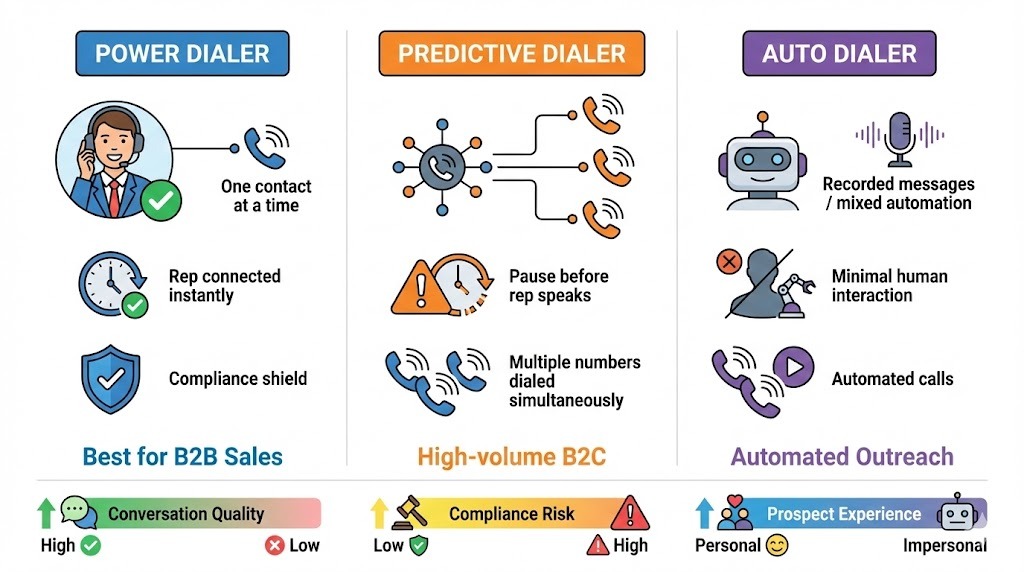
Power Dialer
Dials one contact at a time, sequentially. The rep is on the line when the prospect answers—no delay, no awkward pause. When the call ends, the dialer moves to the next number.
- Best for: B2B sales teams, account-based outreach, any situation where conversation quality matters
- Calls per hour: 60-80
- Prospect experience: Identical to a manual call (no "telemarketer pause")
- Compliance risk: Low (human initiates each call)
Predictive Dialer
Dials multiple numbers simultaneously using algorithms to predict when a rep will be available. Connects answered calls to the next free rep. Often creates a 1-2 second delay before the rep speaks.
- Best for: High-volume B2C call centers, debt collection, situations where volume trumps quality
- Calls per hour: 100-150
- Prospect experience: Noticeable pause before rep speaks ("telemarketer delay")
- Compliance risk: Higher (abandoned call regulations, TCPA concerns)
Auto Dialer
Broad category covering any automated dialing system. Can refer to power dialers, predictive dialers, or systems that play recorded messages. Often used interchangeably with "robo-dialer."
- Best for: Depends on specific implementation
- Calls per hour: Varies widely
- Prospect experience: Varies (live rep or recorded message)
- Compliance risk: Highest for recorded message systems
The compliance difference matters:
Predictive dialers that create abandoned calls (prospect answers but no rep available) face regulatory scrutiny. The FCC limits abandoned calls to 3% of total answered calls. Exceeding this triggers penalties.
Power dialers avoid this entirely because a rep is always on the line when someone answers. For B2B sales teams, the compliance simplicity alone justifies choosing power over predictive.
When to choose each:
| Scenario | Best Choice | Why |
|---|---|---|
| B2B outbound sales | Power Dialer | Quality conversations, no delay |
| Account-based selling | Power Dialer | Personalization matters |
| High-volume B2C | Predictive Dialer | Volume over quality |
| Debt collection | Predictive Dialer | Established compliance frameworks |
| Political campaigns | Power Dialer | Compliance + conversation quality |
| Appointment reminders | Auto Dialer | Recorded messages acceptable |
Key takeaways:
- Power dialers dial one contact at a time with zero delay—best for B2B sales
- Predictive dialers dial multiple numbers simultaneously, creating "telemarketer pause"
- Power dialers have lower compliance risk (no abandoned call concerns)
- Choose power dialer for quality conversations; predictive for maximum volume
5 features that matter for Salesforce power dialers
After testing multiple power dialers with Salesforce, these five capabilities determine whether teams adopt the tool or abandon it.
1. Direct dialing from Salesforce list views
The best power dialers let you select a Salesforce list view and start dialing immediately. No exports. No CSV uploads. No manual list building.
Why it matters: Your Salesforce list views already segment contacts by criteria that matter—lead score, last activity, territory, campaign membership. A power dialer should use that segmentation directly.
What to verify: Can you click a list view in Salesforce and launch a power dialer session without leaving the CRM? Or do you need to export data and import it into a separate system?
Aloware lets you import Salesforce list views as static lists for immediate power dialing. The contacts stay synced—if a record updates in Salesforce, the power dialer reflects it.
2. One-click voicemail drop
Reps leave voicemails on 70-80% of outbound calls. Recording a fresh voicemail each time wastes 30+ seconds per attempt.
Why it matters: One-click voicemail drop lets reps leave a pre-recorded message instantly and move to the next call. Over 100 calls, that's 50+ minutes saved daily.
What to verify: Can reps drop voicemails with a single click? Can you create multiple voicemail templates for different campaigns or personas?
3. Automatic call logging to Salesforce
Every call should create a Salesforce Task automatically—no manual entry. The Task should include call duration, disposition, notes, and a link to the recording.
Why it matters: Manual call logging takes 2-3 minutes per call. Multiply by 80 calls daily and reps spend 2+ hours on data entry. Automatic logging eliminates this entirely.
What to verify: Do calls log automatically or require manual saving? Do recordings attach to the Task? Can you customize which fields populate?
4. Bidirectional sync with Salesforce
One-way sync (Salesforce → dialer) means your dialer has current data but updates made during calls don't flow back. Bidirectional sync keeps both systems current.
Why it matters: When a rep updates a phone number or changes a lead status during a call, it should reflect in Salesforce immediately. Otherwise, you're creating data gaps.
What to verify: If you update a contact field in the dialer, does it appear in Salesforce instantly? Or do you need to update both systems manually?
5. Call disposition workflows
After each call, reps should select from predefined dispositions—Interested, Not Interested, Callback, Wrong Number, Voicemail, etc. These dispositions should trigger Salesforce field updates and workflow actions.
Why it matters: Consistent dispositions enable accurate reporting. Triggering Salesforce Flows from dispositions automates follow-up tasks.
What to verify: Can you create custom dispositions? Do dispositions map to Salesforce fields? Can you trigger Salesforce Flows based on disposition selection?
Key takeaways:
- Direct list view dialing eliminates export/import friction
- One-click voicemail drop saves 50+ minutes daily on high-volume teams
- Automatic call logging eliminates 2+ hours of manual data entry
- Bidirectional sync keeps Salesforce accurate without duplicate work
- Disposition workflows enable reporting and trigger automated follow-ups
How to run power dialer campaigns from Salesforce list views
The ideal workflow uses your existing Salesforce data without manual exports. Here's how it works with native integration.
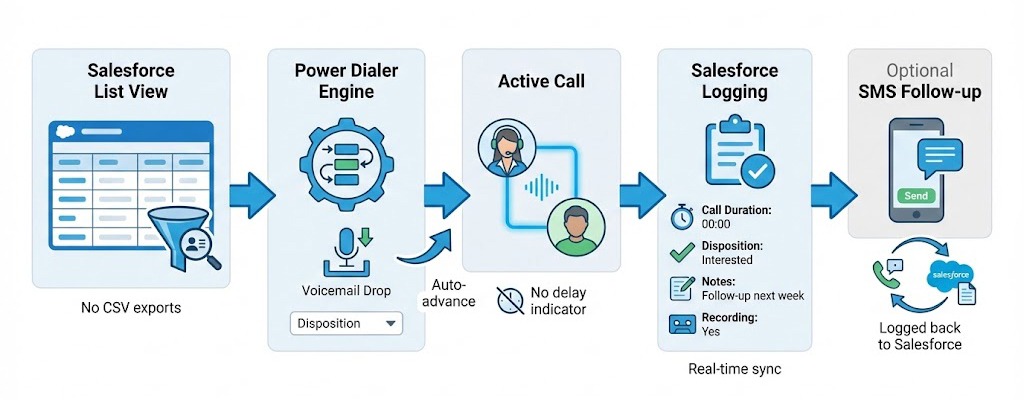
Learn more about creating Salesforce list views" or link "list view
Step 1: Create your target list view in Salesforce
Build a list view with your calling criteria. Examples:
- Leads with status "New" created in the last 7 days
- Contacts who opened an email but didn't reply
- Opportunities with no activity in 14+ days
- Accounts in your territory with decision-maker contacts
The more specific your criteria, the more relevant your conversations.
Step 2: Import the list view to your power dialer
With native integration (like Aloware), you can import Salesforce list views directly as dialer lists. No CSV export required.
In Aloware:
- Navigate to the Power Dialer section
- Select "Import from Salesforce"
- Choose the list view
- Set calling priority and hours
- Assign to reps or teams
The list syncs with Salesforce—if records update, your dialer reflects the changes.
Step 3: Configure call settings
Before launching, configure:
- Caller ID: Use local presence (matching area code) when available
- Voicemail templates: Pre-record messages for this campaign
- Disposition options: Define outcomes specific to this campaign
- Wrap-up time: Set seconds between calls for note-taking
- Calling hours: Respect timezone restrictions
Step 4: Launch the campaign
Reps click "Start Dialing" and the power dialer takes over. They see contact details and Salesforce history before each call connects. When someone answers, they're already on the line.
Step 5: Disposition and move on
After each call, reps:
- Select a disposition (Interested, Callback, Not Interested, etc.)
- Add notes if needed
- Click "Next" or let auto-advance move to the next contact
Everything logs to Salesforce automatically.
Step 6: Review and optimize
After the session, analyze:
- Calls per hour (benchmark: 60-80)
- Connect rate (benchmark: 15-25%)
- Disposition breakdown
- Conversion to meetings or opportunities
Use this data to refine your list criteria and calling approach.
Key takeaways:
- Start with targeted Salesforce list views—the dialer uses your existing segmentation
- Native integration eliminates CSV export/import friction
- Configure voicemail templates and dispositions before launching
- Auto-advance and automatic logging maximize rep efficiency
- Track calls per hour and connect rate to optimize performance
Power dialer + SMS: The follow-up workflow that converts
Phone calls have a 2-3% response rate. SMS gets 45%. Combining them in a single workflow dramatically improves conversion.
The problem with phone-only outreach:
- 70-80% of calls go to voicemail
- Callbacks from voicemails are rare
- No way to continue the conversation asynchronously
- Prospects who miss your call have no easy way to respond
The power dialer + SMS workflow:
- Power dialer calls the contact
- If no answer: Rep drops voicemail and sends SMS: "Hi [Name], just left you a voicemail about [topic]. Reply here if easier."
- If answered but needs follow-up: Rep sends SMS with promised information or meeting link
- If interested: Rep sends calendar link via SMS for immediate booking
This workflow works because SMS is immediate and non-intrusive. Prospects can respond on their timeline without scheduling a call.
Automating the follow-up with Salesforce Flows:
With dialers that integrate with Salesforce Flows (like Aloware), you can trigger SMS automatically based on call disposition:
- Disposition: "Voicemail" → Trigger: Send SMS template A
- Disposition: "Interested - Send Info" → Trigger: Send SMS with product link
- Disposition: "Callback Requested" → Trigger: Create follow-up task + send confirmation SMS
This removes manual steps from the rep workflow. They focus on conversations while automation handles follow-up.
The numbers:
| Metric | Phone Only | Phone + SMS |
|---|---|---|
| Contact reach rate | 20–25% | 45–55% |
| Response rate | 2–3% | 15–20% |
| Meeting conversion | 2–5% | 8–12% |
Teams using combined phone + SMS consistently outperform phone-only outreach by 2-3x on response metrics.
Why most dialers can't do this:
Most power dialers are phone-only. SMS requires a separate platform, separate login, and manual switching between systems. Prospects receive calls from one number and texts from another—confusing and unprofessional.
Aloware combines power dialer and SMS in a single platform with the same phone number. Reps call and text from one interface. All activity logs to the same Salesforce contact record. Flows automation triggers SMS based on call outcomes.
Key takeaways:
- SMS achieves 45% response rates vs 2-3% for calls alone
- Combined phone + SMS workflows reach 2-3x more prospects
- Salesforce Flows can trigger SMS automatically based on call dispositions
- Single-platform solutions (calling + SMS) outperform separate tools
- Aloware provides power dialing and SMS from the same interface with Flows integration
5 mistakes that kill power dialer adoption
We've seen teams invest in power dialers and abandon them within 90 days. These mistakes cause most failures.
Mistake 1: Dirty data in your calling lists
Power dialers amplify your data quality—good or bad. If 30% of your phone numbers are invalid, you'll burn through lists quickly with nothing to show for it.
The symptom: Reps report constant disconnected numbers, wrong numbers, and voicemails for people who left the company.
The fix: Clean your data before launching power dialer campaigns. Validate phone numbers. Remove contacts with no activity in 12+ months. Verify contact names against LinkedIn.
Mistake 2: No voicemail strategy
Reps leaving improvised voicemails waste time and deliver inconsistent messaging. Worse, some reps skip voicemails entirely—losing 70% of their potential touchpoints.
The symptom: Low callback rates. Inconsistent messaging. Reps complaining that power dialing "doesn't work."
The fix: Create 3-5 voicemail templates for different scenarios. Train reps on one-click voicemail drop. Track voicemail-to-callback conversion rates.
Mistake 3: Ignoring wrap-up time settings
Power dialers move fast. If reps can't keep up with note-taking and disposition selection, they'll either fall behind or skip documentation.
The symptom: Incomplete call notes. Missing dispositions. Reps pausing the dialer constantly.
The fix: Set appropriate wrap-up time between calls (15-30 seconds for simple calls, 45-60 for complex). Use quick-select dispositions instead of free-form fields.
Mistake 4: No SMS follow-up for voicemails
Leaving a voicemail without a text follow-up is a missed opportunity. Prospects rarely call back from voicemails alone.
The symptom: High voicemail rate, low callback rate, low overall response rate.
The fix: Implement a voicemail + SMS workflow. Every voicemail should trigger an SMS with an easy way to respond.
Mistake 5: Measuring calls instead of conversations
Power dialers increase call volume. But volume without quality is just noise. The goal is conversations, not dials.
The symptom: Reps racing through lists to hit call quotas. Short call durations. Low conversion rates despite high activity.
The fix: Measure conversations (calls over 60 seconds), connect rate, and conversion to meetings—not raw call attempts.
Key takeaways:
- Clean your data before launching power dialer campaigns
- Pre-record voicemail templates and train on one-click drop
- Configure wrap-up time to match your call complexity
- Always follow voicemails with SMS for higher response rates
- Measure conversations and conversions, not just call volume
Aloware's Salesforce power dialer capabilities
Full disclosure: we build Aloware. Here's exactly what our power dialer does with Salesforce so you can compare feature-by-feature.
Power dialer from Salesforce data:
- Import Salesforce list views as static lists for power dialing
- Dial directly from Leads, Contacts, and Accounts
- Sync list changes automatically—no re-importing required
- Set calling priority based on Salesforce fields
Call execution:
- Sequential dialing with zero delay on connect
- One-click voicemail drop with multiple templates
- Local presence dialing (match prospect area code)
- Configurable wrap-up time between calls
- Pause/resume without losing position
Automatic logging to Salesforce:
- Every call creates a Salesforce Task automatically
- Includes duration, disposition, notes, and recording link
- Field mapping for disposition values
- No manual data entry required
Bidirectional sync:
- Contact updates in Aloware reflect in Salesforce immediately
- Contact updates in Salesforce reflect in Aloware immediately
- Ownership mapping syncs between systems
- Works with Contacts, Leads, and Accounts
SMS integration:
- Send SMS/MMS from the same interface
- Same phone number for calls and texts
- SMS logged to Salesforce activity history
- Trigger SMS from Salesforce Flows based on call disposition
Salesforce Flows automation:
- Trigger SMS after specific call dispositions
- Update lead status based on call outcomes
- Create follow-up tasks automatically
- No-code automation using Flow Builder
Setup:
- Native AppExchange package (not iframe)
- OAuth authentication to Production or Sandbox
- Configuration completes in under 30 minutes
- No developer resources required
"Ready to test? Install Aloware from AppExchange or book a demo to see power dialing from Salesforce list views."
Frequently Asked Questions
What is a Salesforce power dialer?
Salesforce power dialer is calling software that automatically dials contacts from your CRM in sequence. When one call ends, it immediately dials the next number. All call activity—duration, notes, recordings, dispositions—logs to Salesforce automatically. Power dialers increase call volume from 15-20 per hour (manual) to 60-80 per hour (automated).
How many calls per hour can you make with a power dialer?
Power dialers enable 60-80 calls per hour compared to 15-20 with manual dialing. The exact number depends on list quality, voicemail handling efficiency, wrap-up time settings, and average call duration. Teams with clean data and one-click voicemail drop consistently hit 75-80 calls per hour.
What's the difference between a power dialer and predictive dialer?
Power dialers dial one contact at a time—the rep is on the line with zero delay when someone answers. Predictive dialers dial multiple numbers simultaneously and connect answered calls to available reps, often creating a 1-2 second "telemarketer pause." Power dialers are better for B2B sales where conversation quality matters. Predictive dialers suit high-volume B2C operations.
Does Salesforce have a built-in power dialer?
No. Salesforce Sales Dialer offers basic click-to-call but not power dialing functionality. For true power dialing—sequential automatic dialing through contact lists—you need a third-party solution like Aloware that integrates with Salesforce via AppExchange.
How do power dialers improve sales productivity?
Power dialers eliminate manual dialing (saves 20-30 seconds per call), automate call logging (saves 2-3 minutes per call), and enable one-click voicemail drop (saves 30+ seconds per voicemail). Combined, a 10-rep team can generate 560+ additional meetings per month compared to manual dialing.
Can power dialers send SMS?
Most power dialers are phone-only. Aloware combines power dialing and SMS in a single platform—reps call and text from the same interface using the same phone number. SMS logged to Salesforce and can be triggered automatically via Salesforce Flows based on call dispositions.
What Salesforce editions work with power dialers?
Most third-party power dialers require Salesforce Enterprise, Unlimited, or Developer editions because they need API access for sync. Professional edition doesn't include API access by default. Verify your edition before purchasing.
How long does power dialer setup take?
Aloware's Salesforce integration installs from AppExchange and configures in under 30 minutes. No developer resources required. Setup includes OAuth authentication, field mapping, and disposition configuration.
.png)

Ruby Kootval is Head of Product Marketing at Aloware. She has 12 years in digital marketing, including 8 in B2B SaaS and 5 in telecom, and writes about AI voice agents, dialers, CRM integrations, and contact center operations.
.png)