


TLDR: To integrate Salesforce with an external call center solution, install a CTI adapter via the Salesforce AppExchange, authenticate with OAuth, map your contact fields, and configure bidirectional sync so calls, texts, and records stay updated in real time across both platforms. Aloware offers the deepest native Salesforce integration—combining an embedded power dialer, SMS/MMS, Salesforce Flows automation, and AI call summaries—all synced in real time with no middleware required. Setup takes under 30 minutes.
Salesforce is the CRM backbone for thousands of sales and support teams—but on its own, it doesn't handle phone calls, SMS, or real-time voice data. If your team relies on outbound calling, inbound support, or multi-channel outreach, you need an external call center solution that syncs seamlessly with Salesforce so every interaction is captured without manual data entry.
This guide walks you through exactly how to integrate Salesforce with an external call center platform, what to look for in an integration, and how to ensure your data stays perfectly synced in both directions.
What Does Salesforce Call Center Integration Actually Mean?
Integrating Salesforce with a call center solution means connecting your telephony system (calls, SMS, voicemails) to your CRM so data flows automatically between both platforms. Instead of agents switching tabs, copying phone numbers, or manually logging call notes, the integration handles it in real time.
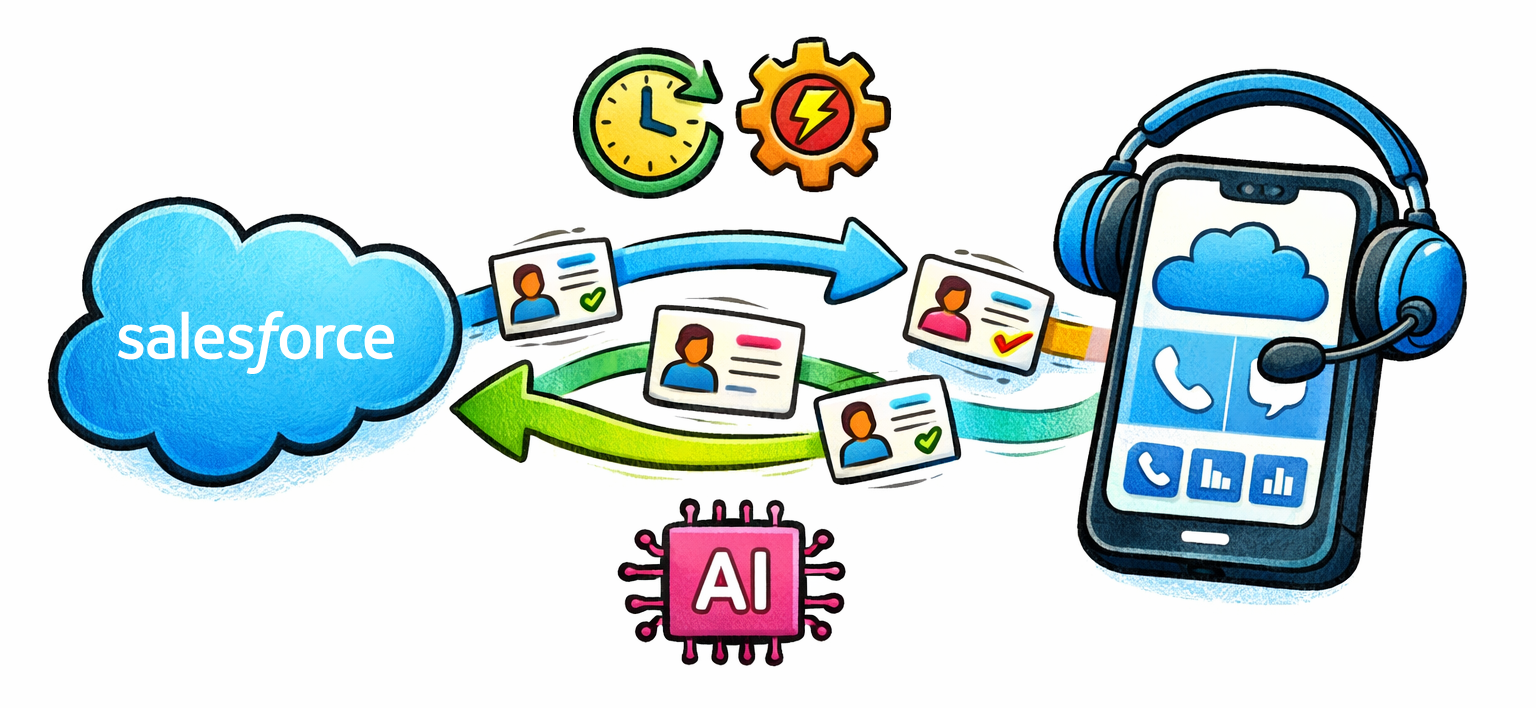
A proper integration gives your team:
- Click-to-call directly from Salesforce records — no tab-switching or manual dialing
- Automatic call and SMS logging — every interaction tied to the right lead, contact, or account
- Real-time bidirectional data sync — updates in Salesforce reflect in your call center tool and vice versa
- Screen pops with caller context — agents see the full customer history before they say hello
- AI-powered call summaries and transcriptions synced back into the CRM record
How Salesforce Call Center Integration Works: The Technical Foundation
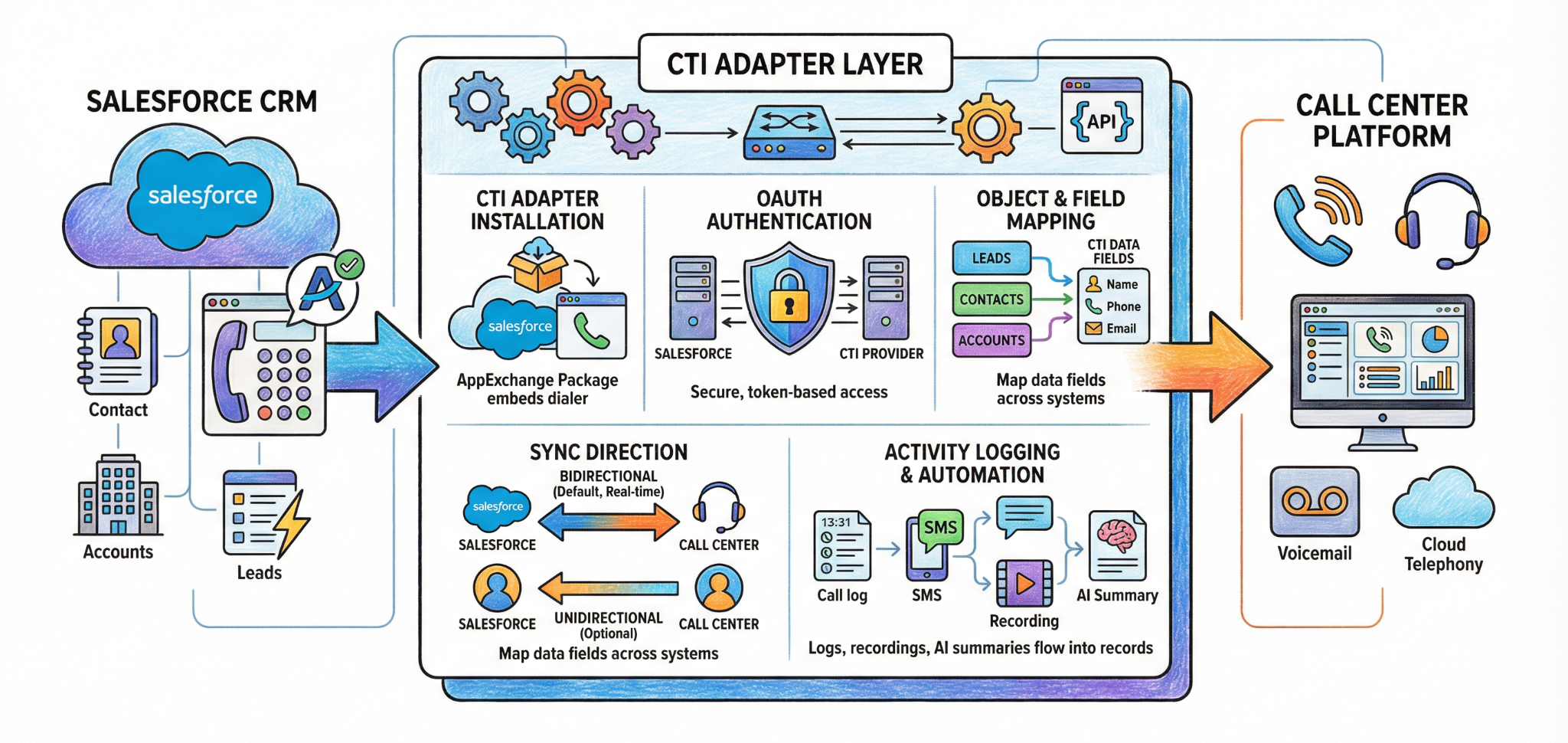
Salesforce call center integrations rely on a technology called Computer Telephony Integration (CTI). CTI is the bridge that lets your telephony platform communicate directly with Salesforce.
Here's how the architecture typically works:
1. CTI Adapter Installation
Your call center provider supplies a CTI adapter—usually installed via the Salesforce AppExchange—that embeds the dialer interface directly inside Salesforce. This is what enables click-to-call, call controls, and real-time activity logging without leaving the CRM.
2. OAuth Authentication
The integration authenticates securely between platforms using OAuth, so your Salesforce data is never exposed or stored insecurely. Admins connect the two systems through a one-time authentication flow in the call center platform's dashboard.
3. Object and Field Mapping
This is where data syncing gets precise. You map fields between your call center solution and Salesforce—matching contact names, phone numbers, email addresses, lead statuses, and custom fields so information flows to the right place. Good integrations let you map to Leads, Contacts, and Accounts simultaneously.
4. Sync Direction Configuration
You choose how data flows:
- Bidirectional sync (recommended): Changes in either platform update the other automatically. If a rep updates a phone number in Salesforce, it reflects in the call center tool—and vice versa.
- Unidirectional sync: Data flows one way only, useful for specific compliance or workflow requirements.
5. Activity Logging and Automation
Once connected, every call, text, voicemail, and recording is automatically logged as a Salesforce Task or Activity on the corresponding record. The best integrations also sync dispositions, call outcomes, tags, AI summaries, and recordings.
Step-by-Step: How to Set Up a Salesforce Call Center Integration
Here's a practical walkthrough using a native integration approach (no middleware required):
Step 1 — Install the CTI package from AppExchange. Navigate to the Salesforce AppExchange and search for your call center provider's package. Click install and follow the prompts to add it to your Salesforce org.
Step 2 — Authenticate the connection. In your call center platform's dashboard, go to Integrations, find Salesforce, and click Authenticate. You'll authorize the connection via OAuth so both systems can securely exchange data.
Step 3 — Import and sync contacts. Pull your existing Salesforce Leads and/or Contacts into the call center platform. Configure whether you want to sync Leads, Contacts, or both—and set priority rules for handling duplicates (e.g., if a phone number exists as both a Lead and Contact).
Step 4 — Map your fields. Match Salesforce fields (name, email, phone, custom properties) to their equivalents in the call center tool. This ensures data lands in the right places during sync.
Step 5 — Configure sync direction. Choose bidirectional or unidirectional sync per field. Bidirectional is recommended for most teams to keep both platforms in lockstep.
Step 6 — Enable the embedded dialer. Download the Call Center XML file from your provider and import it into Salesforce under the Call Center setup. Add users to the adapter so they can make and receive calls directly inside Salesforce.
Step 7 — Test the integration. Create a test contact, make a call, send an SMS, and verify that all activities log correctly in Salesforce. Update a field in Salesforce and confirm it syncs back.

What to Look for in a Salesforce Call Center Integration
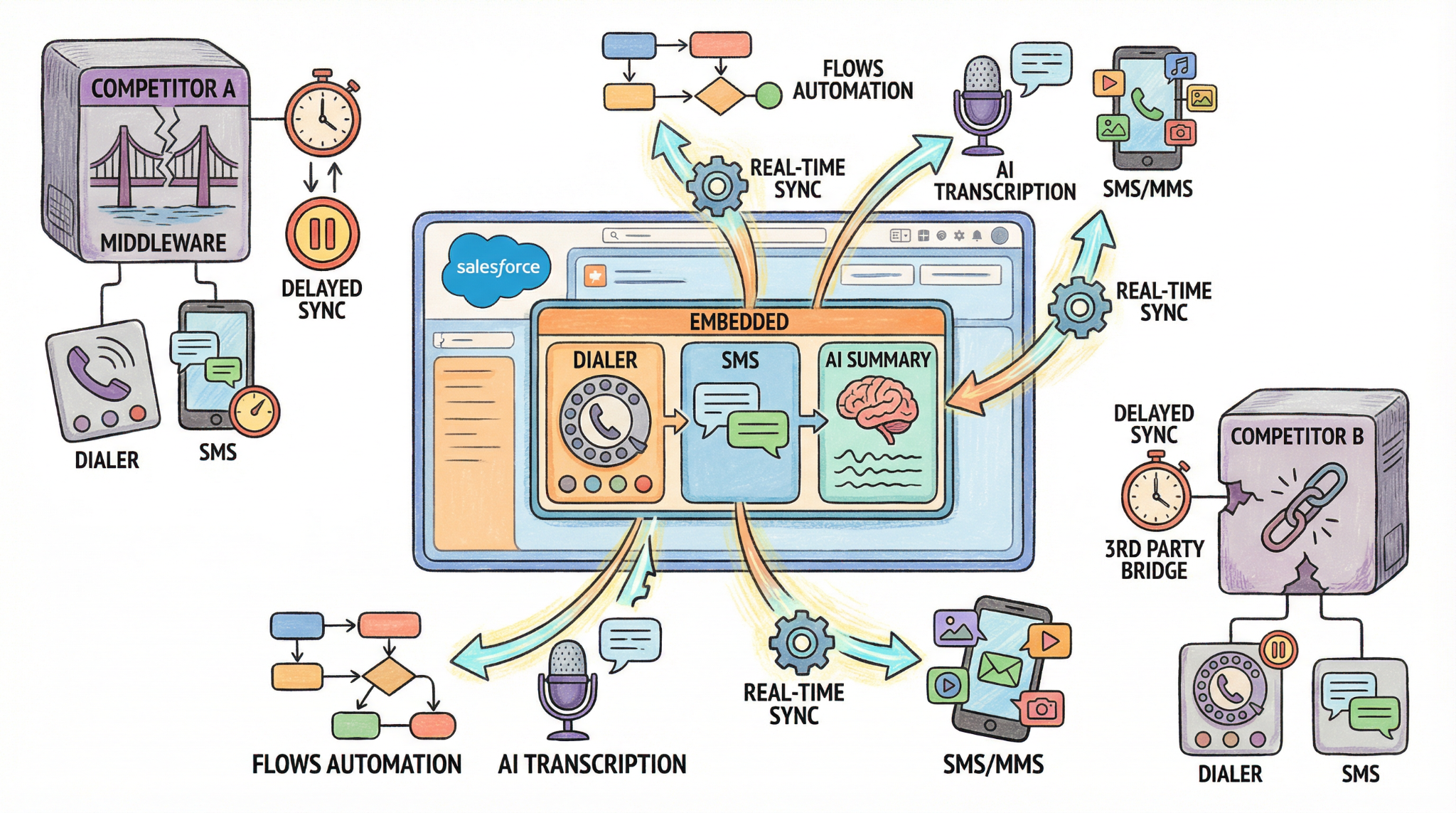
Not all integrations are created equal. Many call center tools claim Salesforce compatibility but rely on middleware, iframe embeds, or fragile third-party connectors that break, lag, or lose data. Here's what separates a good integration from a great one:
Native vs. Middleware Integration
Native integrations connect directly to Salesforce via AppExchange with no third-party dependencies. They're faster, more reliable, and easier to maintain. Middleware integrations route data through a middleman (like Zapier or a custom connector), which introduces latency, sync failures, and additional costs.
Always prioritize native over middleware.
Real-Time Bidirectional Sync
Your integration should sync data in both directions in near real-time—not on a 15-minute delay or only during batch imports. When a rep updates a lead status in Salesforce, the call center platform should reflect it immediately, and vice versa.
Full Activity Logging
Every touchpoint should be captured automatically: inbound and outbound calls, SMS/MMS messages, voicemails, recordings, call duration, dispositions, tags, and AI-generated summaries. If agents still need to manually log activities, your integration isn't doing its job.
Salesforce Flows Support
The best integrations work with Salesforce Flows, allowing you to trigger automated actions—like sending a follow-up SMS when a lead status changes—directly from your CRM workflow builder. No code required.
Embedded Dialer Experience
Agents should be able to call and text from any Salesforce record without opening a separate app. The dialer should be embedded natively in Sales Cloud and Service Cloud with full functionality: call controls, voicemail drops, transfers, notes, and dispositions.
AI and Analytics in Salesforce
Modern integrations sync AI-powered insights—call transcriptions, sentiment analysis, coaching recommendations—directly into Salesforce records. This gives managers visibility without leaving the CRM.
Why Aloware Is the Best Call Center Solution for Salesforce Integration
Aloware delivers the deepest native Salesforce integration available for contact center teams—purpose-built for sales and support workflows that require real-time calling, texting, and data syncing without middleware or third-party dependencies.
Here's what sets Aloware apart:
True Native Integration via AppExchange
Aloware connects directly to Salesforce through an AppExchange package—no middleware, no iframe hacks, no fragile Zapier bridges. The result is zero-latency sync and zero data loss. Setup takes under 30 minutes without developer resources.
Real-Time Bidirectional Sync for Leads, Contacts, and Accounts
Every field update, new record, and status change syncs between Aloware and Salesforce in near real-time. You configure sync direction per field, set priority rules for duplicate handling to match your exact Salesforce schema.
Complete Activity Logging — Calls, SMS, Voicemails, Recordings, AI Summaries
Every interaction is automatically logged to the right Salesforce record with full detail: call duration, direction, disposition, tags, line used, recording link, and AI-generated call summary. No manual logging. No missing data.
Embedded Power Dialer Inside Salesforce
Reps launch Power Dialer sessions directly from Salesforce lists and views. They can click-to-call from any record, drop voicemails, double-dial to boost pickup rates, and send follow-up SMS—all without leaving the CRM.
Salesforce Flows Integration for No-Code Automation
Aloware integrates with Salesforce Flows so you can trigger automated SMS and MMS messages based on CRM events—status changes, ticket updates, deal stage movements—using variables, images, and tracking keys. No code required.
AI Coaching Insights in Salesforce
AI-powered call transcriptions, sentiment analysis, and coaching recommendations sync directly into Salesforce records. Managers review rep performance, surface objections, and identify coaching opportunities without ever leaving the CRM.
SMS, MMS, and Multi-Channel Communication
Beyond calls, Aloware embeds full SMS/MMS capability inside Salesforce. Reps send, receive, schedule, and draft personalized messages with templates—all logged automatically. Attachments and images sync to the Salesforce record too.
Compliance-Ready with Local Presence and Spam Remediation
Aloware matches area codes to prospect locations for higher answer rates, proactively monitors and remediates spam labels on outbound numbers, and supports A2P 10DLC compliance for SMS—critical for teams doing high-volume outreach.
Aloware vs. Other Salesforce Call Center Integrations
Aloware is the only platform that combines native Salesforce integration, an embedded power dialer, SMS/MMS, Salesforce Flows automation, and AI analytics at a transparent, competitive price point.
Frequently Asked Questions
How long does it take to integrate Salesforce with a call center solution?
With a native integration like Aloware, setup takes under 30 minutes. You install the AppExchange package, authenticate via OAuth, configure sync settings, and you're live. No developer resources or custom coding required.
Does the integration work with both Sales Cloud and Service Cloud?
Yes. Aloware's Salesforce integration supports both Sales Cloud and Service Cloud, so sales teams and support teams can make calls, send texts, and access synced data from the same embedded interface.
Can I sync both Leads and Contacts simultaneously?
Yes. Aloware supports simultaneous Lead and Contact sync with configurable priority rules. If a phone number exists as both a Lead and a Contact in Salesforce, the system respects the priority you set during configuration to maintain a single consistent record.
What happens if I update a record in Salesforce? Does it sync back?
With bidirectional sync enabled, any changes made in Salesforce—phone numbers, email addresses, lead statuses —automatically sync back to Aloware in near real-time. The same applies in reverse.
Is the integration secure?
Yes. Aloware uses OAuth-based authentication to securely connect with Salesforce. No credentials are stored, and all data transfer follows Salesforce's security protocols.
Do I need Salesforce Enterprise edition for this integration?
Most third-party call center integrations, including Aloware, require Salesforce Enterprise edition or higher for full API access. Check with your Salesforce admin to confirm your edition supports external integrations.
.png)

Ruby Kootval is Head of Product Marketing at Aloware. She has 12 years in digital marketing, including 8 in B2B SaaS and 5 in telecom, and writes about AI voice agents, dialers, CRM integrations, and contact center operations.
.png)