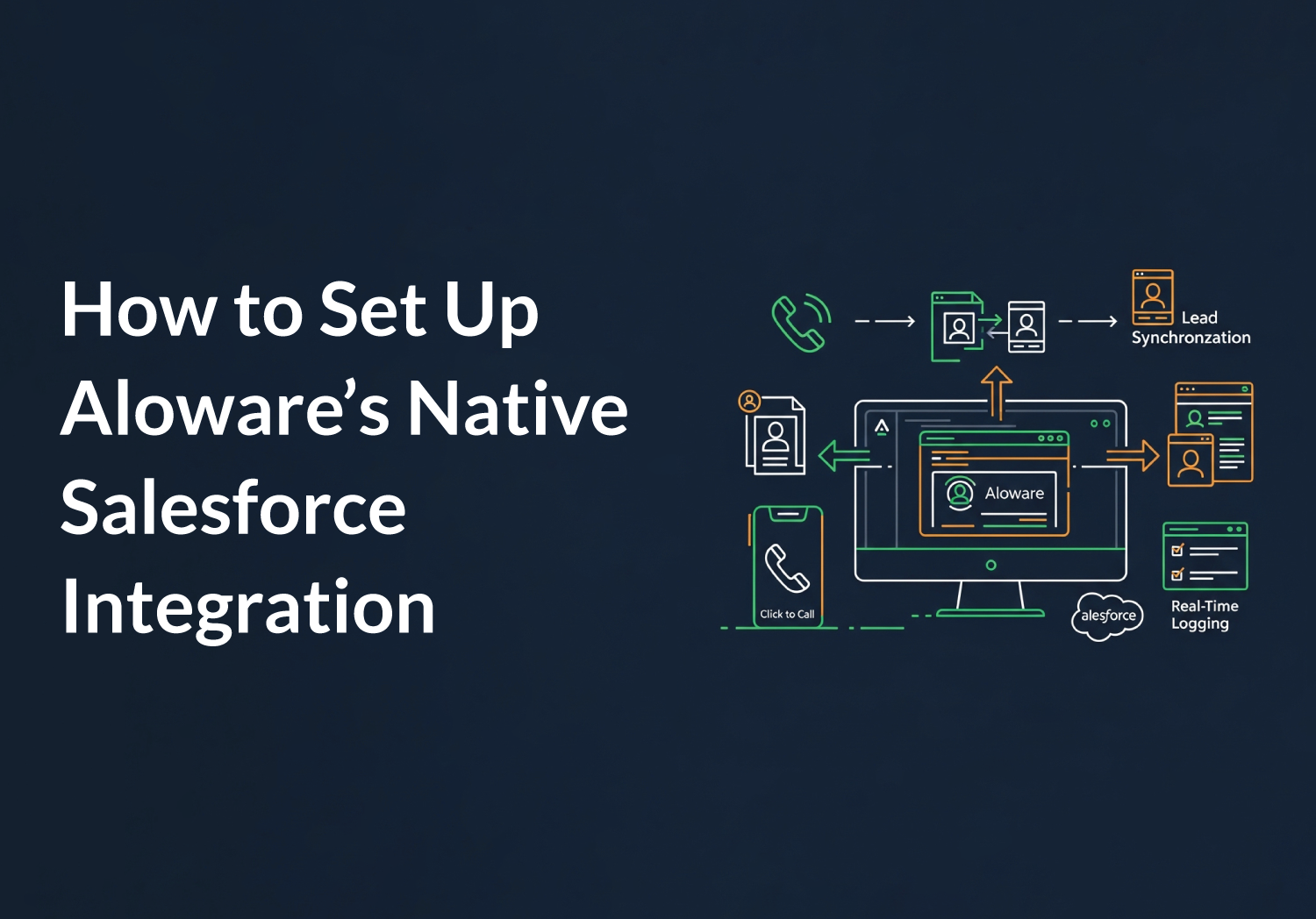


Summary: A Salesforce dialer connects calling software to your CRM so reps can dial from contact records, log calls automatically, and access customer data during conversations. This guide covers how Salesforce dialers work, what features matter most, and how to evaluate options for teams under 100 users. Based on real integration testing.
Your reps toggle between Salesforce and their phone system 40+ times per day.
Each switch costs 23 seconds of refocus time. That's 15 minutes of lost productivity per rep, per day. For a 10-person team, you're losing 12.5 hours weekly to tab-switching alone.
A Salesforce dialer eliminates this friction by embedding calling directly into your CRM workflow.
But here's what vendors won't tell you: most Salesforce dialers create new problems while solving old ones. Sync failures. Missing call logs. Clunky interfaces that slow reps down instead of speeding them up.
We've tested the major options. This guide breaks down what actually works.
Quick checklist: what you need before choosing a Salesforce dialer
☐ Salesforce edition with API access (Enterprise, Unlimited, or Developer)
☐ Monthly call volume estimate (under 1,000, 1,000-10,000, or 10,000+)
☐ SMS requirements (yes/no, volume estimate)
☐ Number of users who need dialer access
☐ Budget range per user ($30-50, $50-100, $100+)
☐ Technical resources available for setup (self-serve vs. need vendor help)
What is a Salesforce dialer?
A Salesforce dialer is calling software that integrates directly with Salesforce CRM, allowing sales reps to make and receive calls from within contact, lead, or account records. The dialer automatically logs call activity, recordings, and notes to Salesforce without manual data entry.
The integration happens through Salesforce's Computer Telephony Integration (CTI) framework. When a rep clicks a phone number in Salesforce, the dialer initiates the call and displays relevant contact information during the conversation.
Key takeaways:
- Salesforce dialers embed calling directly inside your CRM—no app switching
- Call logs, recordings, SMS, and voicemails sync automatically to contact records
- Reps see full customer history before answering or dialing
- Integration happens through CTI framework or direct API connection
How Salesforce dialers actually work
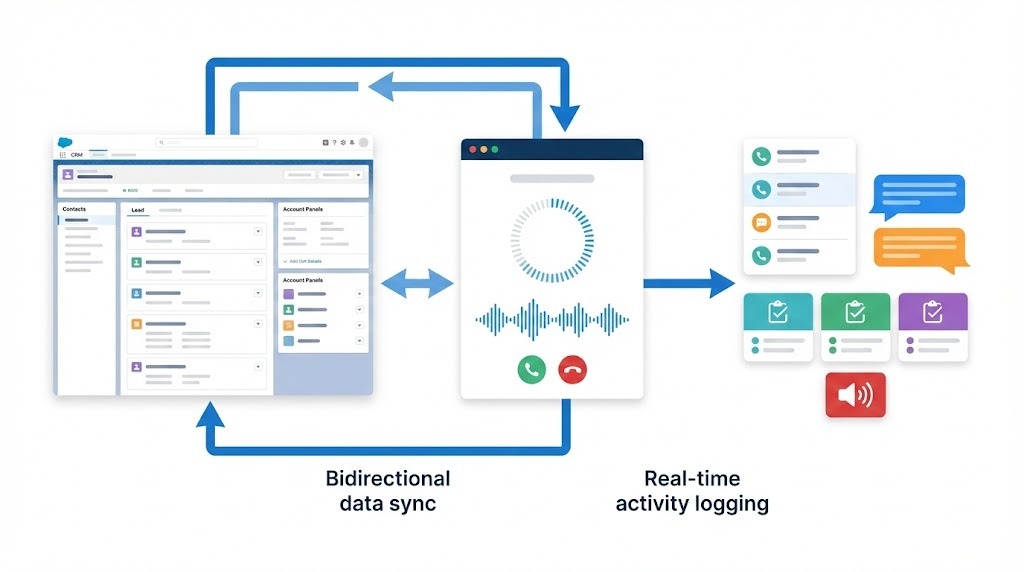
Most dialers connect to Salesforce through the AppExchange using OAuth-based authentication. Once connected, data flows between systems in real-time or near-real-time depending on the integration depth.
The technical flow:
- Admin installs the Salesforce package from Salesforce AppExchange
- OAuth authentication links Salesforce org to the dialer platform
- Contact, lead, and account data syncs bidirectionally
- After install Aloware in Salesforce Call Center, the CTI adapter embeds the dialer interface inside Salesforce
- Download Call Center XML file in Salesforce Integration Settings in Aloware
- Calls and SMS automatically create Task records with full details
What syncs between systems:
The best integrations sync data in real-time with no manual intervention. Cheaper options batch-sync every 15-60 minutes, which creates data gaps during high-volume calling sessions.
Key takeaways:
- Native AppExchange integrations use OAuth for secure, direct connection
- Real-time sync keeps both systems current—batch sync creates data gaps
- Call and SMS activity should log automatically as Salesforce Tasks
- Default field mapping determines how much context transfers between systems
Five features that separate good dialers from bad ones
After testing 12 Salesforce dialers over 6 months, these five capabilities determined whether teams actually adopted the tool or abandoned it within 90 days.
1. Native AppExchange integration (not iframe embeds)
Native integrations install directly from AppExchange and run inside Salesforce's infrastructure. Iframe embeds display a separate web app inside a Salesforce window—they look integrated but aren't.
Why it matters: Native integrations are faster, more reliable, and don't break when Salesforce updates. Iframe solutions frequently lose sync, require re-authentication, and can't access Salesforce Flows.
How to check: Look for "Managed Package" in the AppExchange listing. If the vendor asks you to whitelist external domains or disable pop-up blockers during setup, it's probably an iframe.
2. Bidirectional sync for contacts AND activities
One-way sync (Salesforce → dialer) means your CRM stays up to date, but any contact notes or updates made during calls don't flow back. You lose context.
Bidirectional sync keeps both systems current. When a rep updates a phone number during a call, it reflects in Salesforce immediately.
What to verify:
- Contact creation flows both directions
- Contact updates flow both directions
- Default field mapping is available
- Call dispositions sync as Salesforce task fields
3. Click-to-call from any Salesforce page
Basic dialers only work from the contact record page. Better dialers let reps click any phone number anywhere in Salesforce—list views, reports, related lists, account pages.
The benchmark: If a phone number is clickable in Salesforce, your dialer should handle it. No copying numbers. No opening new tabs.
4. Power dialer with automatic call logging
Power dialers automatically advance through a contact list, dialing the next number when the previous call ends. This alone can increase call volume by 3x compared to manual dialing.
Critical requirement: The power dialer must log every call attempt to Salesforce, including:
- No-answer attempts
- Voicemails left (with recording link)
- Call duration and disposition
- Notes added during or after the call
Some dialers only log connected calls. That gaps your activity data and breaks reporting.
5. SMS/MMS from the same interface
Phone calls convert at 2-3%. SMS gets 45% response rates. Your dialer should handle both from the same contact record.
What to look for:
- Send individual SMS/MMS from contact records
- Two-way messaging (see replies inline)
- SMS logged to Salesforce as activities
- Template support for common messages
- Automation triggers (send SMS after call disposition)
Key takeaways:
- Native AppExchange integration beats iframe embeds for reliability and speed
- Bidirectional sync is essential—one-way sync loses context from call updates
- Power dialer should log ALL attempts, not just connected calls
- SMS capability with 45% response rates outperforms phone-only dialers
Native Salesforce options vs. third-party dialers
Salesforce offers built-in calling through Sales Dialer and Service Cloud Voice. Both work, but with significant limitations compared to specialized third-party tools.
Salesforce Sales Dialer
Pricing: Starts at $5/user/month for basic click-to-call
What you get:
- Click-to-call from Salesforce records
- Basic call logging
- Voicemail drop
What's missing:
- No power dialer functionality
- Limited SMS capabilities
- No advanced call routing
- Basic reporting only
- No AI features
Best for: Teams who only need occasional outbound calls and don't require high-volume dialing.
Service Cloud Voice
Pricing: $150/user/month (requires Service Cloud license)
What you get:
- Omnichannel routing
- Real-time transcription
- Einstein AI recommendations
- Full telephony stack
What's missing:
- Expensive for small teams
- Complex setup requiring admin resources
- Overkill for outbound sales teams
- Limited power dialer functionality
Best for: Large service teams (50+ agents) with complex routing needs and budget for enterprise tooling.
Third-party dialers (like Aloware)
Pricing: Typically $30-$80/user/month
What you get:
- Full power dialer with list management
- SMS/MMS integration
- AI-powered features (transcription, analytics, call scoring)
- Bidirectional sync with Default field mapping
- Salesforce Flows integration
- Faster setup (often under 30 minutes)
What's missing:
- Another vendor relationship to manage
- May require Salesforce Enterprise edition for API access
Best for: Sales teams who need high-volume outbound calling, SMS capabilities, and faster ROI without enterprise pricing.
Key takeaways:
- Salesforce Sales Dialer ($5/user) works for low-volume teams but lacks power dialing
- Service Cloud Voice ($150/user) is enterprise-grade but expensive and complex
- Third-party dialers ($30-80/user) offer the best feature-to-price ratio for most sales teams
- Choose based on call volume, SMS needs, and available setup resources
Six Salesforce dialer mistakes that kill adoption
We've seen teams buy dialers and abandon them within 90 days. These mistakes cause most failures.
Mistake 1: Choosing based on price alone
The $5/user Salesforce dialer looks attractive until your team spends 30 minutes per day on manual tasks the $50/user option would automate. Calculate time savings, not just license cost.
The math: If a dialer saves each rep 30 minutes daily, that's 10+ hours monthly. At $50/hour fully-loaded rep cost, you're saving $500/month per rep. A $45/month price difference pays for itself 10x over.
Mistake 2: Skipping the sandbox test
Production Salesforce orgs have years of customization, workflows, and data complexity. A dialer that works in a demo can fail in your environment.
Fix: Every serious dialer supports Salesforce Sandbox connections. Test there first with real data volume and your actual workflows before going live.
Mistake 3: Ignoring field mapping configuration
Default field mappings rarely match your Salesforce setup. If your team uses custom fields for lead source, campaign, or qualification status, those won't sync without configuration.
Fix: Before launch, map every field your reps need to see or update during calls. Document what syncs where.
Mistake 4: No call disposition strategy
Dialers let you create custom dispositions (Interested, Not Interested, Callback, Wrong Number, etc.). Without a clear strategy, reps create their own labels and your reporting becomes useless.
Fix: Define 5-8 standard dispositions before launch. Map them to Salesforce fields. Train the team on when to use each one.
Mistake 5: Forgetting mobile users
Field reps and remote teams need mobile access. If your dialer's mobile app doesn't sync with Salesforce, you're creating two separate activity logs.
Fix: Test the mobile app specifically. Make calls, send SMS, update contacts. Verify everything appears in Salesforce within 60 seconds.
Mistake 6: Not connecting to Salesforce Flows
The real power of integration is automation. When a rep marks a call as "Interested," Salesforce should automatically create a follow-up task, update lead status, and notify the account executive.
Fix: Plan 2-3 automation workflows before selecting a dialer. Verify the dialer supports Salesforce Flows triggers for call dispositions and SMS events.
Key takeaways:
- Calculate ROI on time savings, not just license cost difference
- Always test in Salesforce Sandbox before production deployment
- Define call dispositions and field mappings before launch, not after
- Verify mobile app syncs properly if you have field or remote reps
- Plan Salesforce Flows automations as part of your evaluation criteria
How to evaluate a Salesforce dialer (30-minute test)
Before committing to any dialer, run this evaluation. Each step reveals whether the integration actually
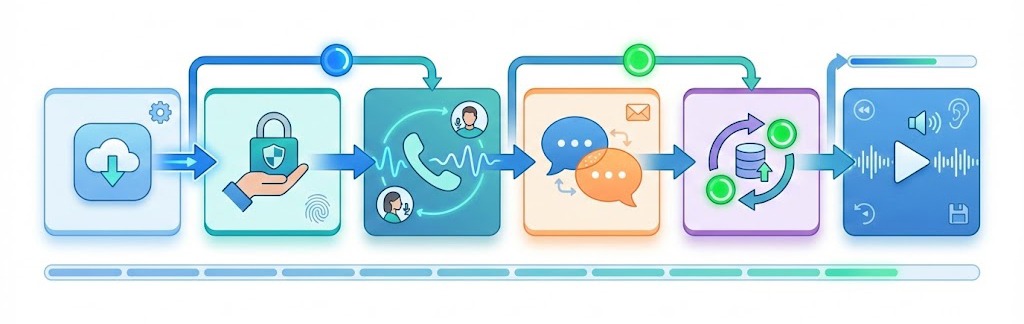
works as advertised.
Step 1: Install from AppExchange
5 minutes
Install the dialer package in your Salesforce Sandbox. Note how long installation takes and whether you need to contact the vendor.
✓ Pass: Installs in under 10 minutes with no vendor call required
✗ Fail: Requires scheduling an onboarding call just to install
Step 2: Complete OAuth authentication
3 minutes
Connect your Salesforce org to the dialer using OAuth.
✓ Pass: Single click-through authentication, connected in under 2 minutes
✗ Fail: Requires manual API key configuration or admin-only setup steps
Step 3: Make 3 test calls
10 minutes
- Call a known number from a Contact record
- Call from a Lead record
- Call from a list view using click-to-call
✓ Pass: All three calls log automatically with correct contact/lead association
✗ Fail: Any call fails to log or associates with wrong record
Step 4: Send and receive SMS
5 minutes
Send an SMS from a contact record. Have someone reply. Verify both messages appear in Salesforce activity history.
✓ Pass: Outbound and inbound SMS visible in Salesforce within 60 seconds
✗ Fail: SMS doesn't log, or only outbound messages appear
Step 5: Test bidirectional sync
5 minutes
Change a contact's phone number in the dialer interface. Refresh Salesforce.
✓ Pass: Change appears in Salesforce immediately
✗ Fail: Requires manual sync or doesn't update at all
Step 6: Access call recording
2 minutes
Make a recorded call. Find the recording link in the Salesforce Task. Click it.
✓ Pass: Recording plays directly or opens in new tab without re-authentication
✗ Fail: Requires separate login or recording isn't accessible from Salesforce
Key takeaways:
- 30-minute test reveals more than any demo or sales call
- Focus on automatic logging—manual steps mean rep friction
- Bidirectional sync test catches most integration weaknesses
- Recording access matters for coaching and compliance workflows
What Aloware's Salesforce integration includes
Full disclosure: we build Aloware. Here's exactly what our native Salesforce integration does so you can compare feature-by-feature.
Native integration architecture:
- AppExchange managed package (not iframe)
- OAuth-based authentication with Production and Sandbox support
- Direct API connection—no third-party middleware like Prismatic
- Native integration
Data synchronization:
- Bidirectional sync for Contacts, Leads, and Accounts
- Real-time updates (not batch sync)
- Default field mapping for any Salesforce field
- Contact ownership mapping with flexible direction control (inbound, outbound, or bidirectional)
- Sync priority settings when duplicate phone numbers exist across objects
- One-time push/pull operations for bulk sync when needed
Communication logging:
- Automatic call logging to Salesforce Tasks (inbound and outbound)
- Call recordings stored with direct links in Task records and AI summaries
- SMS/MMS logging with full message content
- Call dispositions synced as Task fields
- Voicemail logging with transcription
- MMS attachments included
In-CRM dialer (CTI integration):
- Click-to-call from any Salesforce page
- Embedded dialer panel inside Salesforce interface (Talk Dialer)
- SMS Messenger
- Inbound call screen pops with contact context
Salesforce Flows integration:
- Trigger Aloware SMS/MMS from Salesforce Flows
- Automate follow-up messages based on call dispositions
- No-code automation using Flow Builder
- Works with record-triggered flows, scheduled flows, and platform events
Import and list management:
- Import Salesforce list views as static lists in Aloware
- Use imported lists directly in Power Dialer and Broadcast campaigns
- Sync Salesforce lead statuses to Aloware disposition statuses
Setup requirements:
- Salesforce Enterprise, Unlimited, or Developer edition (API access required)
- Aloware xPro + AI plan
- System admin access in both Salesforce and Aloware
- Same email address for user accounts in both systems
- Trailblazer account for AppExchange installation
Setup time: Under 30 minutes for basic configuration. No developer resources required.
"Ready to test? Install Aloware from AppExchange or book a demo to see power dialing from Salesforce list views."
Bottom line
A Salesforce dialer should make your reps faster, not add complexity. The right tool logs calls automatically, syncs data in real-time, and works everywhere inside Salesforce without friction.
Run the 30-minute test before you buy. It reveals more than any demo or sales call.
Frequently Asked Questions
What is a Salesforce dialer?
A Salesforce dialer is calling software that integrates with Salesforce CRM, allowing reps to make calls directly from contact records. It automatically logs call activity, recordings, and notes to Salesforce without manual data entry. Integration happens through CTI (Computer Telephony Integration) or direct API connections via AppExchange packages.
Does Salesforce have a built-in dialer?
Yes. Salesforce offers Sales Dialer starting at $5/user/month for basic click-to-call, and Service Cloud Voice at $150/user/month for enterprise telephony. However, many teams choose third-party dialers like Aloware for advanced features including power dialing, SMS integration, and AI analytics at lower total cost.
How much does a Salesforce dialer cost?
Costs range from $5 to $150/user/month. Salesforce Sales Dialer starts at $5/user but lacks power dialing and SMS. Service Cloud Voice runs $150/user with enterprise features. Third-party options like Aloware cost $30-$80/user with unlimited calling, SMS, power dialer, and AI features included.
Can I use a Salesforce dialer on mobile?
Yes, most modern Salesforce dialers offer mobile apps. Aloware's mobile app provides full functionality including calling, SMS, voicemail drop, and contact updates—all syncing to Salesforce records automatically. Verify your dialer's mobile app works independently without requiring the Salesforce mobile app running simultaneously.
How long does Salesforce dialer setup take?
Aloware installs as a managed package from Integration Settings and configures from there, with no developer time required. The enterprise builds are the long ones: Service Cloud Voice is an admin project, so ask who in your org would own it before you price it. Whatever you pick, do the install in a Salesforce Sandbox first, then run a live call block and open the Task the dialer writes.
What's the difference between a power dialer and predictive dialer?
Power dialers dial one contact at a time—the rep is on the line with zero delay when someone answers. Predictive dialers dial multiple numbers simultaneously and connect answered calls to available reps, often creating a 1-2 second "telemarketer pause." Power dialers are better for B2B sales where conversation quality matters. Predictive dialers suit high-volume B2C operations.
Can Salesforce dialers send SMS?
Third-party dialers do. Aloware sends and receives SMS and MMS inside Salesforce through an embedded messenger, logs each message to the record as an activity, and can fire texts from Salesforce Flows. One-to-one agent SMS to the US and Canada is included in the plan; automated sends through sequences, broadcasts and CRM workflows are metered at published rates. Watch the allowances elsewhere: JustCall's included 1,000 segments per user on Pro exclude bulk campaigns, Sales Dialer workflows and CRM automations.
What Salesforce editions work with dialers?
Most third-party dialers need API access, which means Salesforce Enterprise, Unlimited or Developer edition on Sales Cloud, Service Cloud, or both, and that is what Aloware requires. The floor does vary by vendor: RingCentral's App Gallery listing states Salesforce Professional edition or above for its Salesforce app. Check your edition against the vendor's own stated requirement before you shortlist anything.
.png)

Ruby Kootval is Head of Product Marketing at Aloware. She has 12 years in digital marketing, including 8 in B2B SaaS and 5 in telecom, and writes about AI voice agents, dialers, CRM integrations, and contact center operations.
.png)