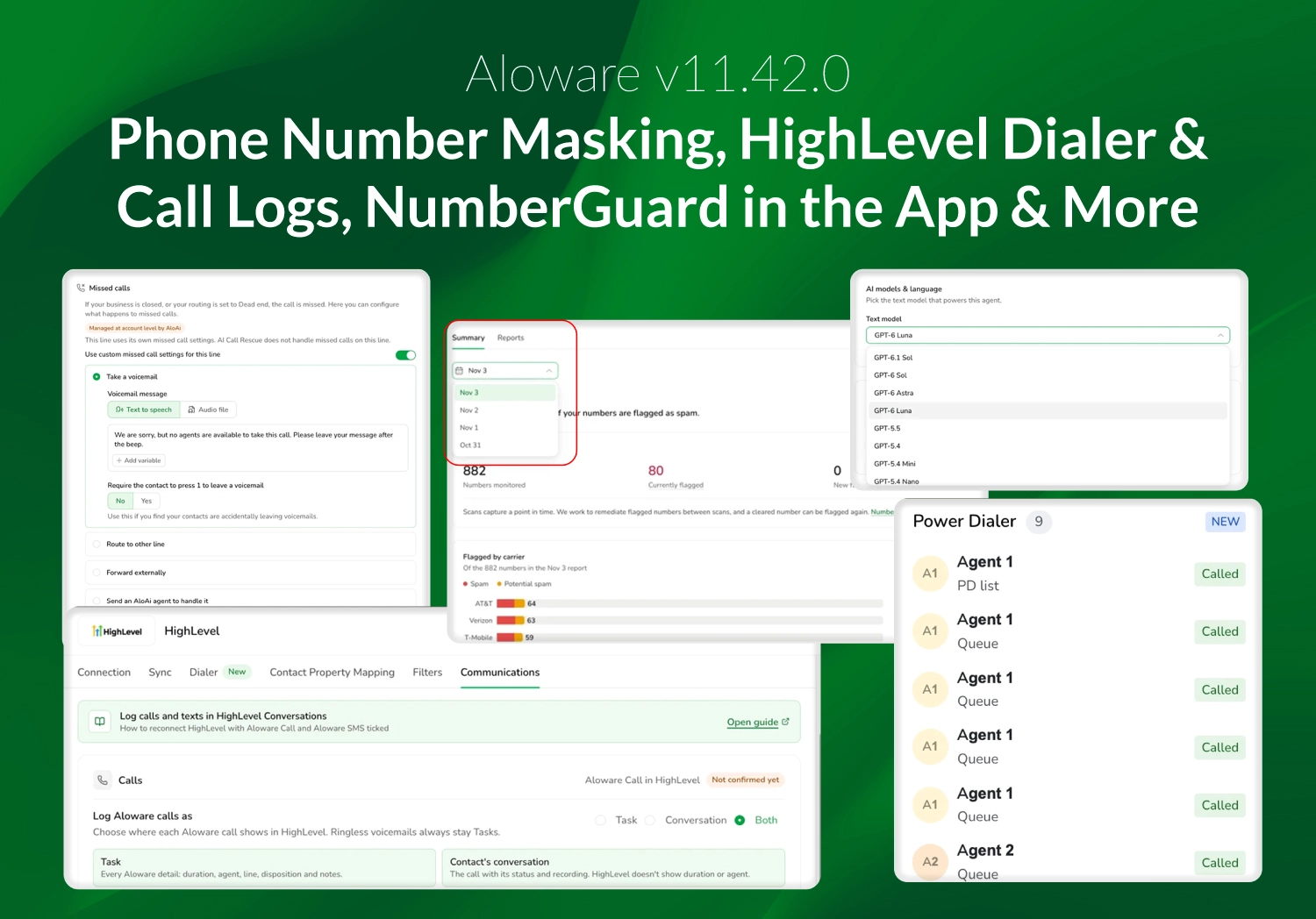
v11.42.0 adds the option to hide contact phone numbers from agents, the Aloware dialer and call history inside HighLevel, NumberGuard results in the app, and more control over when AloAi text agents reply.
Hide contact phone numbers from agents
Admins can now turn on Hide phone numbers from agents in Settings > General, so agents can no longer read and copy full contact phone numbers. With it on, agents see only the last four digits everywhere a number appears in Talk, including contact screens, the Power Dialer, conversations and in-app notifications.
Agents still call and text contacts as usual, and they can add a new number and create contacts, but they can't edit numbers already on a contact. Admins and Supervisors always see full numbers, while Agents and Reporters see the last four digits. The setting is off by default.

Aloware dialer and call history in HighLevel
Agents can now place and answer Aloware calls without leaving HighLevel. The agency admin pastes the Dialer script once per agency in HighLevel (Agency > Settings > Company > Whitelabel > Custom JS), and only sub-accounts with their own Aloware account get the dialer.
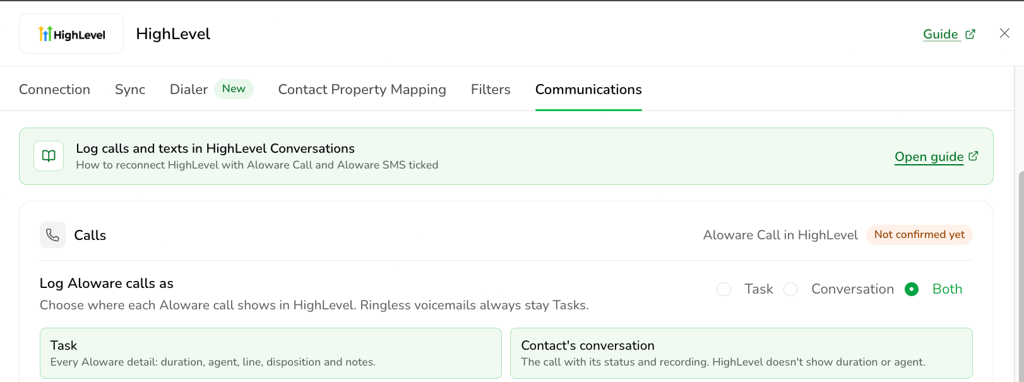
Aloware calls can also show in the contact's HighLevel conversation, with direction, status and recording. From Admin > Integrations > HighLevel > Communications, admins set where calls and texts log and see whether HighLevel accepts them. Calls stay as Tasks until an admin picks Conversation or Both and reconnects HighLevel with Aloware Call ticked. If the Communications tab shows Not enabled for texts, reconnect HighLevel and tick Aloware SMS. The HighLevel integration no longer shows the Beta badge.
NumberGuard in the app
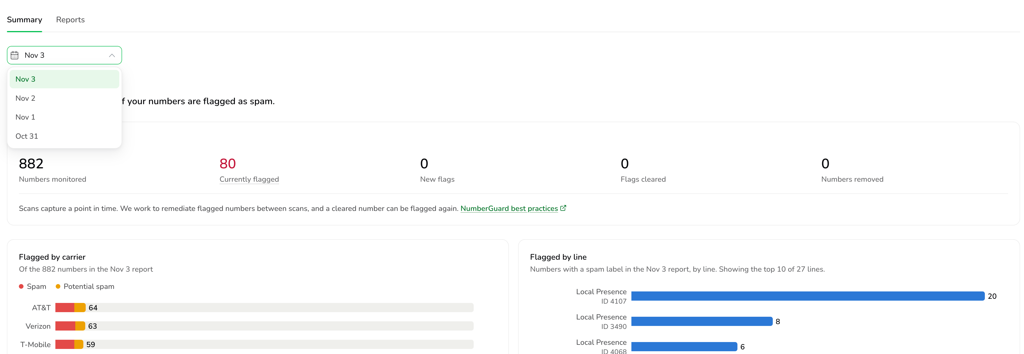
Every account now has a NumberGuard menu. Accounts with NumberGuard can see which of their numbers are flagged as spam, which lines they are on, and whether each is New or Carried over, so there's no need to match the emailed report to your lines by hand. A scan picker lists the four most recent scans and compares the chosen scan to the one before it, and lines are grouped into Monitored, Requested to Monitor and Unmonitored.
NumberGuard scans US numbers, and results are a point in time. This release shows what needs attention; acting on a flagged number in the app comes in a later phase. Customers with NumberGuard still get the email report. Accounts without NumberGuard see an intro page and can get NumberGuard through their CSM or support.
AloAi text agents: Control when an agent replies
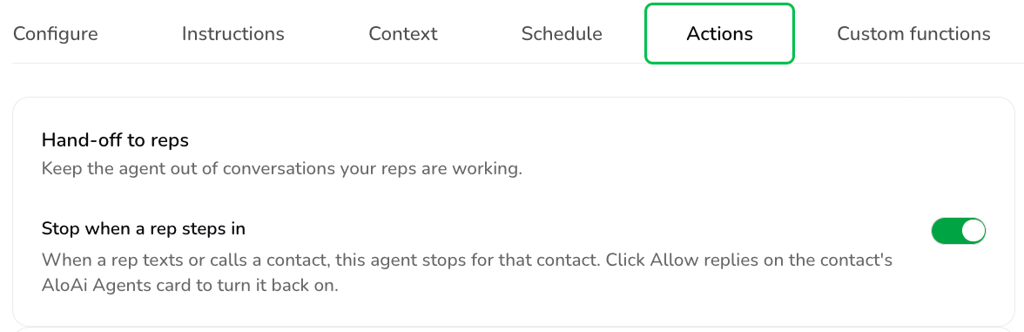
On a line shared by a text agent and reps, a rep's outgoing message now stops the agent for that contact, on any company line, even for contacts the agent never talked to. Only messages a rep actually sent count, and this is a pause tied to the rep stepping in, so the agent can pick the contact back up. Find it under AI Agents (Text) > Actions > Hand-off to reps.
To keep one agent off one contact, use the new Stop agent option on the AloAi Agent Enrollments card in Talk, alongside Restart conversation and Disenroll. You no longer need to mark the contact do-not-contact, which also blocked reps.
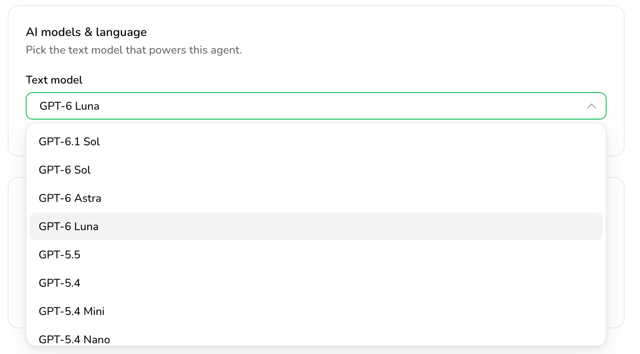
AloAi text agents and transcript features move to GPT-6 Luna
OpenAI retires the GPT-4 family on January 14, 2027. AloAi text agents and two Voice Analytics features, asking a question about a transcript and the Highlights prompt check, now run on GPT-6 Luna, and the retiring models are removed from the model selector. Agents on a retiring model are moved for you.
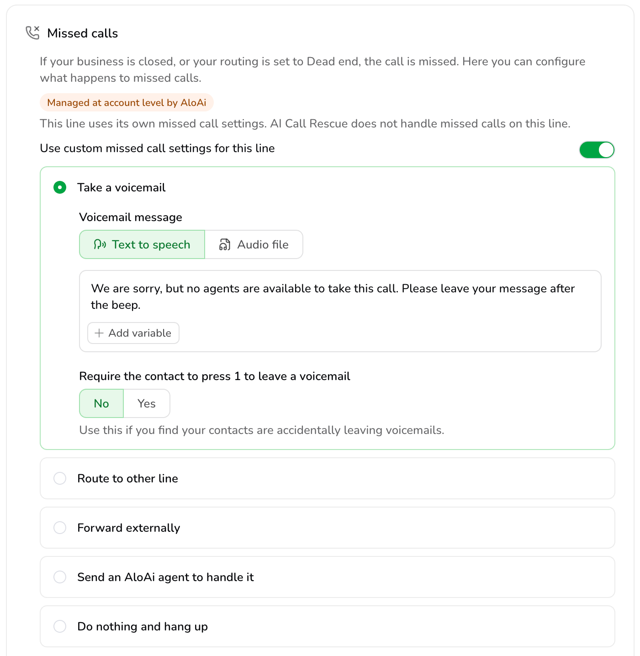
AI Call Rescue: Any missed call option per line
With AI Call Rescue on for the account, the line override now opens every missed call option, so a single line can take a plain voicemail. Find it in Line settings > Routing & IVR > Missed Calls.
AloAi voice agent updates
Spanish-language voice agents have three more voices to pick from: Carolina, Pablo and Alba, all three Spanish only. The Message field on the Send SMS tool now accepts contact variables, with the picker available, so an agent can greet a contact by name in a text.
In Call History, the Agents filter lists each agent separately with its agent ID below the name, and search matches the name or the ID, so agents that share a name can be told apart.
See a contact's Power Dialer and private lists
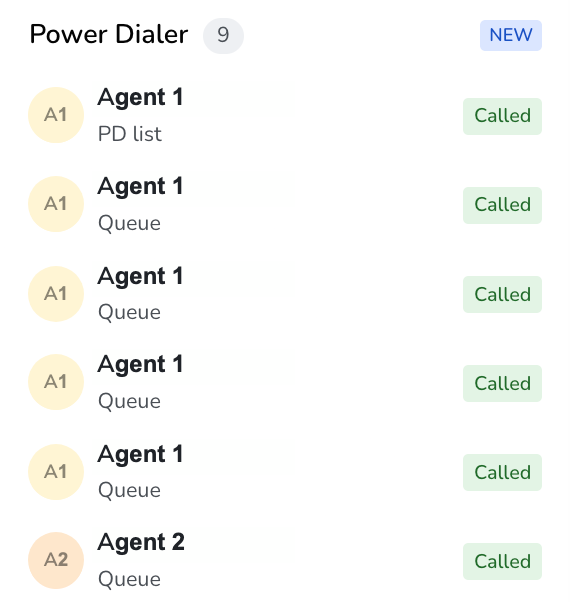
A contact's right-hand panel in Talk now has a Power Dialer card and shows every private list the contact is in, each with its owner, so Admins and Supervisors no longer have to open each user to find out. Agents keep seeing only their own private lists.
Calling and texting in Talk
Texting or calling a number with no contact now opens the new contact's conversation in the Inbox, with the text or call already in it, instead of the Contacts page.
Agents can check their headset before a call starts: a cog beside the line selector on the dialer's Call tab opens microphone and speaker pickers and a speaker test. The in-call audio settings stay as they are.
When Communication Visibility is set to Inherit from Inboxes, the Transfer options on an active call now list every inbox, including ones the agent is not in. Transferring gives the agent no access to that inbox's communications.
Power Dialer contact picker
In Talk > Power Dialer > Add contacts > Select Contact List, each section header stays visible, and clicking a pinned header jumps to that section, so accounts with many public lists can reach every section without scrolling to the end of the public lists.
Broadcasts: See what each broadcast sent and scroll wide tables
The Broadcasts table has a new Message column that shows what each broadcast sent: the text, the MMS attachment type or the voicemail recording. Hover over a long text to read all of it. The sideways scrollbar stays at the bottom of the screen, so a wide table scrolls from any row.

Communications: Filter by deleted lines
The line filter on the Communications page now lists a Deleted lines group below the active lines. Select one to see that line's communications, so you no longer need to export the data before deleting a line.
HubSpot updates
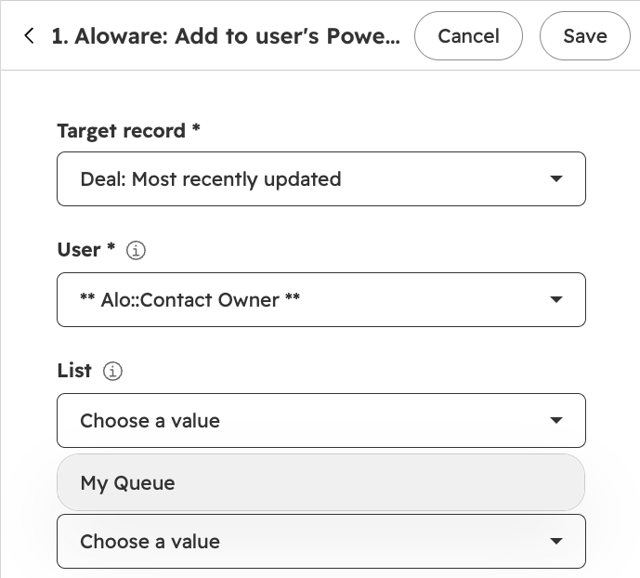
Map a Last Appointment Date and Time field to a HubSpot contact property from Integrations > HubSpot > Contact Property Mapping, so workflows that depend on it no longer have to be driven by hand. The HubSpot workflow action Aloware: Add to user's Power Dialer (Contacts) also has an optional list field that picks the Power Dialer list the contact joins.
When a HubSpot record holds two numbers and Aloware has two contacts, an agent with the merge permission can merge the second contact into the HubSpot-linked one from the contact's Integrations card > Review and Merge, when name and email also match.
Salesforce: Map total call duration
A Duration field holding ringing plus talk time can now be mapped to a custom Task field from Integrations > Salesforce > Communication > CDR/MDR Property Mapping, so reporting built on total call time can be calculated again.
Voicemail in integration filters
Voicemail is now selectable in the Communication Disposition Status list under Filters on HubSpot, HighLevel, Pipedrive, Zoho, Guesty, Slack and Webhook. If you already have Filters enabled, tick Voicemail to start sending voicemail calls. Without Filters, all communications sync.

Webhooks and Form Connect API
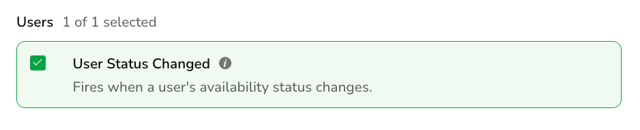
A new User Status Changed webhook event sends the previous status, the new status, the time, the source and the reason as each change happens, so you can feed agent hours into a timesheet tool without exporting the user timeline by hand. Select it in Integrations > Webhook > Add or Edit Webhook > Events.
Save and Test Webhook now sends a full sample for each selected event, with values in the same shape and format a real event uses, so you can map fields in HubSpot or Zapier before the first live event.
The Form Connect API accepts an optional Idempotency-Key header, scoped to the account. A retry with the same key waits for the first request instead of running beside it, so a timed-out request can be retried without creating a duplicate contact or restarting a sequence.
Bug fixes and performance improvements
This release also includes fixes in inbound and outbound calling and call routing, reports, Contacts, the Power Dialer, Inboxes, calendar bookings, Sequences, AloAi Voice Agents, Broadcasts, Branded Caller ID, the Power Dialer webhook API, the HubSpot, Salesforce, HighLevel and Zoho integrations, Google Calendar, and the iOS app.