Form Connect
Send website form leads straight into Aloware.
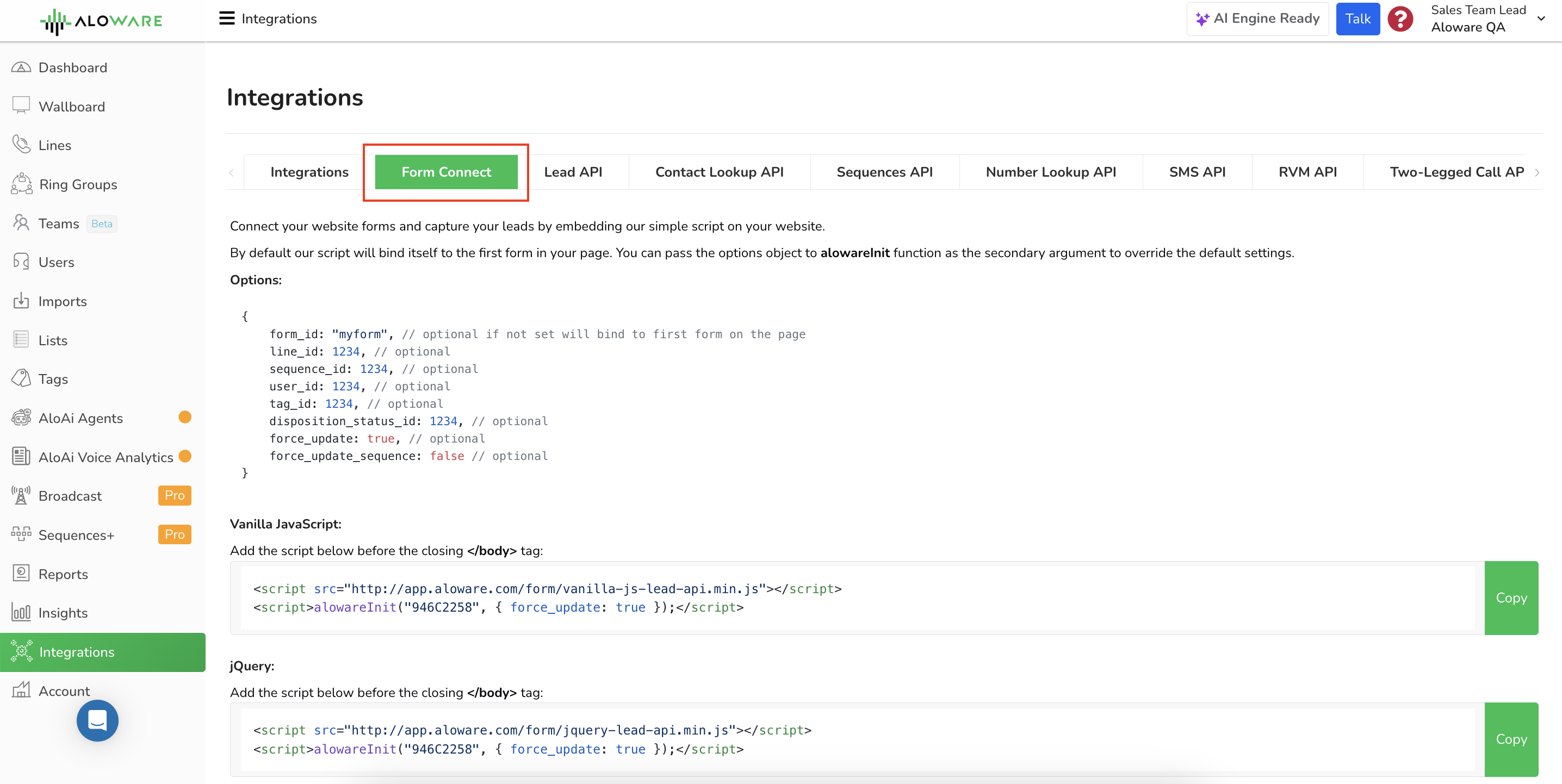
Form Connect sends the leads your website forms collect straight into Aloware. You add one script to the page, call one function with your API key, and every submission of the bound form becomes a contact in your account.
- Where to find it: Integrations menu > Form Connect in Aloware
- What you add: one script tag (Vanilla JS or jQuery) and an
alowareInitcall - Auth: your Aloware API key, passed as the first argument
Know what goes on your page: the key you pass to alowareInit is your full account API token. Anyone can read it in your site's page source, and the same token works for the whole API (texts, calls, contacts, Power Dialer) and for MCP. There is no form-only token yet. If that is a concern, send your form data to the Lead API from your own server instead, where the token stays private.Setup
Step 1: load the script
Put one of these tags on the page right before </body>. Pick the plain JavaScript build if your site has no jQuery.
For sites that already run jQuery, use this one instead:
Step 2: call alowareInit
Once the script has loaded, call alowareInit. It takes two arguments: your API key and an options object.
Put your own key in place of [API_TOKEN]. The options change how leads are handled; each one is listed below.
Step 3: test it
Submit your form yourself and check that the lead shows up. You can look for it in the Aloware dashboard or confirm it through the Aloware API.
Options for alowareInit
Every option is optional. Leave one out and the default applies. Use them to pick the form, route the lead to a line or user, tag it, start a sequence, or update a contact that already exists.
Need more?
For other API functions or any question about this setup, write to support@aloware.com and tell us what you need.
Our support team can help you set this up.