Zapier triggers and actions
Every Aloware trigger and action in Zapier.
This reference lists every Aloware trigger and action available in Zapier, plus the fields you can send. Use it when you design a Zap that moves contacts or communication events between Aloware and another app.
What Zapier adds
Zapier links Aloware to more than 3,000 web apps, including ones Aloware has no native connector for. That lets you automate contact management across tools instead of maintaining each one separately.
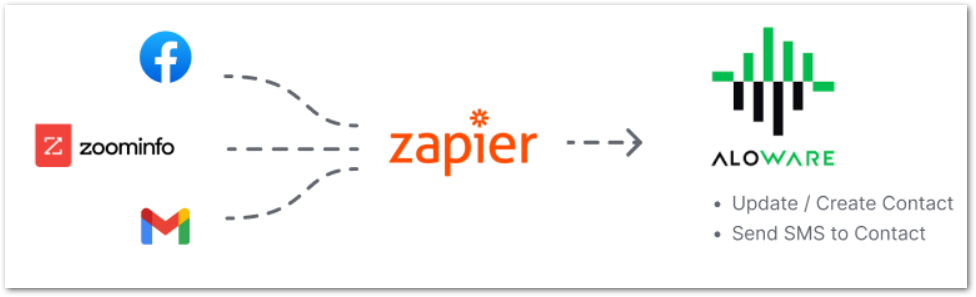
You stop retyping data, make fewer mistakes, and keep the same contact details in every system.
Sales, marketing and support teams get the most out of it, since their daily work depends on accurate contacts and fast communication.
Two directions of automation
1. Outside event, action in Aloware
Something that happens in another app can make Aloware do something. For example:
- Create or update contacts: a person fills in a web form, and Zapier adds them as a contact in Aloware.
- Send SMS messages: an event in another app sends a text to an Aloware contact.
Example: a visitor likes what they see on your site and submits your web form. The Zapier integration turns that submission into a new Aloware contact without anyone touching it.
2. Aloware event, action in another app
Something that happens in Aloware can make a connected app do something. For example:
- Enroll contacts in marketing campaigns: each new Aloware contact is added to a MailChimp marketing campaign.
- Update CRM systems: contact changes in Aloware are pushed to a CRM such as Salesforce.
Example: an agent adds a contact in Aloware, and Zapier puts that person into a MailChimp Marketing campaign.
Triggers and actions
A Zap links Aloware with the business app you pick and runs a task between them.
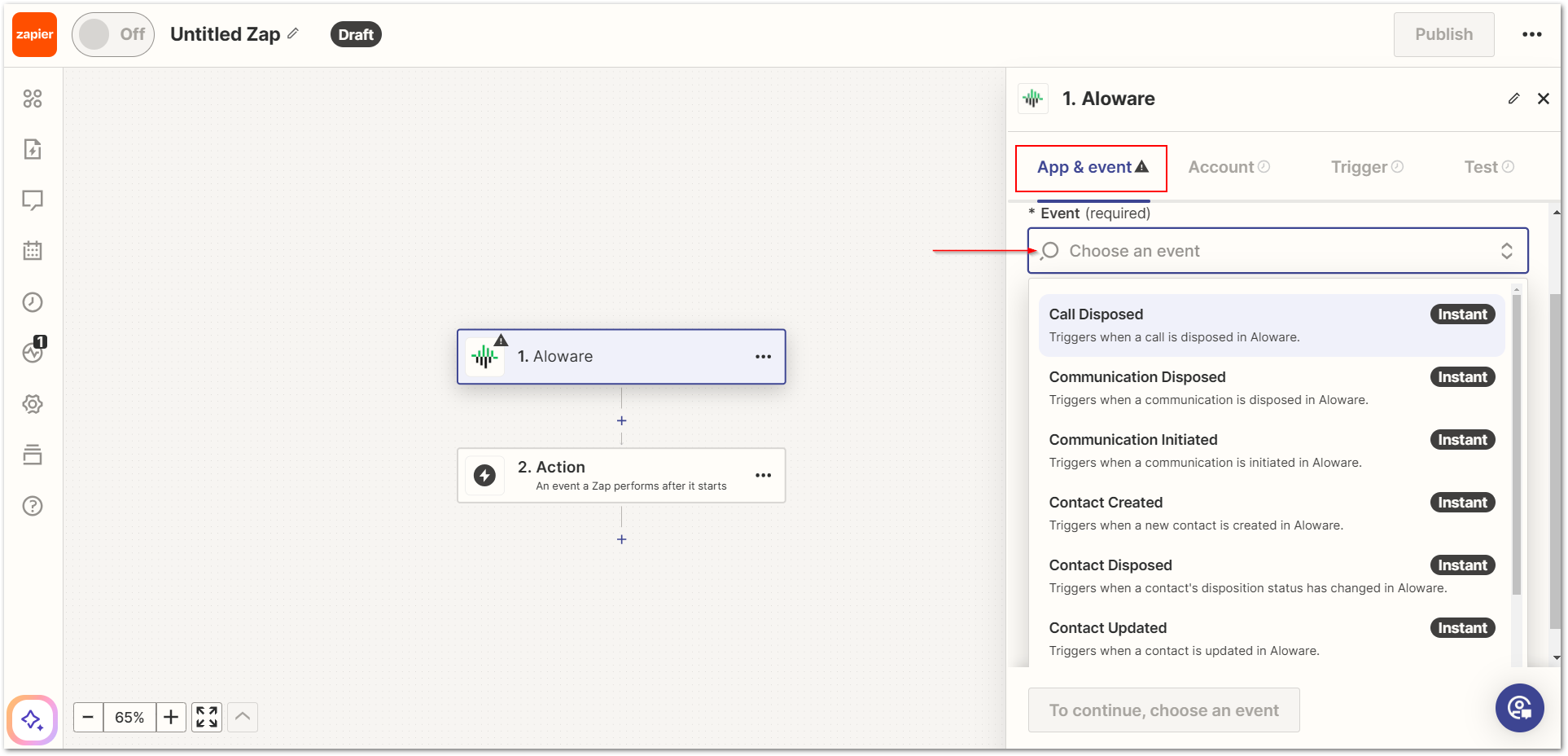
- Triggers start a Zap when one of these Aloware events happens:
1. Call disposed: a call is marked completed. Use it to send a recap email or update your CRM.
2. Communication disposed: any communication (a call, an SMS, and so on) is completed. Use it to log the details in another app or start a follow-up.
3. Communication initiated: a new communication starts. Use it to record start times or alert teammates to new activity.
4. Contact created: a contact is added. Use it to push the person into campaigns or a CRM so no new lead slips through.
5. Contact disposed: a contact's status changes or the contact is taken off a list. Use it to mirror that change in other systems.
6. Contact updated: an existing contact's details change. Use it to keep every tool on the latest data.
7. Recording saved: a call recording is stored. Use it to copy recordings to cloud storage or attach them to a CRM profile.
8. Voicemail saved: a voicemail is stored. Use it to alert teammates or archive the voicemail.
- Action steps are what the Zap does in Aloware:
- Create/Update Contact: adds a contact, or changes an existing one, so your contact list matches every connected platform.
- Enroll Contact to Sequence: puts a contact into one of your Aloware sequences, for example a drip campaign, so leads get nurtured without manual work.
- Establish Two-Legged Call: connects an agent and a contact on one call through Aloware, handy for quick follow-ups or scheduled calls.
- Number Lookup: returns details about a phone number, such as carrier or location, so you can check contact data and target outreach.
- Send RVM (Ringless Voicemail): drops a voicemail on a contact's number through Aloware without making the phone ring.
- Send SMS: texts a contact through Aloware, for reminders, follow-ups or promotions.
Field reference
- [campaign_id] : [required] ID of the Aloware campaign to attach the lead to. Copy it from that campaign's page.
- [phone_number]: [required] the lead's number. Any format works, for example +1 818-740-5020.
- [company name]: [optional] the company the contact belongs to.
- [name] [first_name] [last_name] : [optional] identify the contact.
- [lead source]: [optional] custom source value for segmenting contacts afterwards.
- [source]: [optional] custom source value for segmenting contacts afterwards.
- [email]: [optional] identifies the contact for CRM integrations.
- [date_of_birth] : [optional] birthday in US format (12/05/1975 or 12-05-1975), used by birthday campaigns.
- [timezone]: [optional] the contact's timezone, used for scheduling.
- [city], [state], [zip code], [country]: optional location values for segmentation. Leave them empty and Aloware works them out from the phone number.
- [address]: [optional] where the contact is located.
- [website]: [optional] custom field for the contact's business site.
- [notes] : text saved in the Notes section of the Aloware contact. Record the contact's consent to electronic communications here.
- [lead_source]: for example Google Ads.
- [csf1][csf2]: custom data.
- [user-id][user_email]: identify the Aloware user to set as contact owner.
- [ring_group_id] : when set to yes, Aloware picks a random agent/user in an inbox, overriding the user you selected.
- [ring_group_id] : which of your Aloware inboxes to use (read only when the distribute to inbox option is on).
- [check_available_users] : when Yes and nobody in the inbox is active, the contact isn't distributed (read only when the distribute to inbox option is on).
- [add_to_powerdialer] : whether to add the contact to the PowerDialer of the agent/user who receives it. A lead already in someone's PowerDialer is skipped.
- [powerdialer_position] : used with the field above; puts the lead at the top or the bottom of the PowerDialer.
- [sequence_id] : which of your Aloware sequences to enroll the lead in.
- [force_update_sequence] : whether to remove the lead from its other automation sequences and move it to the new one (read only when a sequence is chosen).
- [force_update] : whether to overwrite the contact's existing data with the new values.
- [line_id] : which Aloware line is the contact's first line, or the line to send from (in Establish Two-Legged Cal, in Send RVM and in Send SMS).
- [tag_id] : applies an Aloware tag to the lead.
- [disposition_status_id]: sets a disposition status on the lead.
- [other_phone_numbers] : for example Mobile, Whatsapp.
- [audio_url]: download link of the audio file to send.
- [message]: the text to send to the contact.
- [image_url]: optional media file sent with the message.
With these triggers and actions, routine steps run on their own across your tools, communication stays in sync, and your team can spend its time on higher-value work.
Our support team can help you set this up.