HubSpot workflow errors
How Aloware handles and logs workflow errors.
Use this page to understand what happens when an Aloware action in a HubSpot workflow fails, and how to trace the failure back to its cause.
Failures usually come from bad data, for example a duplicated record or a contact Aloware can't save. Aloware handles them through HubSpot's Blocking API: the failed action halts right away, HubSpot gets a structured error back, Aloware writes the full details to its logs, and the people you've set up to be notified get an alert so someone can look into it.
What the Blocking API does on a failure
When Aloware can't complete an action it received from a HubSpot workflow, four things happen:
- The branch halts. Aloware blocks every later action in that workflow branch, so you don't end up with half-applied or conflicting updates.
- HubSpot gets a blocking response. The error text shows up in the workflow's execution history.
- Aloware writes logs. Each log carries timestamps, context and unique identifiers.
- Stakeholders get an alert. The recipients you configured (operations, account owners and so on) receive the error details and what to do next.
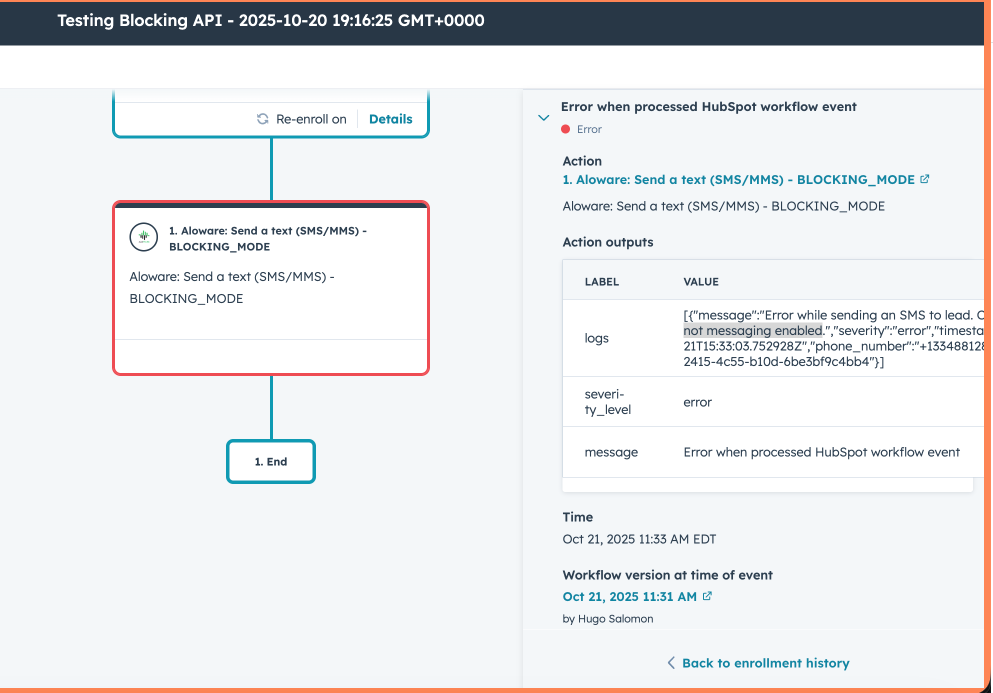
Reading the result in HubSpot
After Aloware answers, HubSpot shows one of these statuses below the action it affected:
- Successfully processed HubSpot workflow event
- Partially processed HubSpot workflow event
- Error when processed HubSpot workflow event
- Problem when processed HubSpot workflow event
The status tells you whether the action ran as planned or an error cut it short.
Sample error log
A log like this shows you exactly what went wrong and at which point.
Log fields
Every workflow event is logged with the same set of fields, for auditing and monitoring.
Because the format never changes, you can troubleshoot and run compliance checks the same way every time.
Tracing a blocked workflow
Work through these checks when a workflow stops on an error:
- Open the execution history in HubSpot.
Find the action marked Error when processed HubSpot workflow event or Problem when processed HubSpot workflow event. - Read the message.
It gives you the timestamp, the Aloware contact ID and a description of what failed. - Find the record.
Open the affected contact or task from the contact ID or the HubSpot record link in the message. - Confirm the cause in Aloware.
Check the HubSpot record against Aloware's activity logs to see what actually happened (a duplicate contact or an invalid number, e.g.). - Fix it.
Resolve the problem, such as merging the duplicates or filling in the missing data, then run the workflow again if you need to.
Monitoring at volume
The integration is built to stay stable when HubSpot sends a large number of workflow actions:
- A trace ID on every blocking event lets you follow the actions that belong together.
- You get one notification per event, even if HubSpot retries it.
- Laravel Horizon processes the queue, which keeps performance even under heavy load.
The result: Aloware and HubSpot stay in sync, and you can always see how each workflow behaved.
Our support team can help you set this up.