Assign contacts by email
Map user emails to contact owners with Zapier.
Use user email mapping when you want Zapier to set the owner of each new Aloware contact for you. You pass a user's email address, and Aloware assigns the contact to the user with that address.
With user email mapping, every new contact lands with the right contact owner, picked from the email address you supply.
Automating ownership removes a manual step, cuts assignment mistakes and keeps ownership consistent, so your team spends less time on admin.
Walkthrough: assign owners by user email
The steps below build and test a Zap that sets the contact owner on new Aloware contacts from a user's email address.
Step 1: Create the Zap
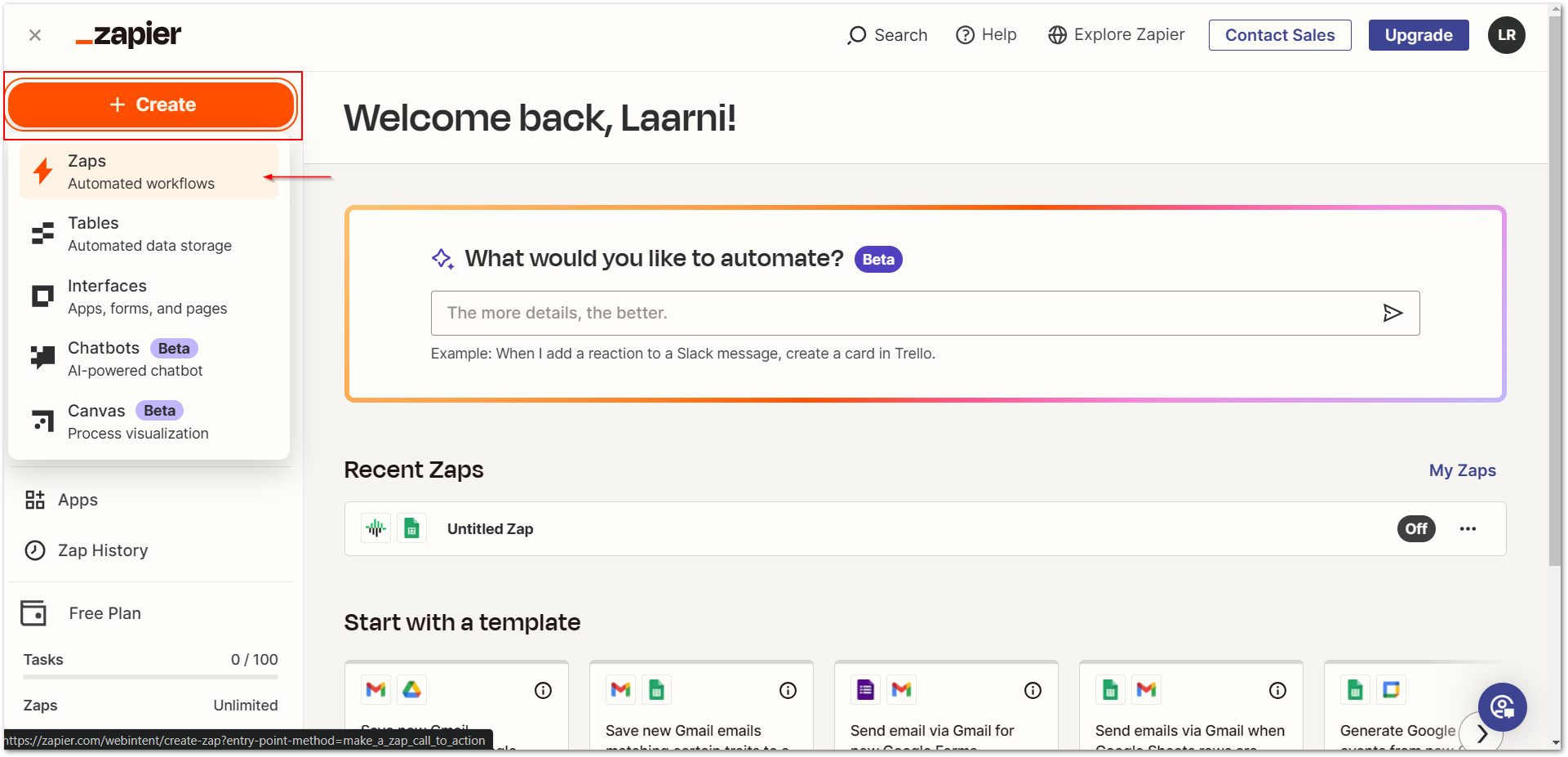
1. Sign in to Zapier, click create and pick zaps to open a new zap.
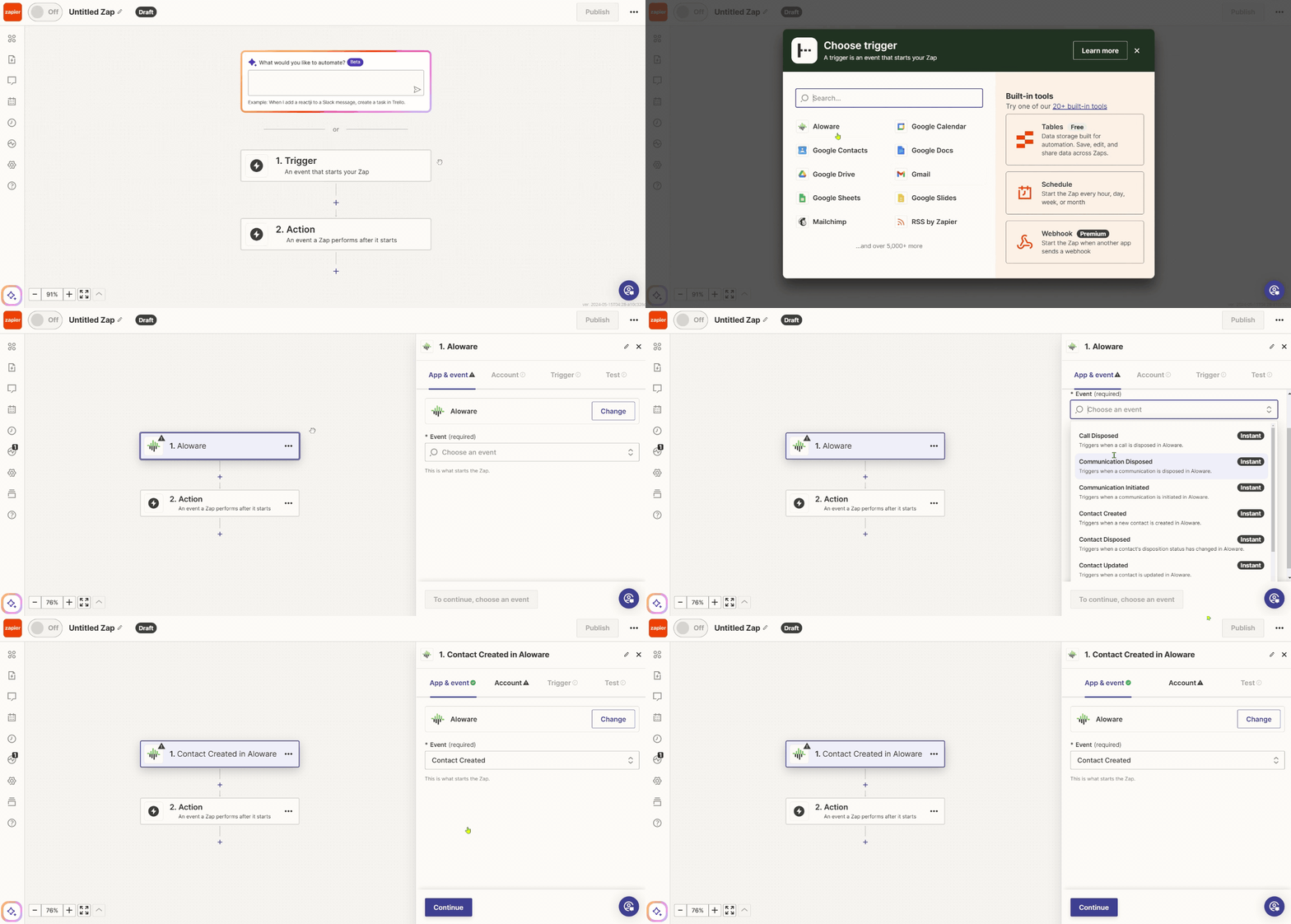
2. Click trigger and set Aloware as the trigger app.
3. Set the trigger event to "new contact created".
Step 2: Connect and test the trigger
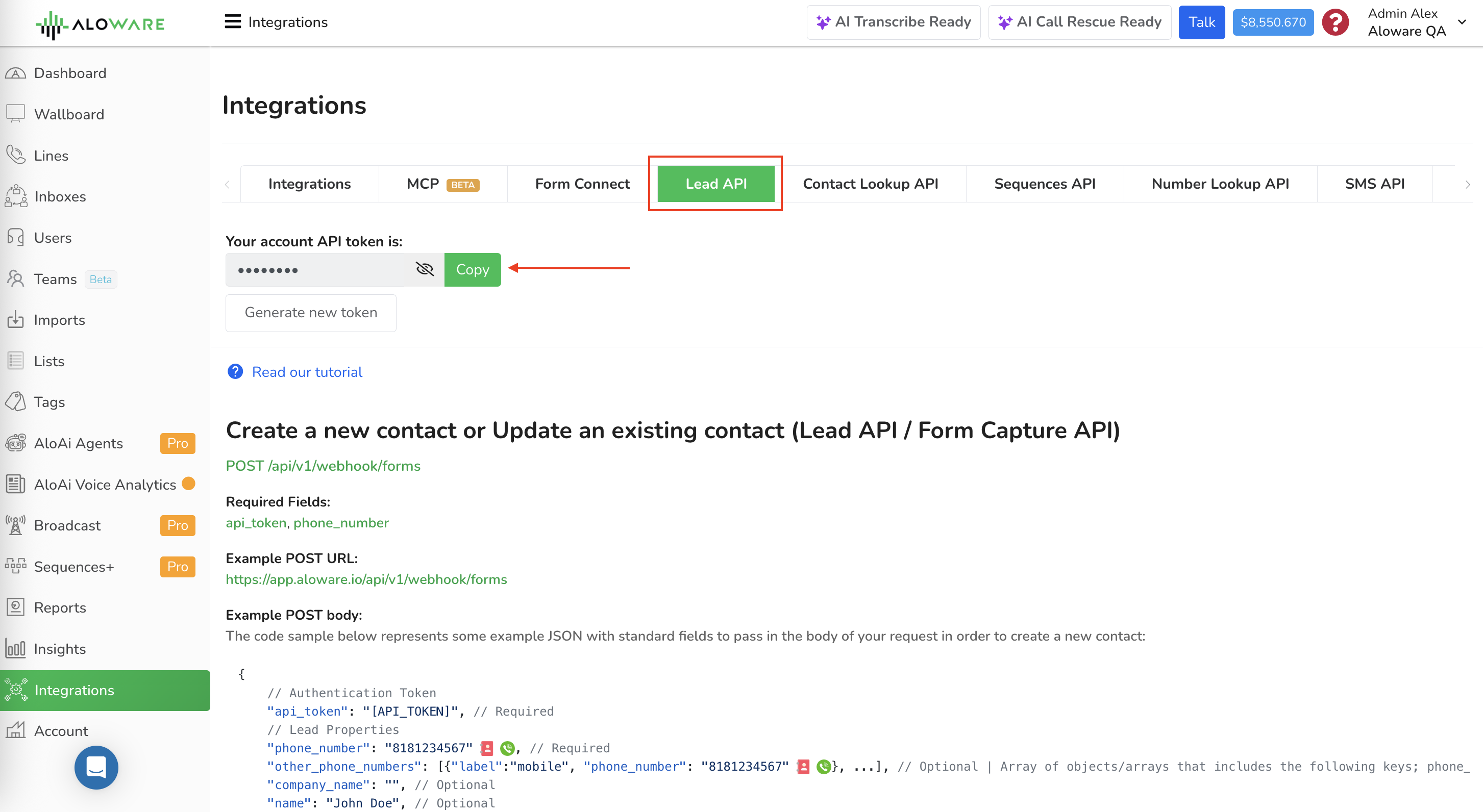
1. In Aloware, copy your Lead API token.
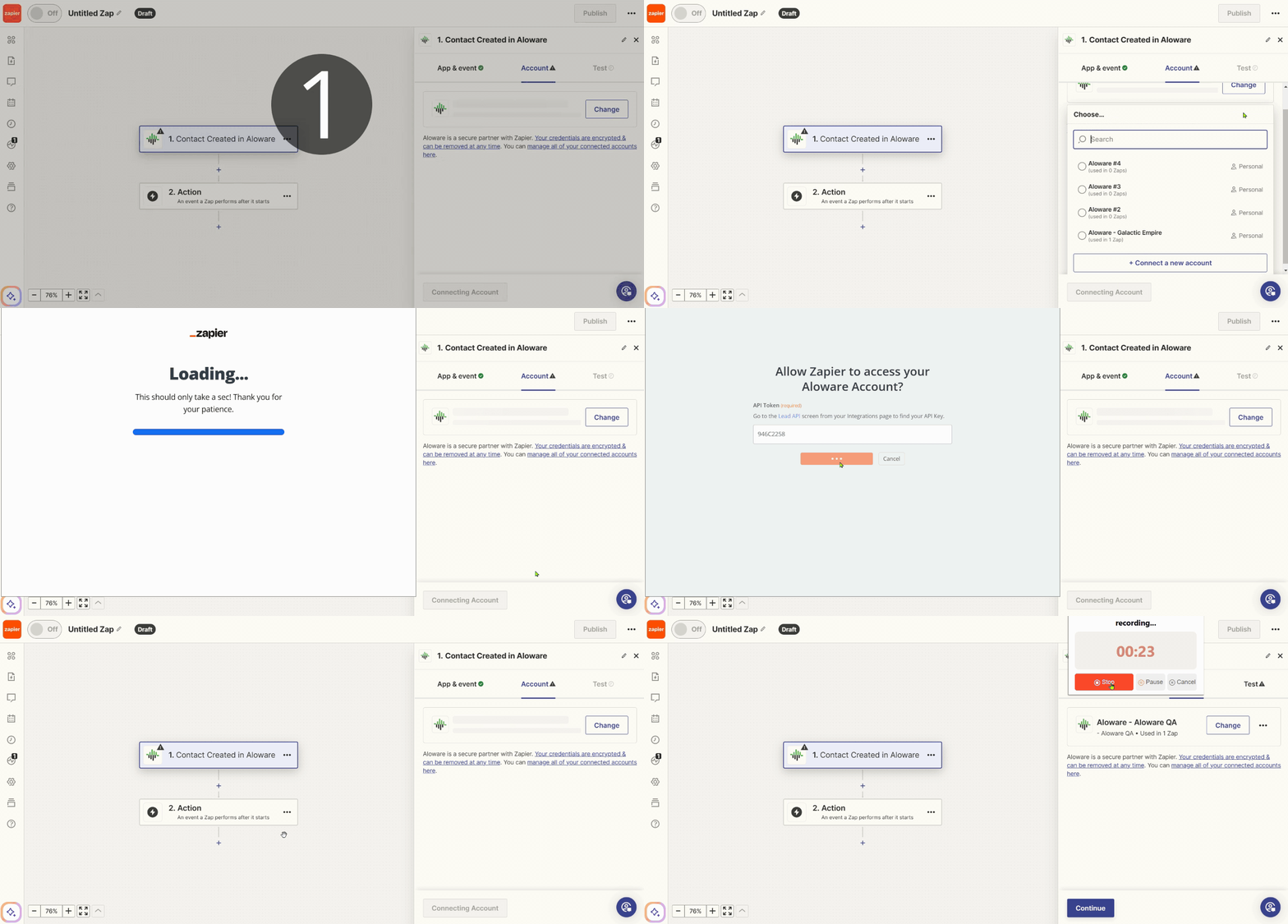
2. Use it to connect your Aloware account in Zapier, and grant access.
3. Run the trigger test and confirm Zapier pulls in new Aloware contacts.

Step 3: Add the Aloware update action
1. Add an action step and pick Aloware as the app.
2. Set the action event to "create/update contact".
3. Map the "user email address" value to the "contact owner" field.
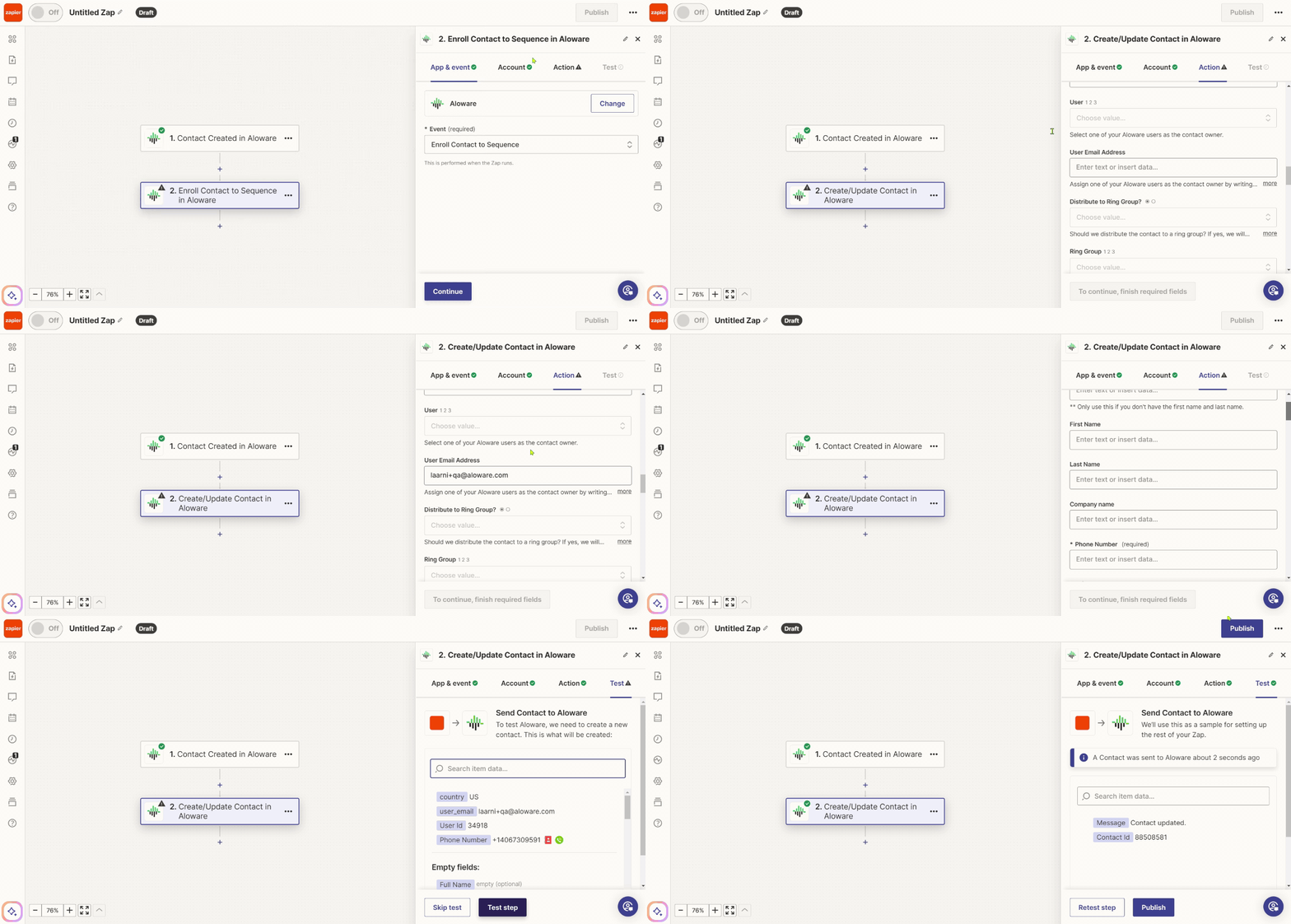
Step 4: Create a test contact
1. Add a contact in Aloware with the details you need, including the email address of the user who should own it.

2. Run the zap so it picks up that new contact.
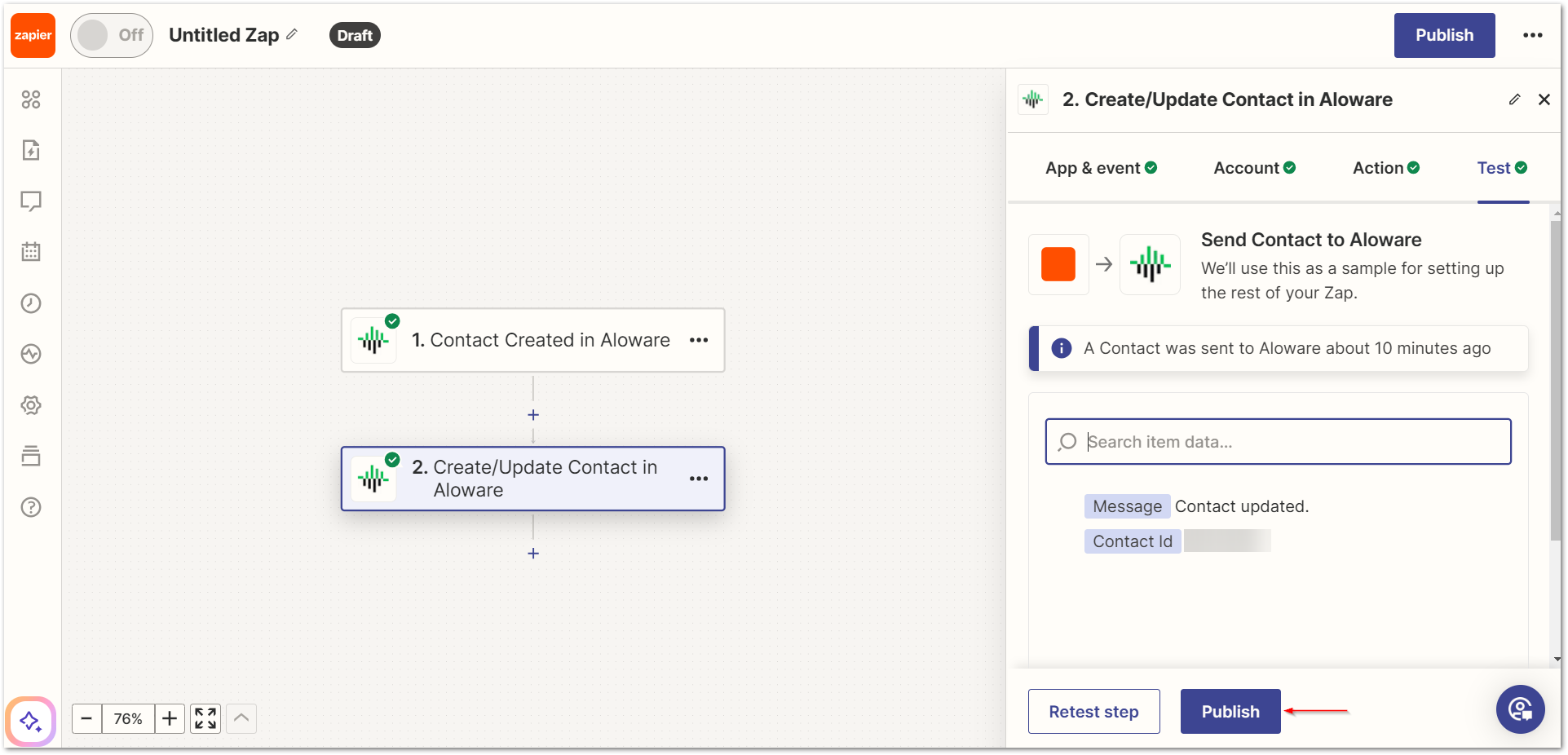
3. Publish the zap.
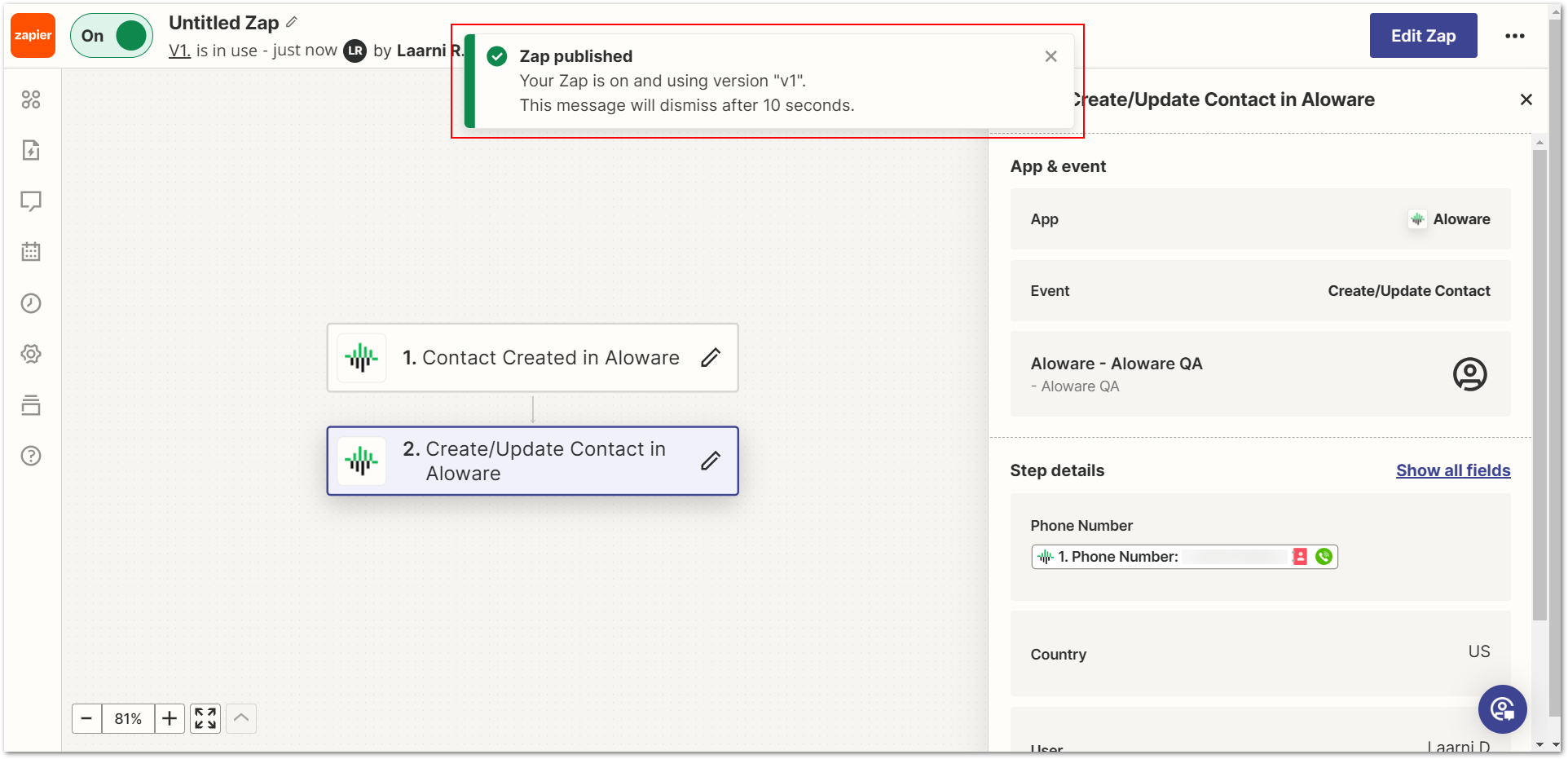
Step 5: Check the owner in Aloware
1. Sign in to Aloware.
2. Open the Contacts section and find the contact you just added.
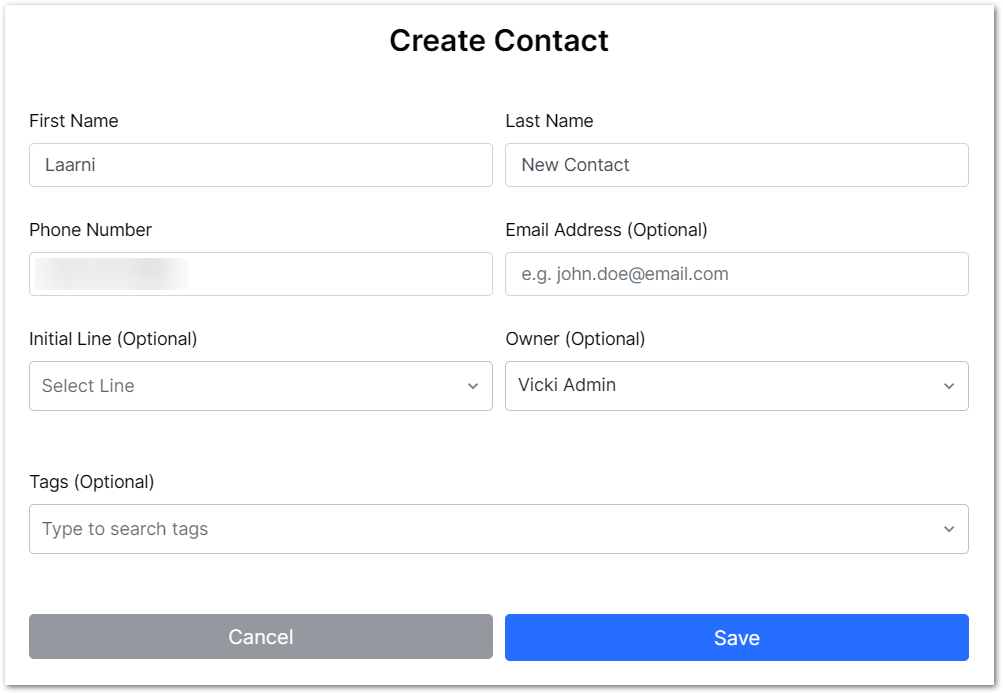
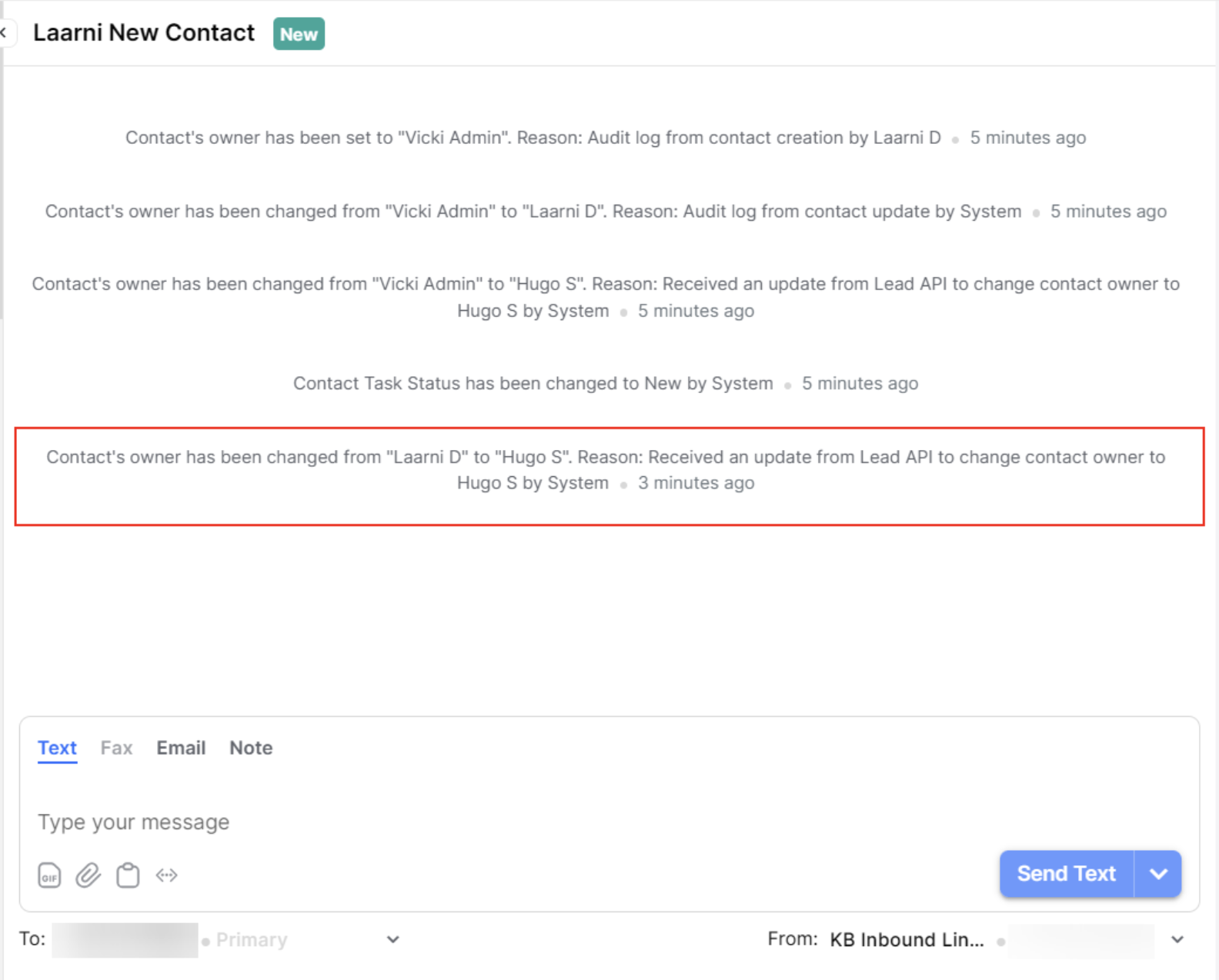
3. Confirm its contact owner is now the user whose email address you supplied.
Troubleshooting
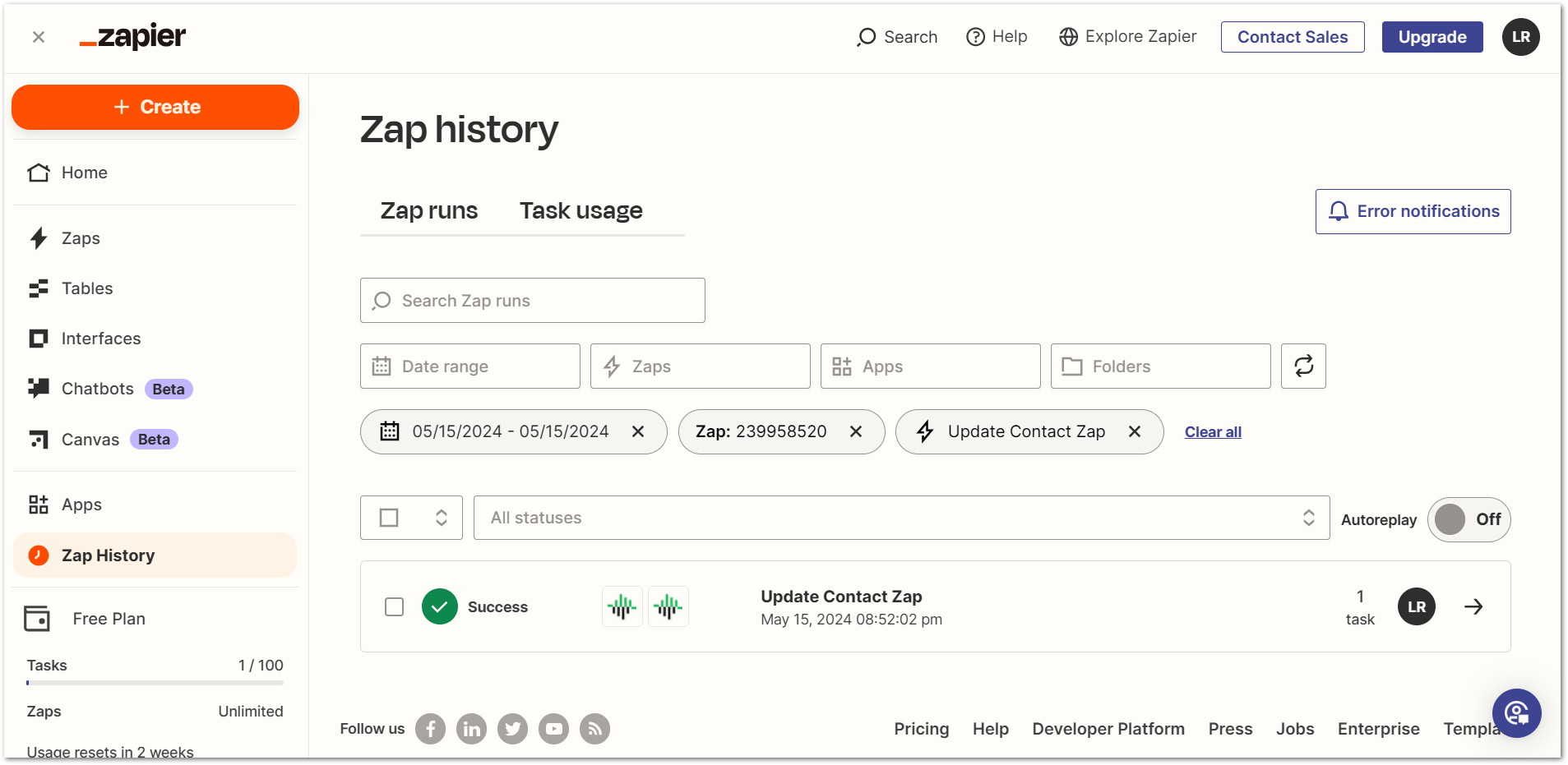
1. Zap Runs: every run of your zap is logged, which is the first place to look when something fails. Open the log in Zap History.
2. Email mapping fails: the email address you pass must belong to an existing user in Aloware.
Once these checks pass, the zap assigns owners on its own and your contact handling needs no manual step.
Our support team can help you set this up.