Speed-to-lead workflow
Call new HubSpot leads the moment they arrive.
Use a HubSpot workflow and Aloware to call every new CRM contact right away. Instead of assigning a contact owner up front, the next available agent dials the lead, and whoever reaches them becomes the contact owner.
Requirements
- A Professional or Enterprise tier of one of these HubSpot hubs: Marketing Hub Professional Enterprise, Sales Hub Professional Enterprise, Service Hub Professional Enterprise, or Operations Hub Professional Enterprise.
- Your HubSpot and Aloware accounts connected.
How it behaves
With the workflow on, each new contact is enrolled and dropped into an agent's power dialer queue. Add a branch if you want to split contacts evenly across several agents. New leads get called immediately, inbound calls are handled smoothly, and you connect with and convert more of them.
Build the workflow
1. Create a contact-based workflow
Step 1. In HubSpot, start a contact-based workflow.
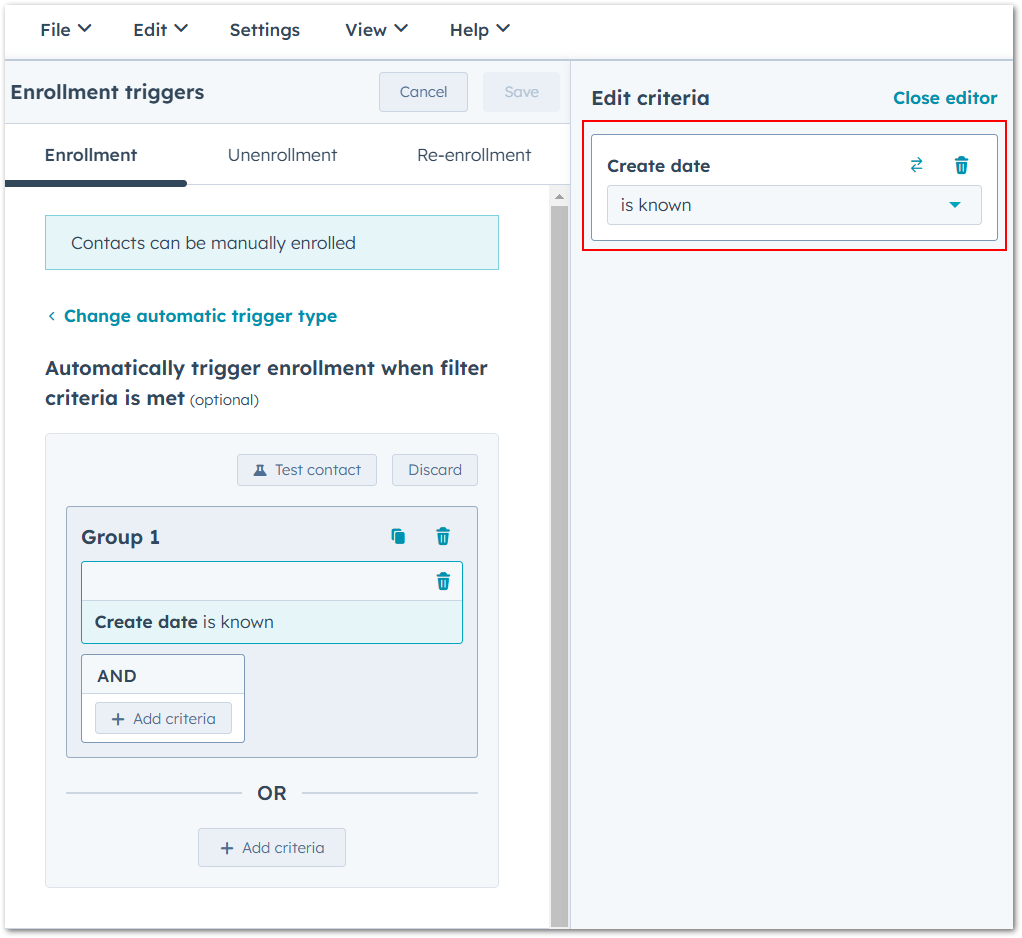
Step 2. Use "create date is known" as the trigger. It fires whenever a new contact is created in the CRM.
2. Queue an outbound call
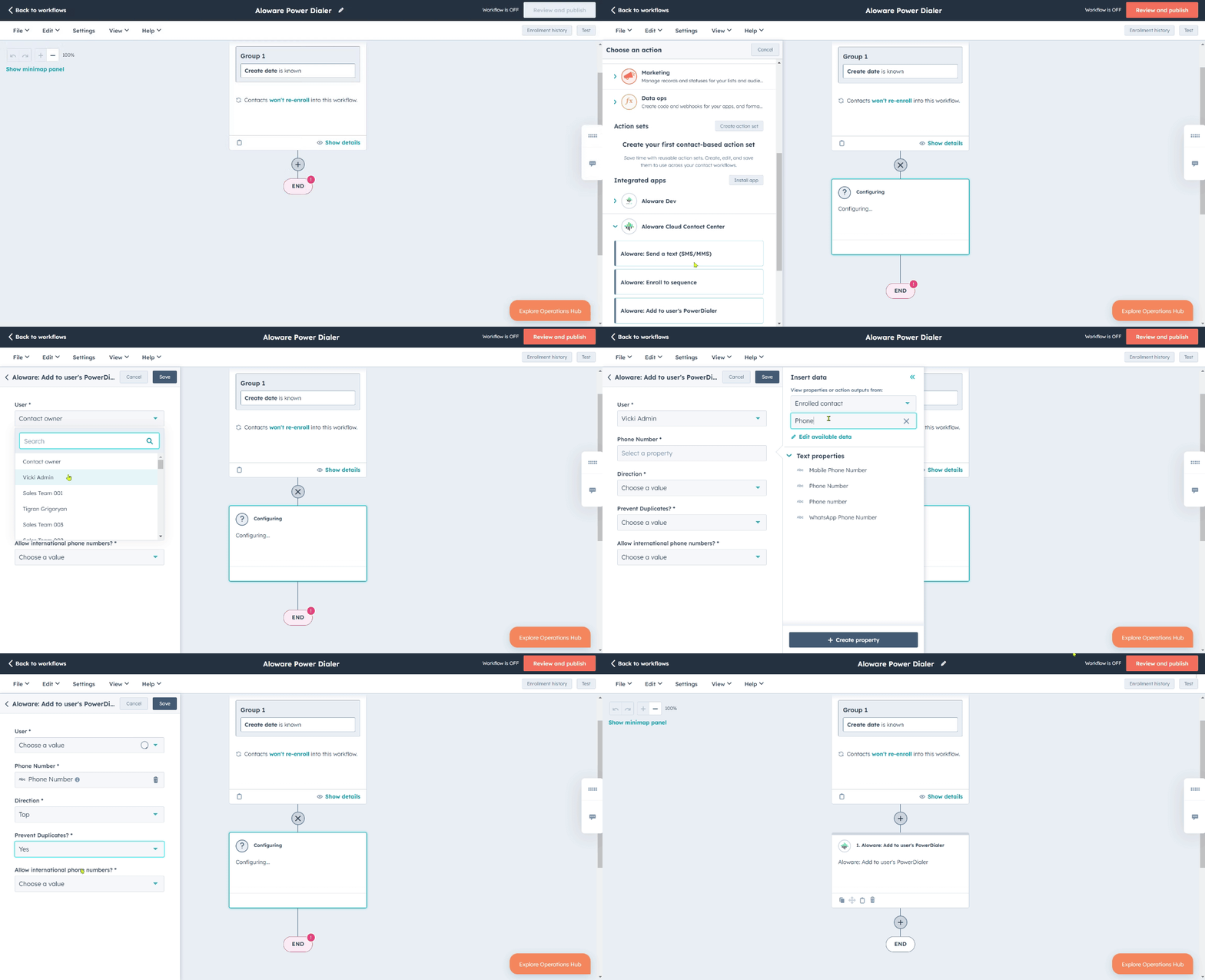
Step 1. Add the action "Aloware: add to power dialer".
Step 2. Complete the fields below, then click save.
- User - the agent who works these power dialer tasks, so the right person handles the calls.
- Phone number - which contact phone property is added to the Power Dialer (phone number or mobile number, e.g.).
- Direction - where new contacts go in the queue, so you can prioritize calls:
- Top - first in the power dialer list
- Bottom - last in the power dialer list
- Prevent duplicates - on by default; keeps each phone number in your call list once, so nobody gets called twice:
- Yes - two contacts with the same phone number can't both sit on the Power Dialer.
- No - two contacts with the same phone number can both sit on the Power Dialer.
- Allow international phone numbers - turn this on to include international numbers in the contact tasks, so you can call beyond your local area.
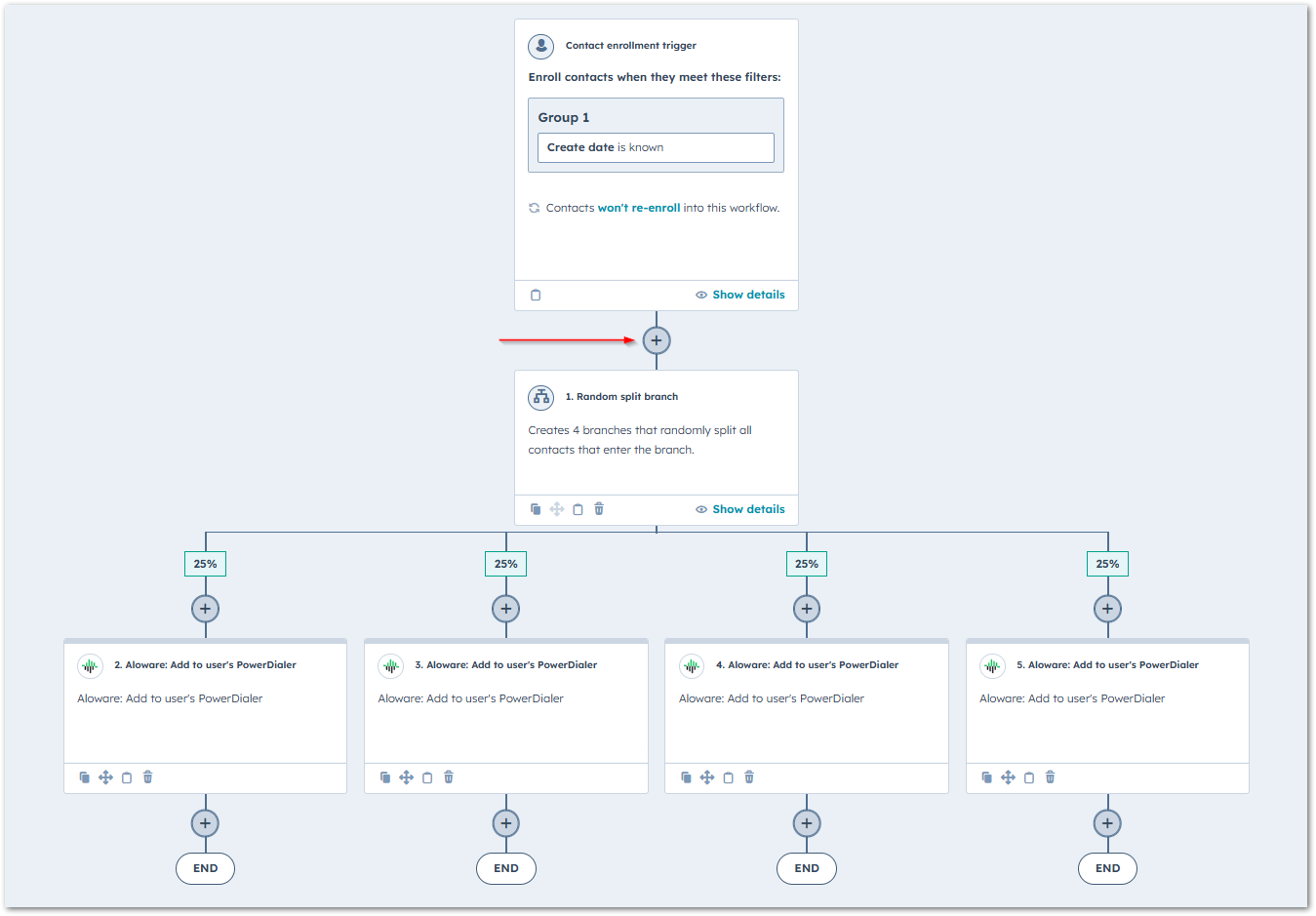
Want to share leads between several agents? Add a branch that splits enrolled contacts evenly among them.
What you'll see
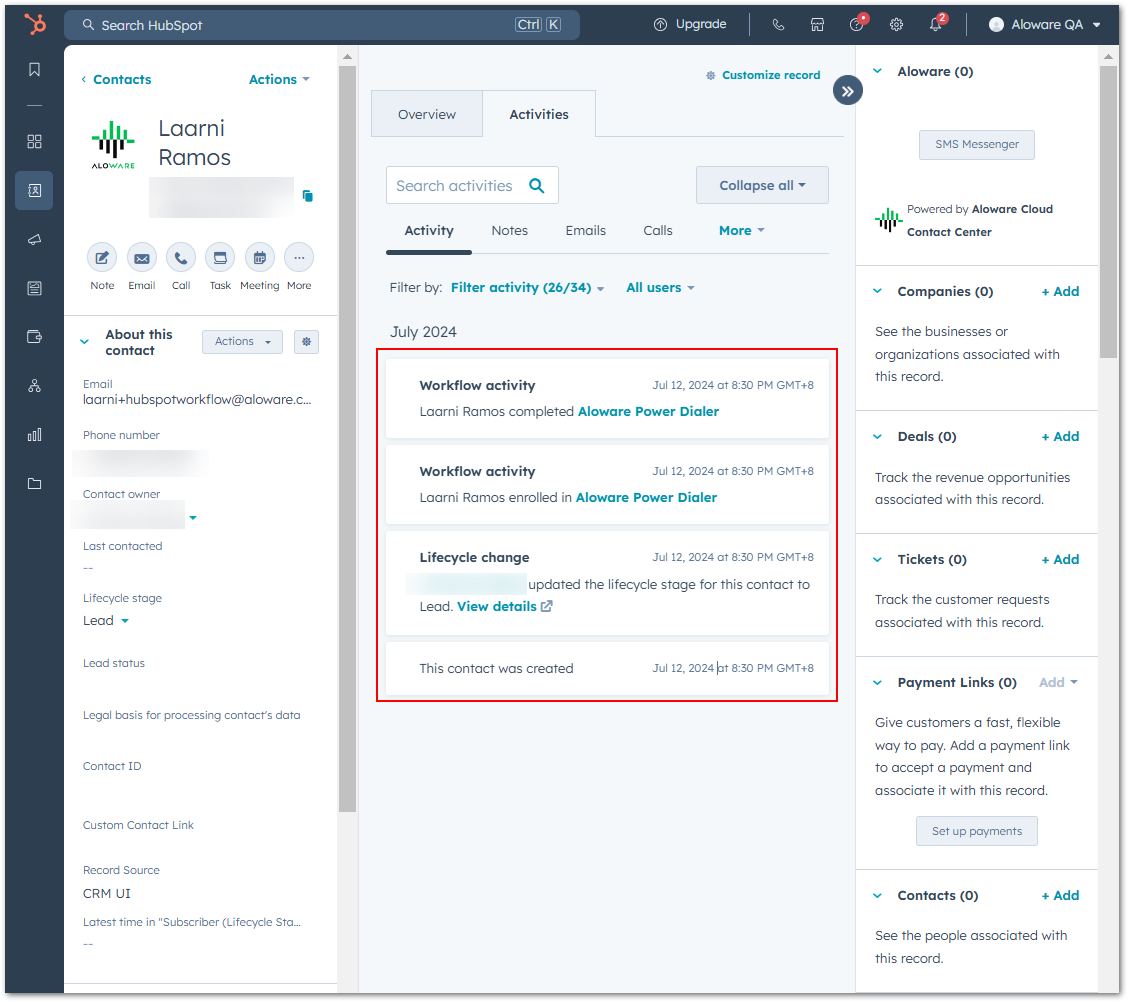
Contacts are added to the agent's power dialer queue, including while the agent is in a live power dialing session.

The workflow's activity is also logged on the contact's activities in HubSpot.
Our support team can help you set this up.