Zapier setup guide
Connect Aloware to Zapier step by step.
Zapier lets you connect Aloware to other apps without writing code. There are two patterns: another app's event triggers an action inside Aloware, or an Aloware event (sent as a webhook) triggers an action in another app. Both are set up below.
Pattern 1: another app triggers an action in Aloware
Example: a Typeform submission creates a contact in Aloware.
1. Sign in to Zapier (Login, or create an account) and go to the Dashboard.
2. From the Dashboard, start a new Zap by picking a Trigger and an Action.
- Pick the Trigger App (for example Typeform) and set Aloware as the Action App.
- Pick the event for each app, then click Try it.
3. Click Get Started.
- When prompted, connect the Trigger App and choose the forms it should watch.
- When prompted, connect the Aloware App with your account's API token. You'll find it in Aloware at Integrations > Lead API.
4. Map the Data: match each field from the Trigger App to its Aloware field.
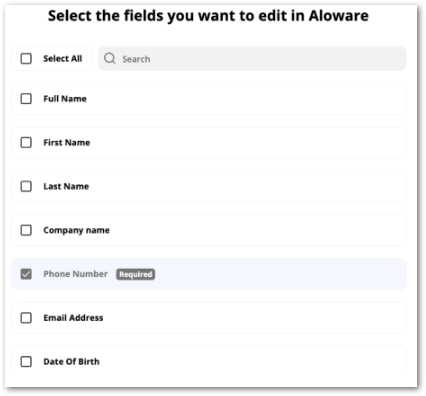
5. Test the Zap: click "Send Test", then look in Aloware for the new contact. If a mapped value is missing or wrong, go back and fix that mapping.
6. Turn it On: click "Turn on Zap" to make it live. To find it again later, open "Manage Zaps", or click the Zapier logo and then "Zaps".
Pattern 2: an Aloware event triggers an action in another app
Example: each contact you create in Aloware is logged as a row in Google Sheets. Aloware sends the event as a webhook, and Zapier catches it.
- Sign in to Zapier (Login, or create an account) and go to the Dashboard.
- From the Dashboard, start a new Zap by picking a Trigger and an Action.
- Set Webhooks by Zapier as the trigger app, and pick the app that should act on the event as the action app (here, Google Sheets).
- Choose Catch Hook as the trigger event and the matching action event (for example Create Spreadsheet Rows). Catch Hook receives the webhook payload Aloware sends when a contact is created (or any other event you subscribe to) and splits it into fields you can map.
- Click Try it.
- Click Get Started.
- When prompted, connect the Trigger App and choose the forms it should watch.
- When prompted, connect the Aloware App with your account's API token from Integrations > Lead API.
- Set up the Webhook.
- Copy the listening URL Zapier gives you for the hook.
- Open Aloware Webhooks, add a webhook, choose the event, and paste the Zapier URL into the URL field.
- Leave Set a Child Key empty.
- Fire the event in Aloware to send a sample. In this example, create a contact named John Grant (Zapier).
- Go to the Test trigger step. Zapier should show the caught webhook with its data already parsed.
- Click Continue.
- Configure the Action app: connect the account and map the webhook fields to the action app's fields.
- Test the Action: run the test, then open the Google Sheet and check that the new contact is there.
If a mapped value is missing or wrong, go back and fix that mapping. - Turn it on: click "Turn on Zap" to make it live. To find it again later, open "Manage Zaps", or click the Zapier logo and then "Zaps".
For the full list of Aloware events and actions, see Triggers and Actions.
Our support team can help you set this up.